Reference
Candidate statuses and emails
Every state a candidate can be in, from invitation to decision, and every email Truffle sends along the way. For each email: when it goes, who gets it, and whether you can turn it off or change it.
Checked against the live product 5 Oct 2026 Changelog Copy as Markdown
A candidate in Truffle carries several pieces of state at once: how far they have got through the screening, whether your team has reviewed them, the decision you recorded, and the result of any qualification checks. This page lists each one, then every email Truffle sends to candidates, to your team and to the account owner.
Screening progress
Every candidate you invite moves through three tracked stages. The stage shows in the status column of the candidate list and as a pill on the candidate’s profile.
| Stage | What it means | What happens next |
|---|---|---|
Invited | The invitation email has been delivered, with a link unique to the candidate. The default deadline is 7 days. | Reminders go out if the candidate hasn’t started. |
Interview started | The candidate has begun recording responses. They sit on the Incomplete tab. | They can leave and come back with an emailed continue link. |
Finished (moves to For Review) | All responses are in, assessments included. There is no separate “Completed” label. | The AI analysis runs automatically, and the candidate gets a completion email. |
A candidate who returns to a started screening enters their email and is sent a link to continue. That link also works on another device. Only the invitation deadline and the position’s own expiry stop a candidate from resuming.
With Apply first, a candidate who applies on the job page is scored and then waits in your list until you invite them to the next step. The flow on Build position reads Candidate arrives, Resume scored, Waits for your invite.
Deadlines, expiry and closing
- If you set a completion deadline on a direct invitation, the candidate’s link stops accepting submissions once it passes, and the candidate’s row shows a deadline-passed badge. You can extend a deadline after sending, for one candidate or in bulk.
- When a position’s own deadline passes, the position switches to
Expired, stops accepting new submissions, and shows candidates an expired page. Reopen it to take candidates again; reopening clears the deadline. - Closing a position stops its link and careers page accepting candidates the same day. All candidate data stays available. It does not email the candidates still waiting. See Close, archive or delete a position.
The candidate list tabs
Each position’s candidate list has four tabs: For Review, Reviewed, Incomplete and All. Candidates rejected by a qualification check do not appear on the Incomplete tab.
Review status
Each teammate reviews a candidate on their own, with a star rating and a recommendation of Move forward, Unsure or Decline. The Rating column on the candidate list shows the rating.
The Team section of a candidate’s evaluation panel stays locked until you submit your own review. Working as a team covers reviews and scorecards.
A recommendation is your opinion. It does not change the candidate’s decision.
Decisions
The decision is the candidate’s outcome in your process. Open the Decide menu on a candidate’s row and choose Advance, Hold, Reject or Hire. Clear decision removes it. A decision sends no email to the candidate. See Make a decision.
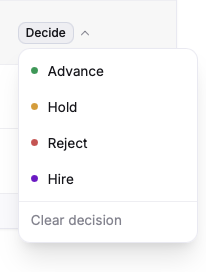
Other places to set a decision:
- In Magic Review, press A to advance, H to hold and R to reject.
- On a candidate’s Resume tab,
Advance to Interview,HoldandRejectsit at the top. - Tick several candidates in the list and use the bar at the bottom of the screen to advance, hold, reject or mark them hired in one step.
Decisions show as Advance, On Hold, Rejected and Hired. The status filter on the candidate list covers Advance, Hold, Rejected and For Review. Analytics splits completed candidates into For Review, Advanced, Hired, On Hold and Rejected.
The AI never sets a decision. A score does not advance or reject anyone.
Qualification results
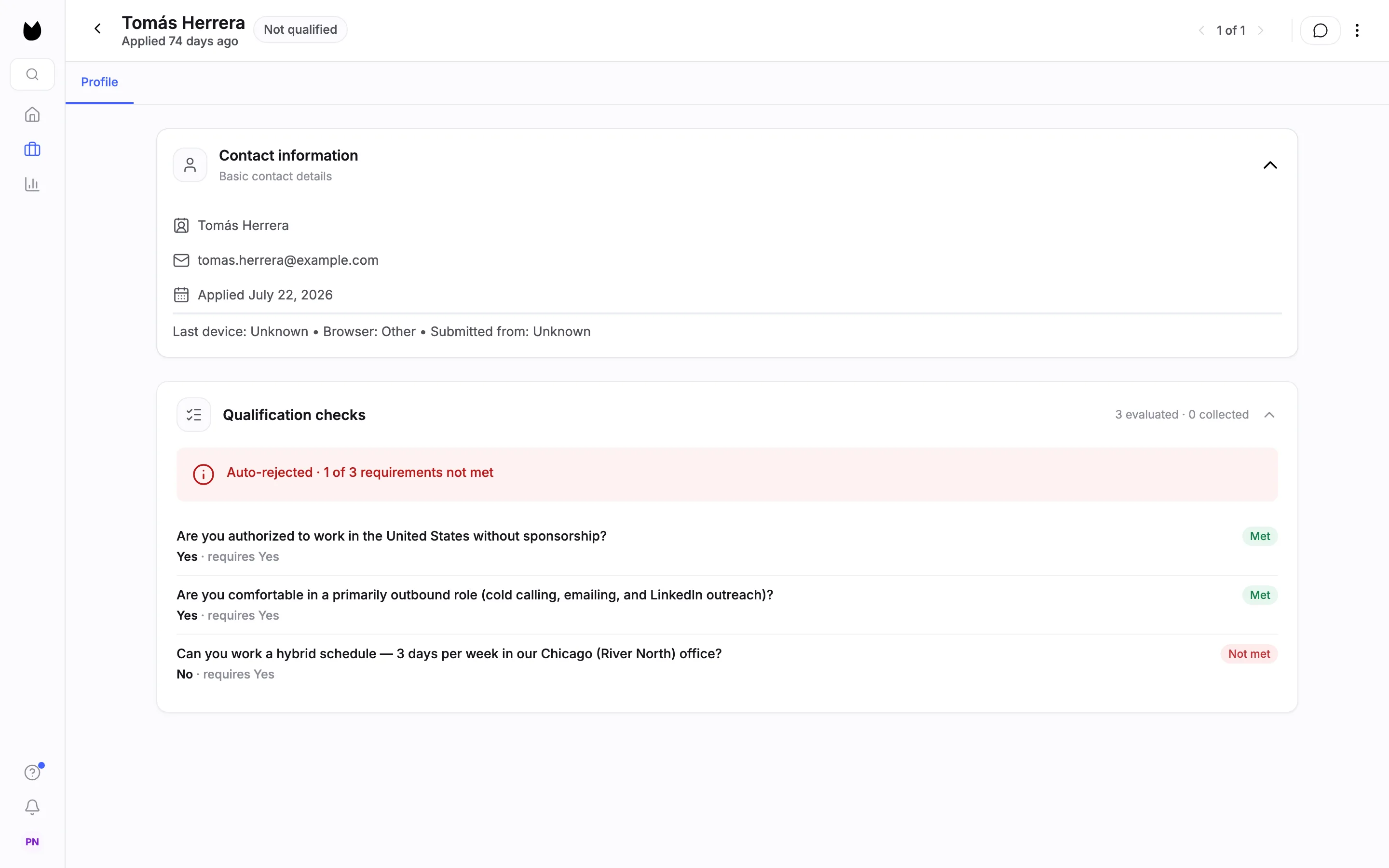
When a position has qualification checks, each candidate gets a result line that reads the same everywhere:
Requirements met.- Requirements met, with the number of answers flagged for review.
Auto-rejected, with how many requirements were not met, such asAuto-rejected · 1 of 3 requirements not met.
A candidate who misses a check set to Reject automatically is marked Not qualified. This is the only automatic rejection in Truffle, and it comes from a rule you wrote, not an AI judgement. Each answer shows what it required and whether it was Met or Not met. Filters on the candidate list includes Flagged for review.
Other markers
| Marker | Where you see it | What it means |
|---|---|---|
| Imported from email, or Forwarded in by a named teammate | Envelope marker in the candidate list and Magic Review, and a line on the profile | The candidate came in through email import. |
| Suppressed | The candidate in your view | The candidate asked to stop email, or someone on your team recorded an opt-out for them. |
| Alternative requested | Home and a banner on the candidate list | The candidate asked for an alternative to the video screening. Open the request and choose Mark as handled, with internal notes. |
Not scored or Opted out | The signal cluster | That signal has no score for this candidate. A tooltip explains it. |
| In progress | The candidate’s Ashby profile | With Ashby connected, Truffle posts this back when the candidate starts. |
Deleting a candidate removes them and all their data from every list, filter and search straight away. There is no restore option. If they had not finished, their interview link stops working.
Emails to candidates
| When it is sent | Turn it off | Change the wording | |
|---|---|---|---|
| Invitation | When you, or a connected tool, invite the candidate | Sent only when someone invites | Yes, with templates on paid plans |
| Reminder after 1 day | 1 day after the invitation, to candidates who haven’t started | Yes, per position, under Candidate emails | Yes, with templates on paid plans |
| Reminder after 3 days | 3 days after, if they still haven’t started | Yes, per position | Yes, with templates on paid plans |
| Reminder after 7 days | The final nudge, at 7 days | Yes, per position | Yes, with templates on paid plans |
| Manual reminder | When you choose to send one from the candidate’s profile, at most once every 24 hours | Sent only when you choose | Uses the reminder for the candidate’s current stage |
| Completion confirmation | Straight after the candidate finishes everything, assessments included | Yes, per position | Yes, with templates on paid plans |
| Continue link | When a candidate returns to a started screening and enters their email | Sent only on request | No |
The automated reminders and the completion confirmation are on by default. Switch them off per position under Candidate emails and reminders. The wording adapts to what the position includes, so an assessment-only position never mentions a video interview.
The subject reads {Company}: next step for your {Role} application. An invitation includes the estimated time, worked out from the position’s setup, and the deadline if you set one. A manual reminder matches the stage the candidate is at and never resends the original invitation. If the candidate’s deadline has passed, Truffle offers to extend it.
Templates
On paid plans you can keep up to 20 named templates for each of the five candidate emails (invitation, the three reminders and the completion confirmation), in a company-wide library in Settings. One template per email is the default for automated sends, and a position can pick a different one. The editor has a live preview, merge tags and a test send to yourself. Merge tags are checked when you save. Customize candidate emails walks through it.
The stock invitation includes {personalized_note}, a one-line note written from the candidate’s application when the email sends. It is left out when there is nothing specific to say. Delete the tag to send without it. The completion email only carries a note if your template adds the tag.
Who it comes from and where replies go
Invitations and reminders come from the person who sent the invitation, with their signature, or from the company when no person sent it. Reminders arrive as replies in the invitation’s thread. Every candidate email ends with “Trouble with the interview itself? Email support@hiretruffle.com.”
Replies follow your company’s choice in Settings, under Company, Candidate email. Reply to the sender sends each reply to whoever sent that email. Use one address sends every reply to the same inbox. Getting candidates in covers the routing in full.
When candidates get nothing
- Candidates whose resumes you upload get no email. They hear from Truffle only if you invite them to an interview.
- Imported candidates on an
Apply firstposition wait in the list, and nothing is sent until you invite them. - A candidate can stop email from the link in any recurring email, or with their mail client’s one-click unsubscribe. You can also record an opt-out from the menu on their row. Every send path checks this record before sending, so a suppressed candidate gets no further email from your company through Truffle.
In-flow notices to candidates
Before they start, candidates see a notice that AI is used in the screening and a consent step. The welcome page links to Request an alternative, where a candidate who cannot, or would rather not, do the video screening gives their reason. The request goes to your Accommodation contact email, or to the account owner if that is not set. Requests keep their own address and never follow your reply-to choice.
Emails to your team
| Who gets it | When | What you control | |
|---|---|---|---|
| Completed screening | Each teammate, by their own setting | When a candidate completes | Every completion, only above a match score threshold you pick (40% to 80%), or off |
| Alternative requested | Your Accommodation contact email, or the account owner if it is not set | When a candidate asks for an alternative to the video interview | Where requests land, set in Settings under Company |
| Team invitation | The person invited | When an Owner or Admin invites them | Sent only when someone invites |
| Login code | The person signing in | When they choose Email me a login code | Sent only on request |
| Import failures | Your account | When imports from email start failing | Sent while email import is on |
For a candidate on an assessment-only position, the completed-screening email shows the assessment tier in place of a match score. Notification settings are per person, so each teammate chooses their own.
Email import also sends notifications for a first import, a first completion, and a digest on day 3 of invitations still outstanding.
Emails to the account owner
Cancelling a subscription sends an email to the person who cancelled and to the account owner at three points:
- When the cancellation is scheduled, with a link to undo it.
- The day before access ends.
- When the subscription has ended.
A failed payment shows in the app, not as a lockout. It opens a grace period with a warning banner and a message. If it is not resolved, the workspace moves to a hold state, and the “account on hold” message links to the billing page. The billing page also warns when your card expires before the next payment.
What it does not do
- The AI never advances, holds, rejects or hires a candidate. The only automatic rejection is a qualification check set to
Reject automatically. - A star rating or recommendation does not change the candidate’s decision.
- Closing a position does not email the candidates still waiting.
- Deleted candidates cannot be restored in the app.
- A manual reminder cannot be sent more than once in 24 hours, and it never resends the original invitation.
- Custom email templates are on paid plans only.
- Uploaded resumes do not trigger any email to the candidate.
Related
See something here that doesn't match what you see in Truffle? Tell us and we'll fix the page.