Guide
Review candidates in Magic Review
By the end you can open Magic Review two ways, move through a position's candidates without losing your place, read the signals at the top of each candidate, and you know where the decision keys and the Decide control are.
5 min · 10 steps · Captured from the live product 5 Oct 2026 Changelog Copy as Markdown
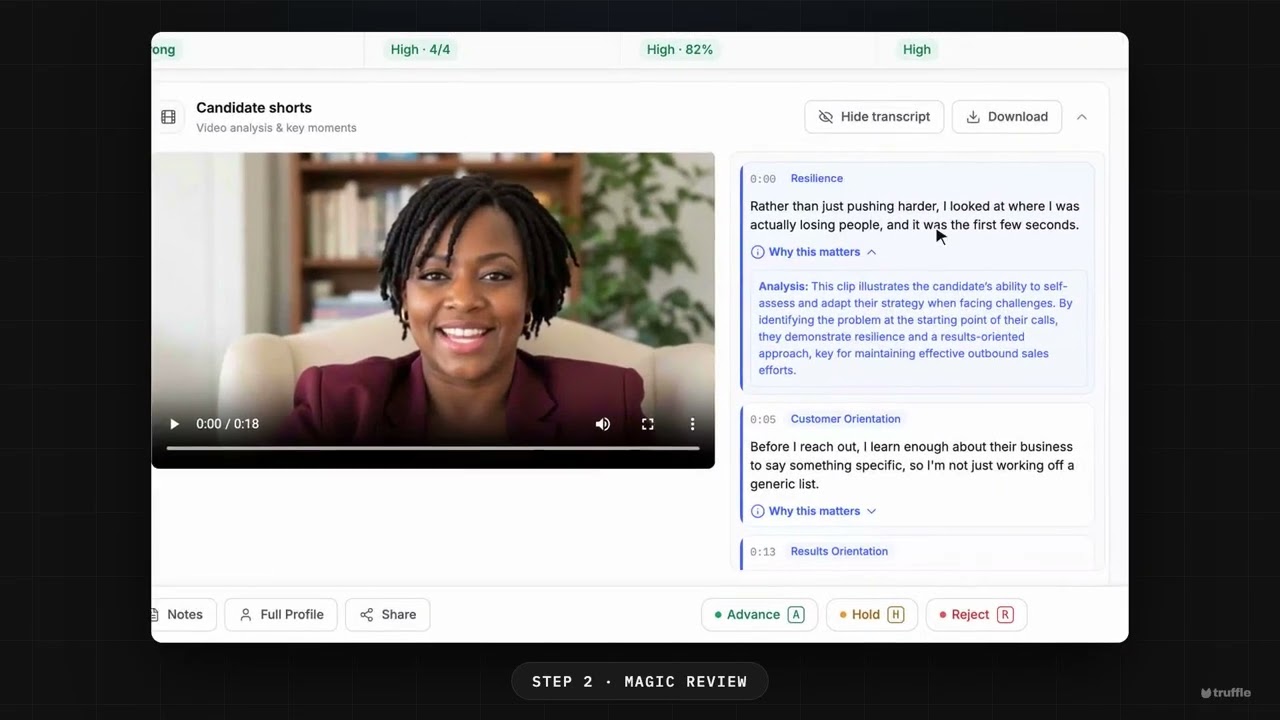
Key moments and transcript
- 0:00 The candidate list and its signals
- 0:16 Magic Review
- 0:37 Decide: Advance, Hold, Reject or Hire
- 0:55 What happens next
Here's how to review a position's candidates in one pass, and decide who moves on. Open a position's candidates. Each row shows its signals. Resume, interview, and assessments, rolled into one overall read. Switch to Focus view for Magic Review. One candidate at a time, with the list beside you. Candidate shorts pull the key moments from their interview, and show why each one matters. Criteria coverage shows how they match each of your criteria. Then read the summary, with the key insights. When you're ready, open Decide. Advance, hold, reject, or hire. Choose Advance, and they move to Reviewed. In Focus view, one key does the same, and the next candidate opens. Every candidate, ranked against your criteria, with the reasons shown. Every decision is yours. Start free at hiretruffle.com.
Before you start
- A Truffle account. The 7-day free trial works: 30 credits, no credit card.
- An active position with candidates who have finished their screening.
1Start from Home
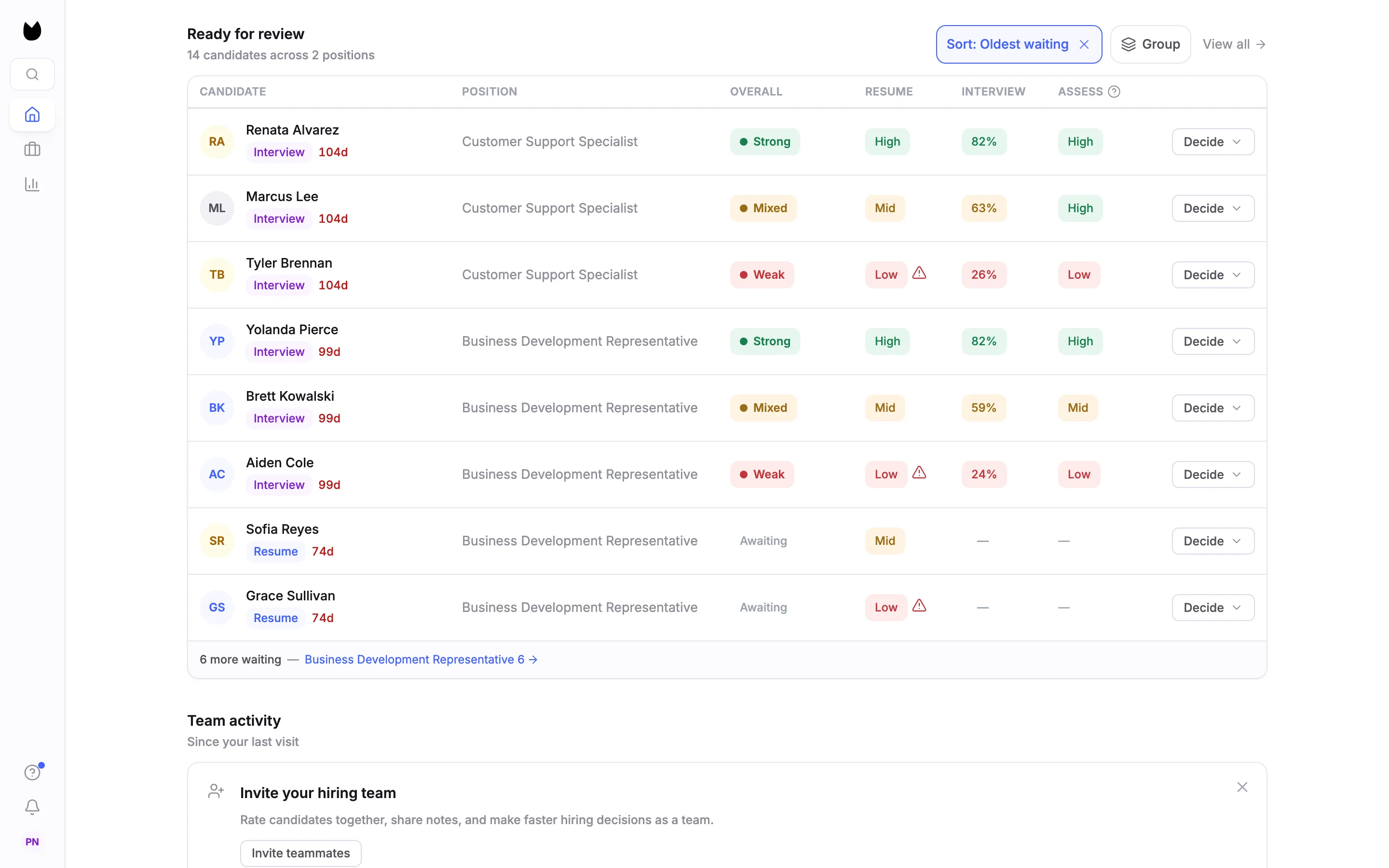
Home opens after you log in. Under Ready for review, Truffle lists every candidate waiting for a decision across your positions, here 14 candidates across 2 positions, sorted by Sort: Oldest waiting. Each row shows the candidate's stage and how many days they have waited, the position, and the Overall, Resume, Interview and Assess signals. When more are waiting than fit, a line under the table links to the rest, such as 6 more waiting.
2Group the queue by position
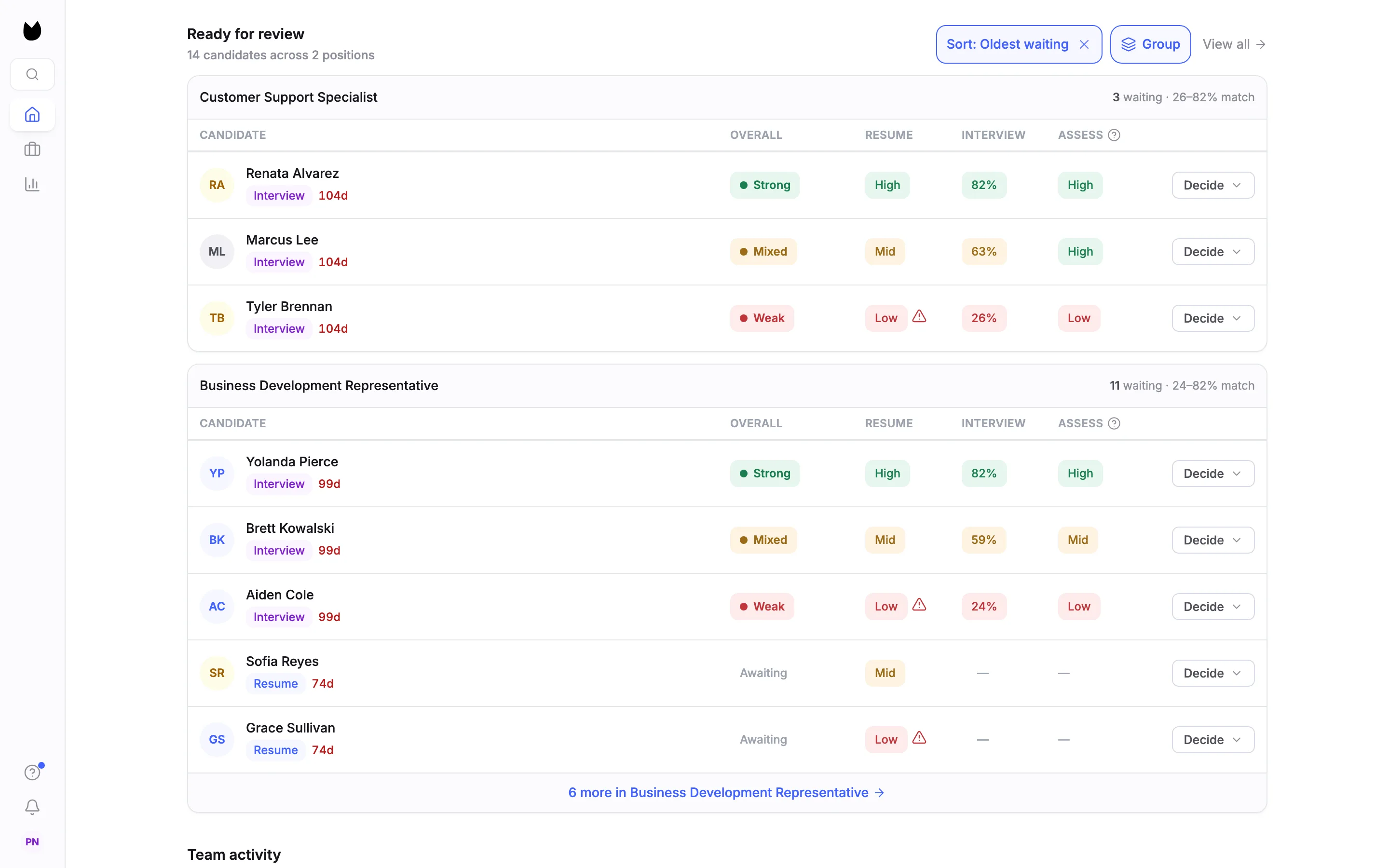
Choose Group to split the queue into one table per position. Each group's header shows how many candidates wait and the range of their match scores, such as 3 waiting · 26 to 82% match. View all opens the full list.
3Open a candidate and switch to Focus view
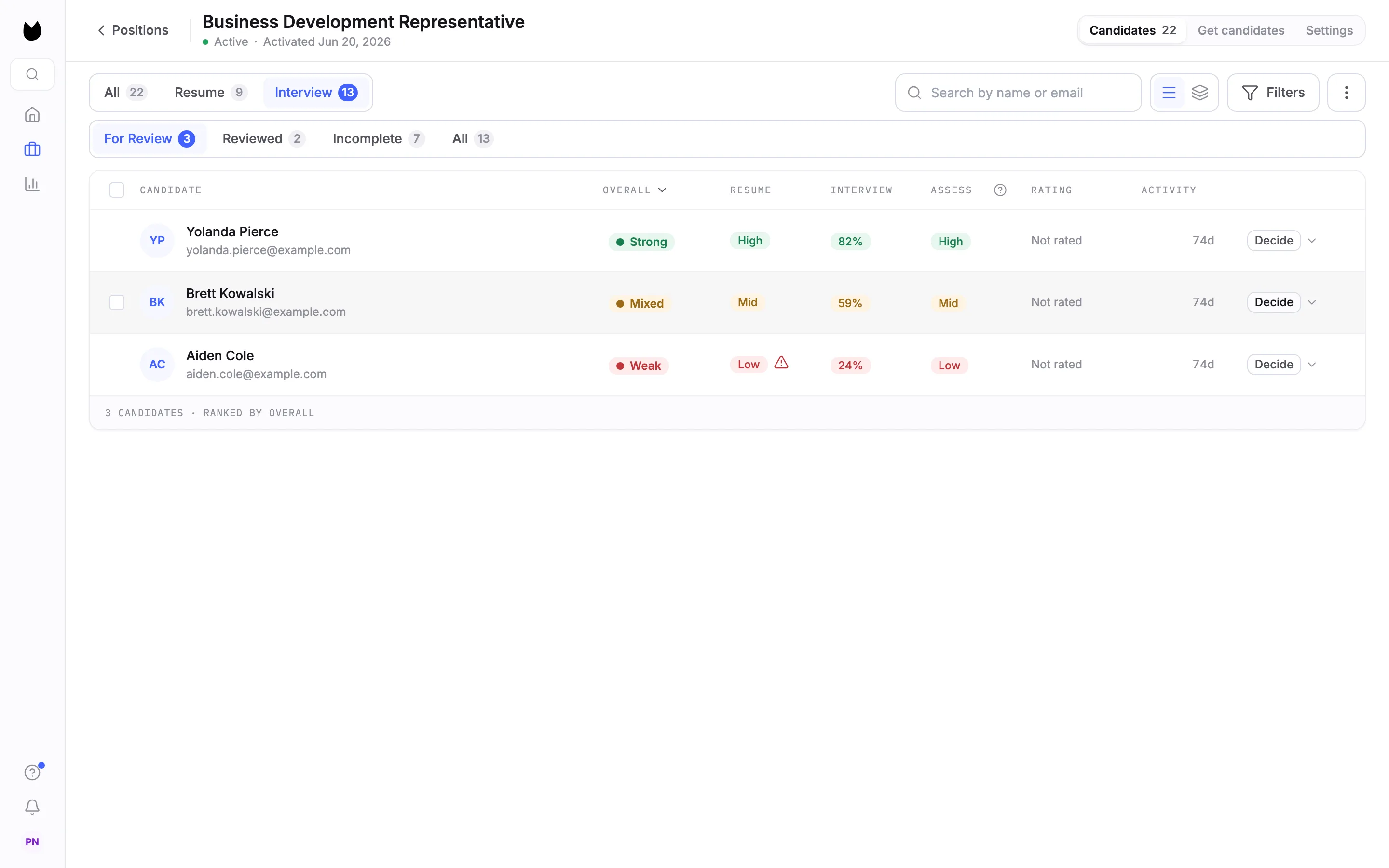
Click a candidate's row on Home. Truffle opens that position's candidates on the For Review tab, filtered to the candidate's stage, here Interview. Next to the search box are two view icons: List view and Focus view. Choose Focus view to open Magic Review. You can do the same from any position: open it from Positions, stay on Candidates, and choose Focus view.
Note. In the list view, clicking a candidate's name opens their full profile, not Magic Review. The candidate profile guide covers that page.
4Know the layout
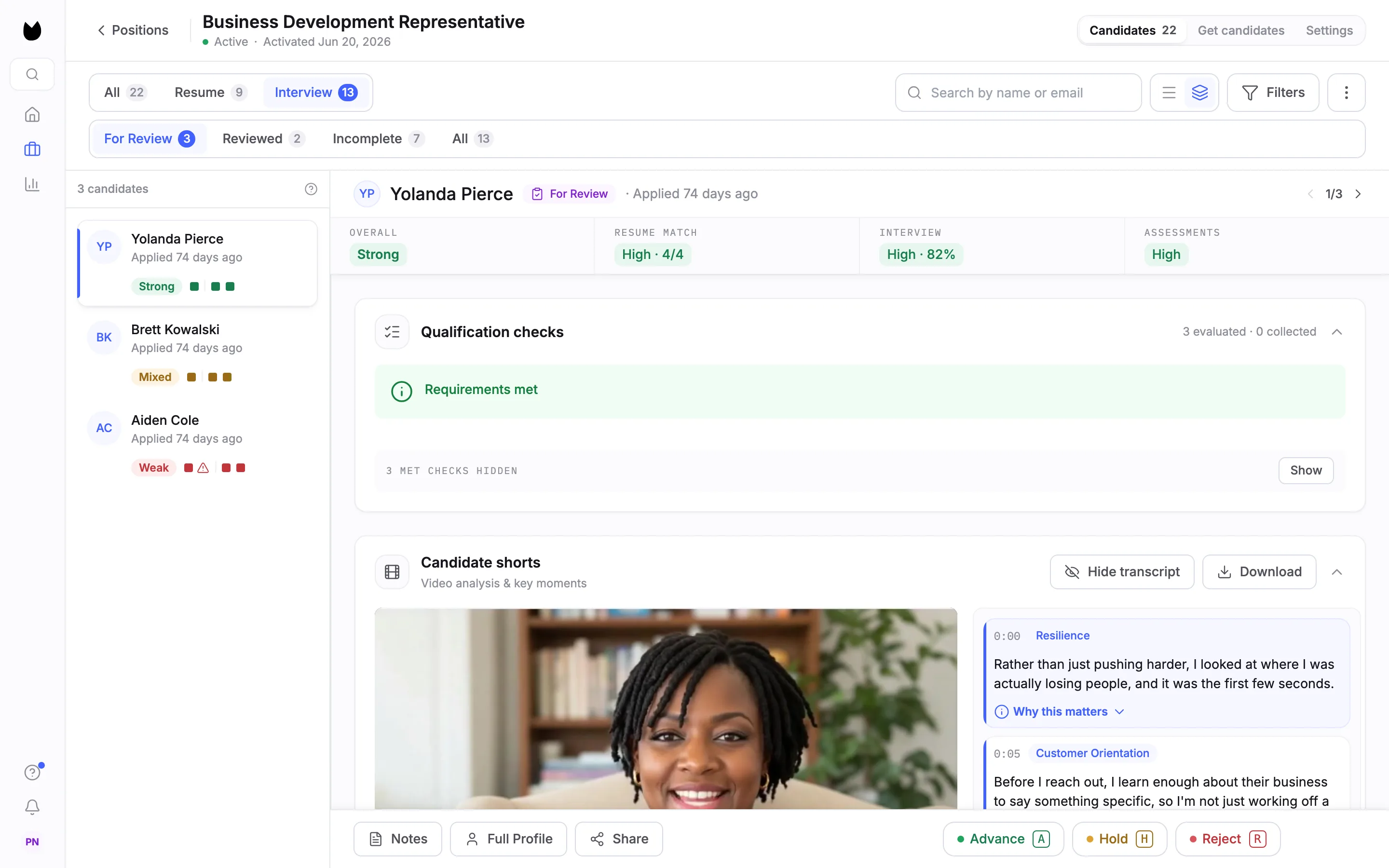
Magic Review keeps the list on the left and one candidate on the right. The left rail starts with the count, here 3 candidates, and shows each candidate's name, when they applied, their Overall signal and a row of small signal marks. The right side shows the selected candidate: their name, status and Applied 74 days ago, the signal rail, then their cards, such as Qualification checks, Candidate shorts, Criteria coverage, Career snapshot, Work scenarios and Candidate summary. The action bar stays at the bottom.
5Move between candidates
Click any name in the left rail to open that candidate. At the top right of the candidate, a counter shows where you are, such as 1/3, with an arrow on each side for the previous and next candidate. The up and down arrow keys on your keyboard move through the list the same way. The list stays in place, so you never lose your spot.
6Read the signal rail
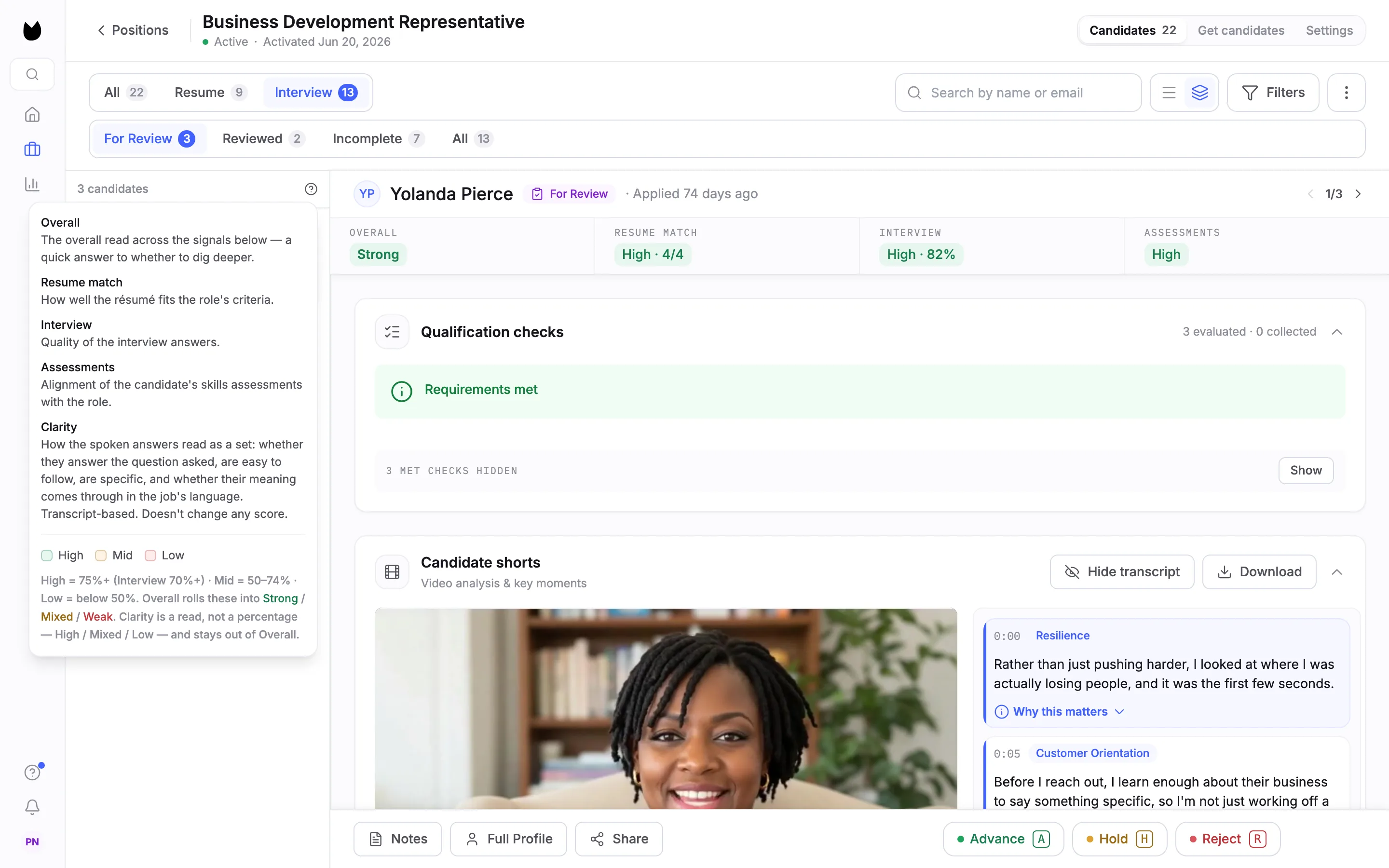
Under the name, the signal rail shows one tile for each thing the position measures: OVERALL, RESUME MATCH (for example High · 4/4, four of four criteria with evidence), INTERVIEW (for example High · 82%) and ASSESSMENTS. To see what each signal means, choose How to read these signals, the question mark at the top of the left rail. It explains each signal and the bands: High from 75% (70% for the interview), Mid from 50%, Low below 50%. Overall rolls them into Strong, Mixed or Weak.
Note. The panel also explains Clarity, which shows only on positions that use Clarity read (beta). How scoring works covers every signal.
7Find the decision keys
The action bar has Notes, Full Profile and Share on the left. On the right are the three decisions, each with its key printed on the button: Advance (A), Hold (H) and Reject (R). Pressing a key does the same as clicking its button, for the candidate on screen. Keys do nothing while you are typing in a field, and shortcuts that use Cmd or Ctrl go to your browser instead.
Note. Magic Review has no Hire button. To mark someone hired, use the Decide control on the candidate's row in the list view. Every decision is yours: the signals never advance, hold or reject anyone.
8Check where a candidate stands
The status sits next to the candidate's name. A candidate who is waiting for you shows For Review. On the list, the For Review and Reviewed tabs split candidates by whether a decision has been made.
9Open the full profile when you need more
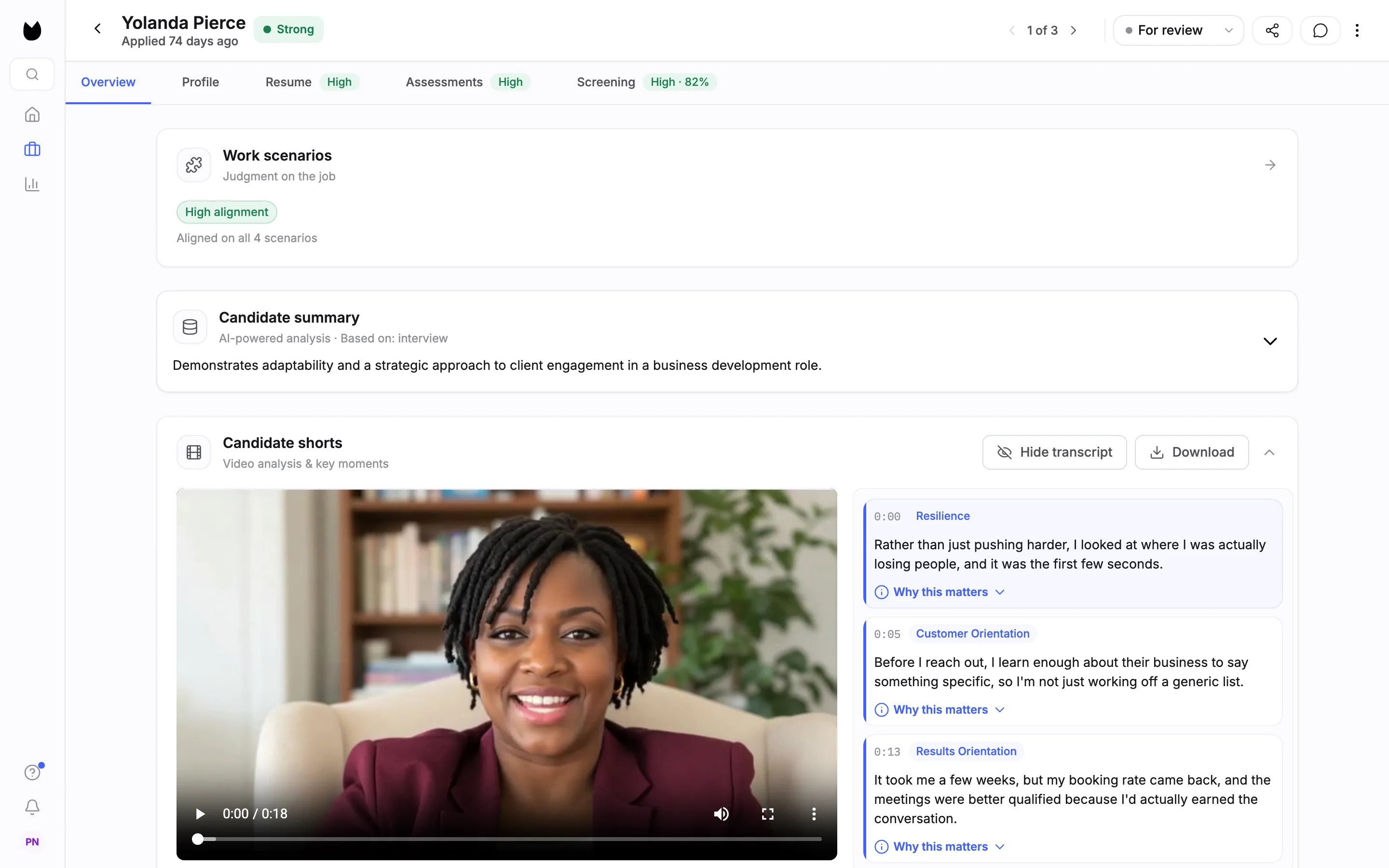
Choose Full Profile to open the same candidate as a full page, with the Overview, Profile, Resume, Assessments and Screening tabs. The back arrow at the top left brings you back to Magic Review, on the same candidate.
10Get back to the list
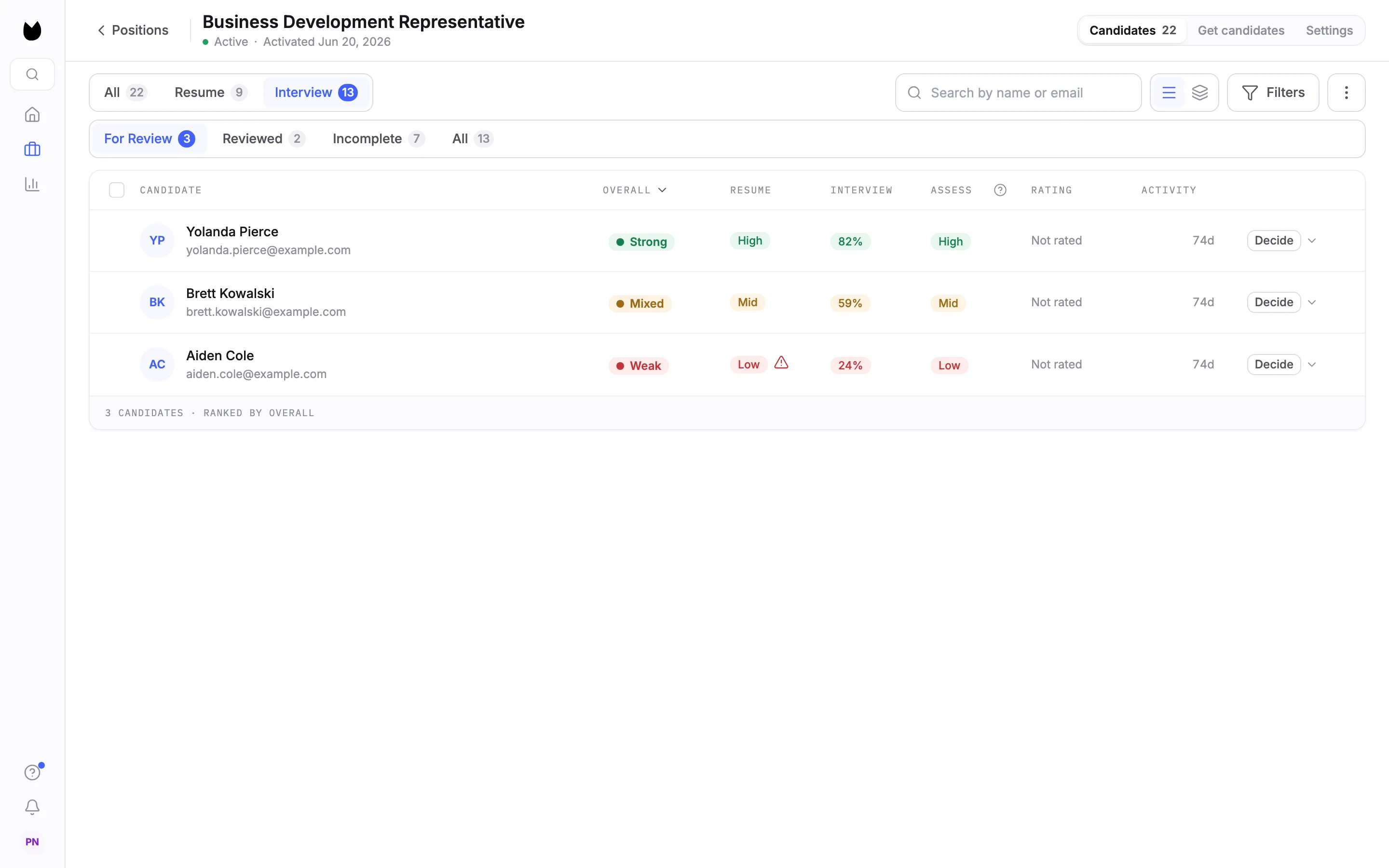
Choose List view, next to Focus view, to return to the candidate table. Each row there has its Decide control. Positions at the top left takes you to your Positions list.
Note. Magic Review works on the For Review and Reviewed tabs. Choosing All switches back to the list view.
Questions
What is Magic Review?
Magic Review is the Focus view of a position's candidate list. The list stays on the left and one candidate opens on the right, so you can read each candidate and decide without leaving the page.
Which keyboard shortcuts does Magic Review have?
A advances, H holds and R rejects the candidate on screen. The keys are printed on the Advance, Hold and Reject buttons. The up and down arrow keys move to the previous or next candidate. Keys do nothing while you type in a field, and Cmd or Ctrl shortcuts go to your browser.
Can I hire someone from Magic Review?
No. Magic Review offers Advance, Hold and Reject. Use the Decide control on the candidate's row in the list view to mark a hire.
Does the AI make the decision?
No. The signals score each candidate against the criteria for the position. You decide what happens to every candidate. The only automatic rejection is a qualification check you set to Reject automatically.
Why did clicking a name open the full profile instead?
In the list view, a candidate's name opens their full profile. Switch to Focus view to review in Magic Review.
Related
See something here that doesn't match what you see in Truffle? Tell us and we'll fix the page.