Guide
Customize candidate emails
By the end you can switch reminders per position, write and preview your own wording for one position or the whole company, and decide where candidates' replies land.
6 min · 12 steps · Captured from the live product 5 Oct 2026 Changelog Copy as Markdown
Before you start
- A Truffle account. Switching reminders works on every plan, including the 7-day free trial (30 credits, no credit card). Changing the wording needs a paid plan.
- A position with a video interview or assessments, since those are what candidates are invited to.
- To choose where replies go, the owner or an admin of your Truffle account.
1Open Candidate emails
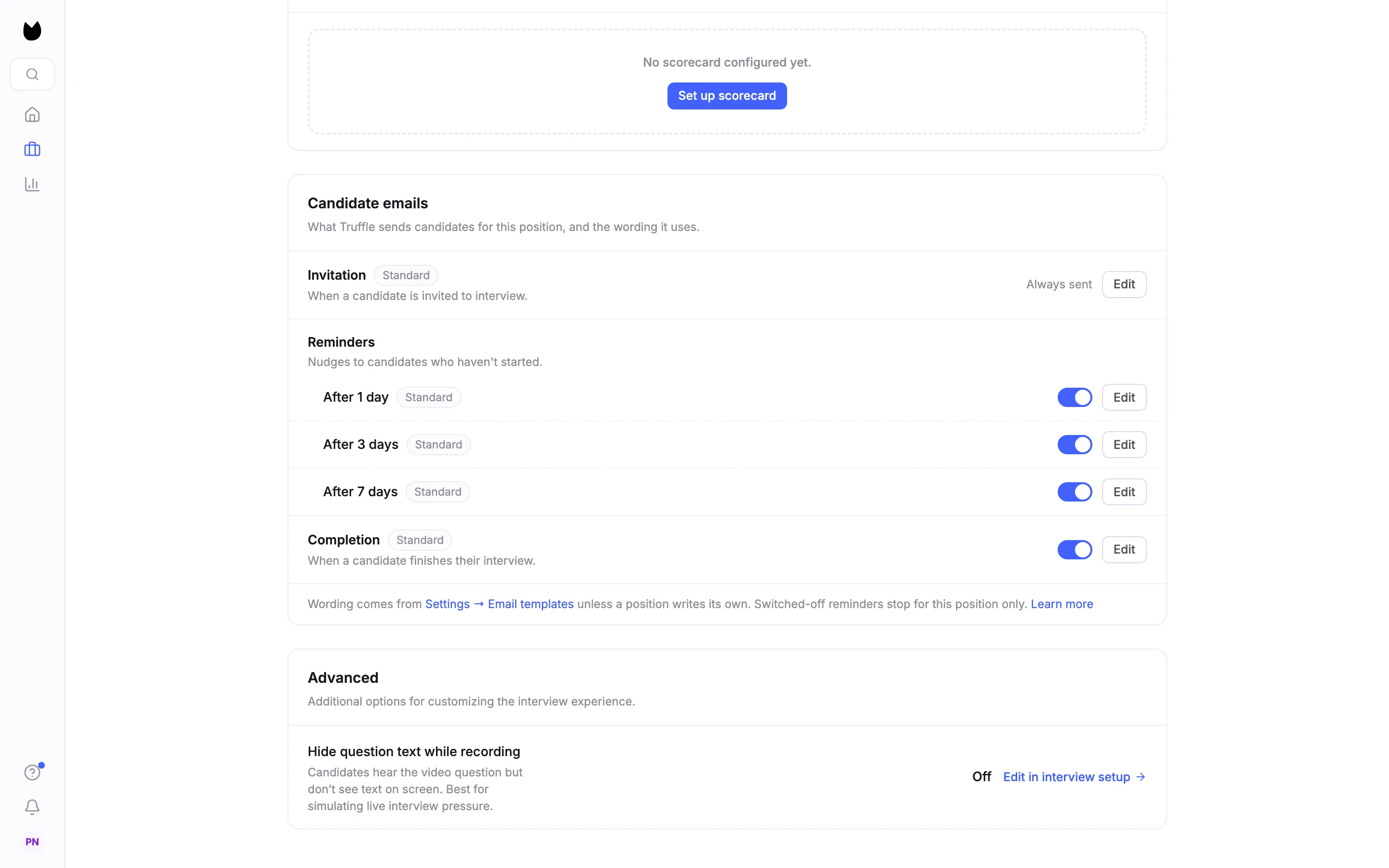
Open the position, choose Settings in the tabs at the top right, and scroll to Candidate emails. It lists every email this position sends. The Invitation is Always sent. Reminders are Nudges to candidates who haven't started.: After 1 day, After 3 days and After 7 days. Completion goes out when a candidate finishes. Each row shows the wording it uses, here Standard, and an Edit button.
2Turn a reminder off
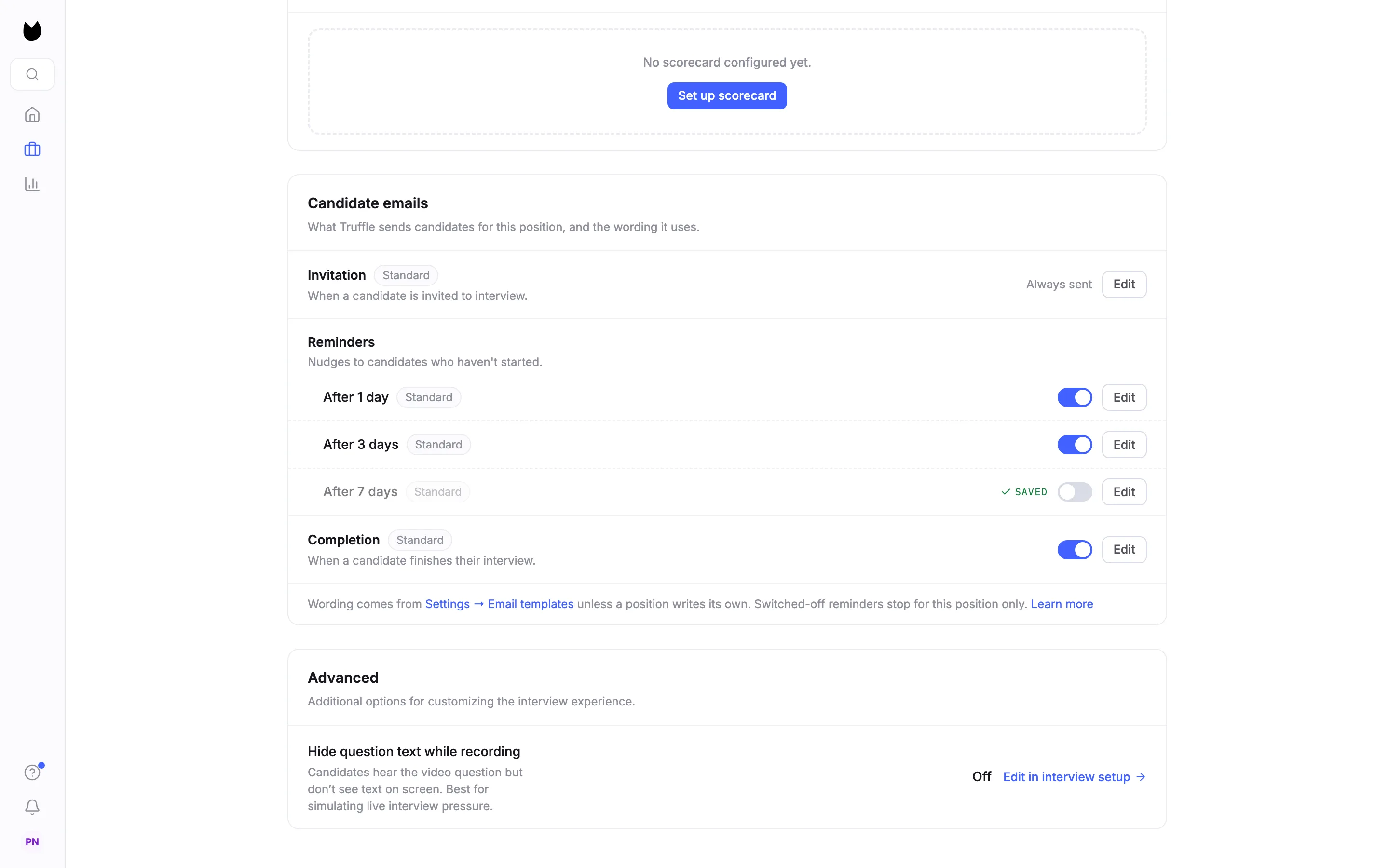
Each reminder and the completion email has its own switch. Turn one off and it saves straight away, with Saved on the row. Here After 7 days is off, so candidates on this position get two reminders at most.
Note. Switched-off reminders stop for this position only. Other positions keep their own settings.
3Open the email window
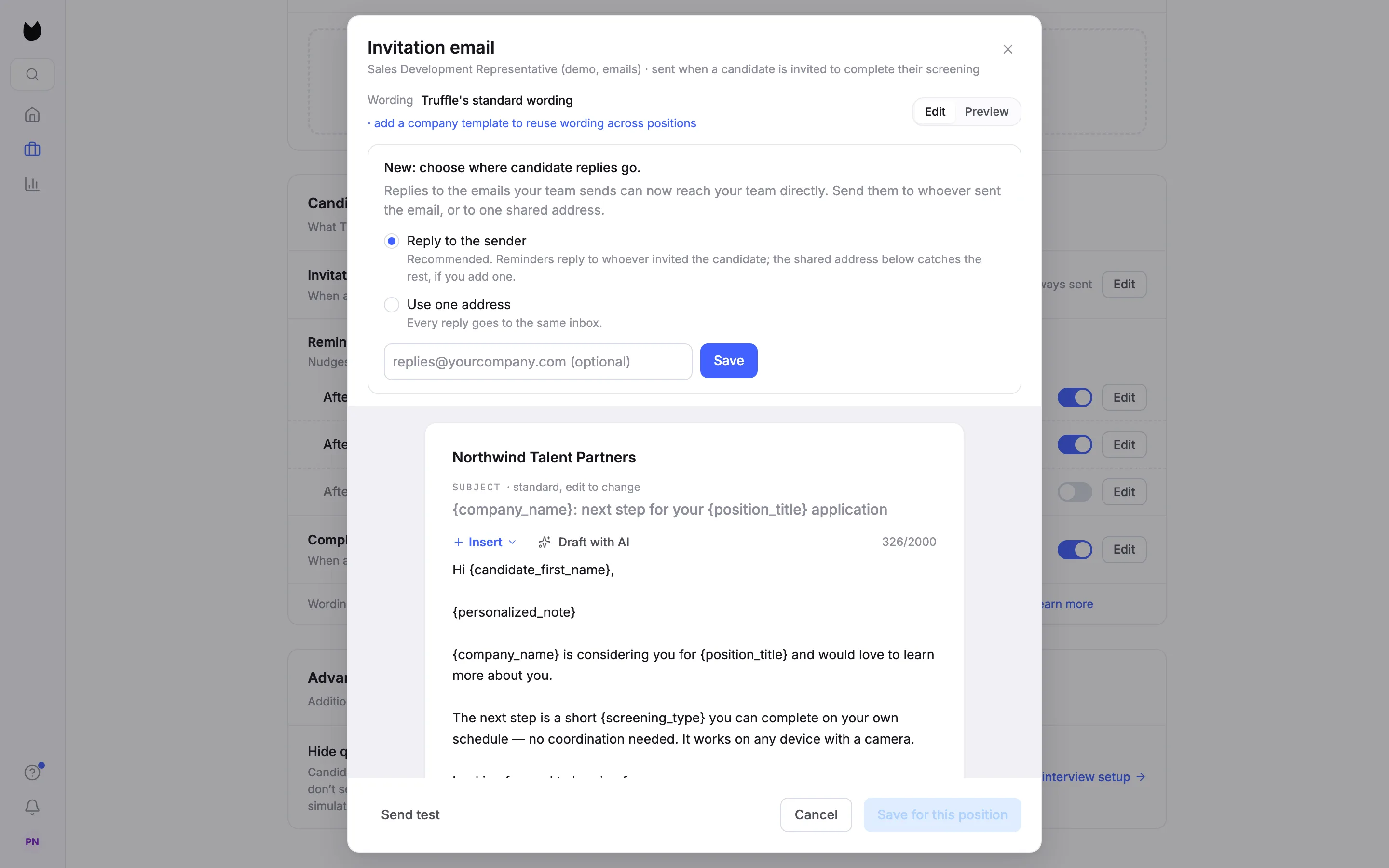
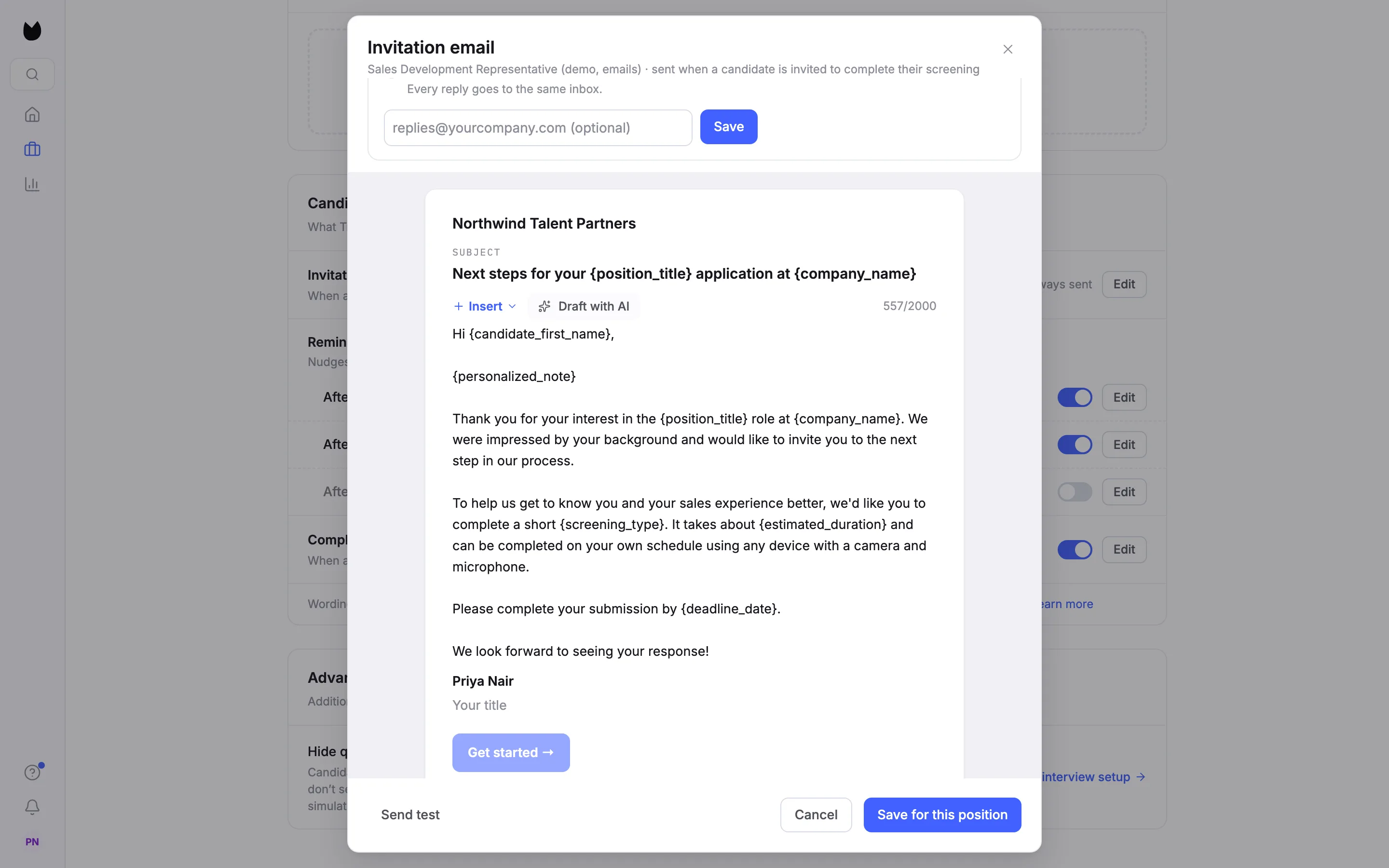
Choose Edit on Invitation. The Invitation email window shows the email as it is written. Wording says where it comes from, here Truffle's standard wording. The subject line is marked · standard, edit to change. Below it are the body, with Insert and Draft with AI, and your name and title as the sign-off. Button and footer are added by Truffle.
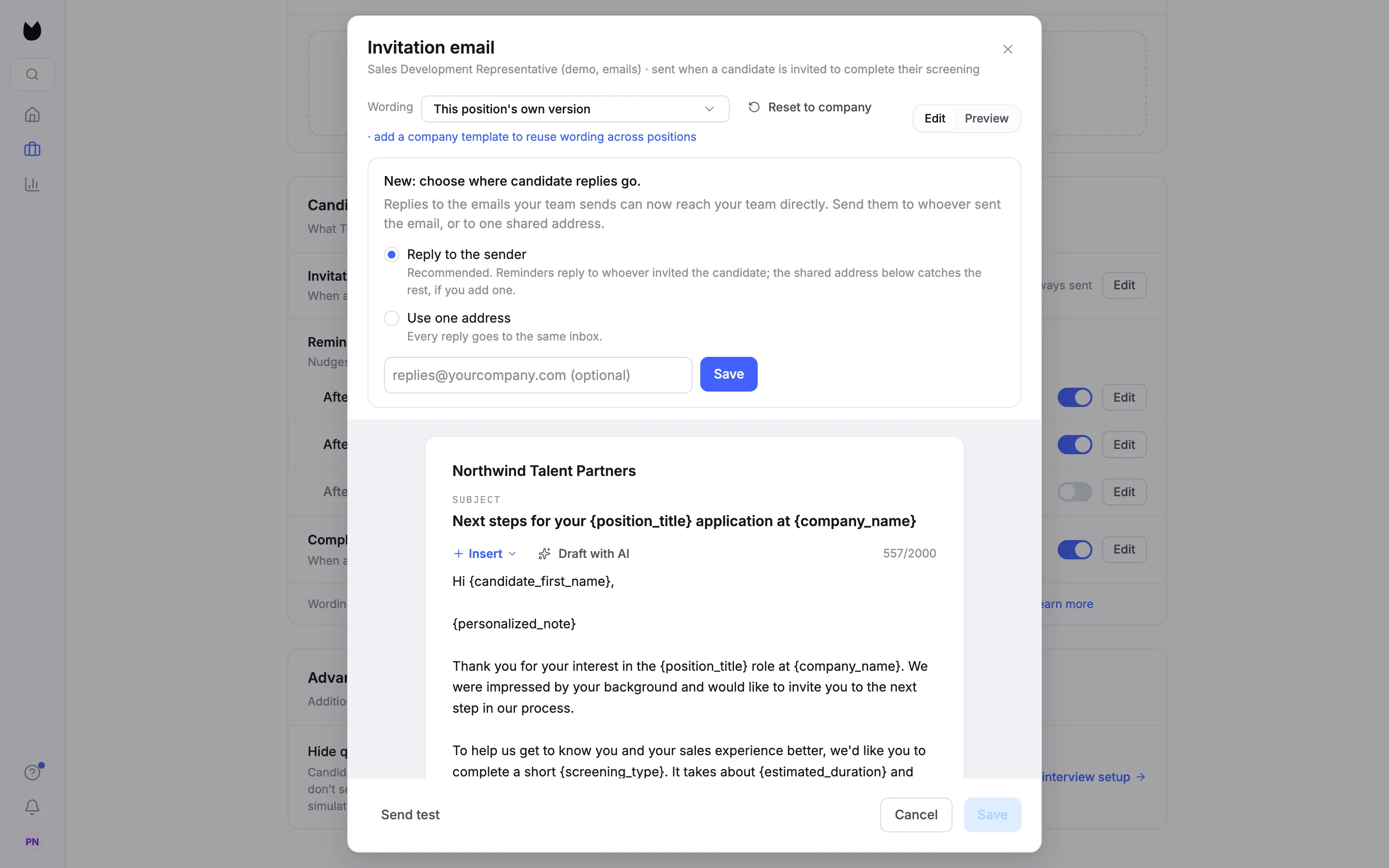
Note. If no one in your company has chosen where replies go yet, the window also shows New: choose where candidate replies go. The last step covers that choice.
4Insert merge tags
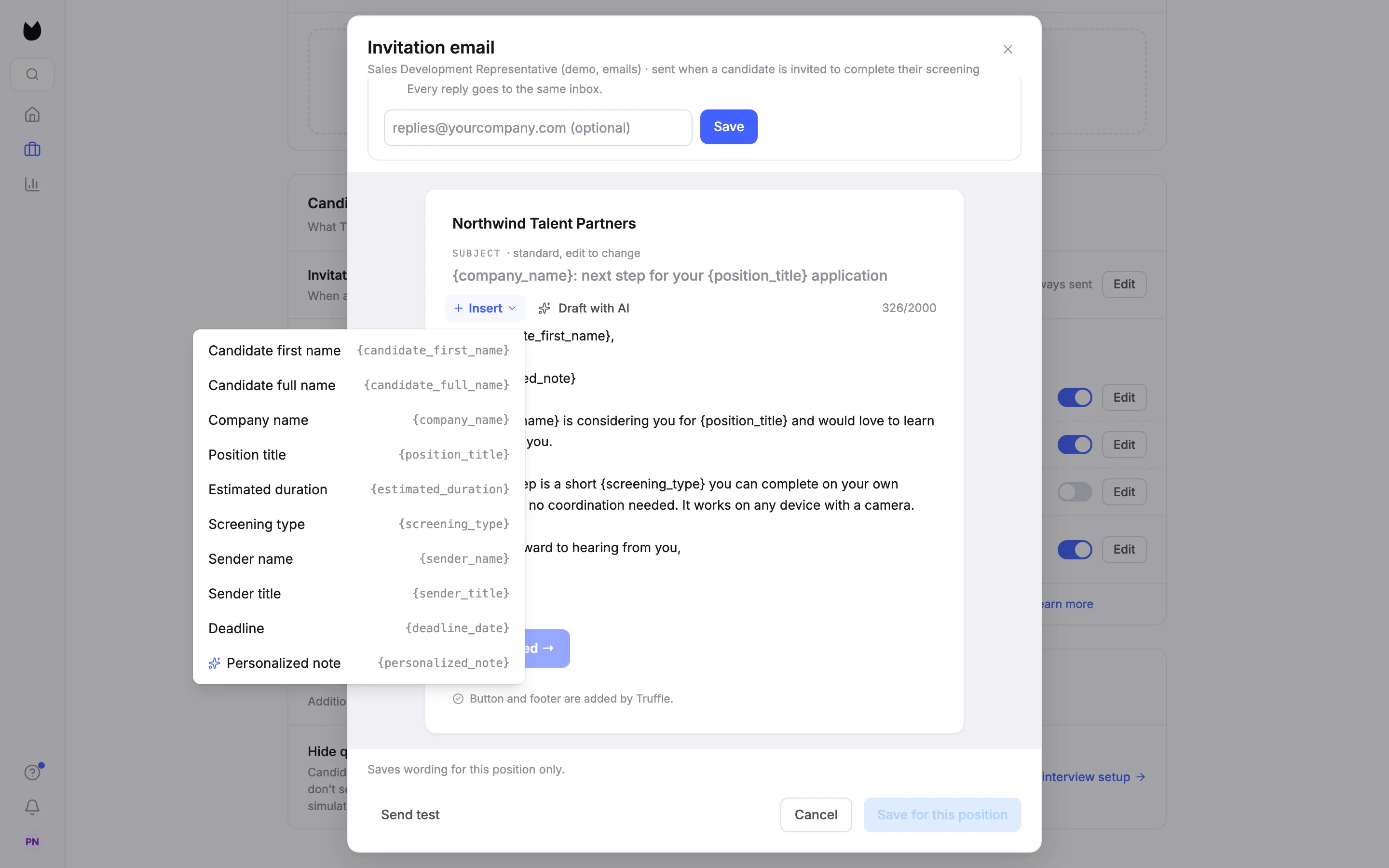
Click where you want a detail in the subject or body, then choose Insert. Pick a merge tag and Truffle fills it in for each candidate when the email sends: {candidate_first_name}, {candidate_full_name}, {company_name}, {position_title}, {estimated_duration}, {screening_type}, {sender_name}, {sender_title}, {deadline_date} and {personalized_note}.
Note. {personalized_note} adds a one-line note written from the candidate's application when the email sends. It is left out when there is nothing specific to say. Delete the tag to send without it. Merge tags are checked when you save, so a mistyped tag cannot reach a candidate.
5Draft the wording with AI
Choose Draft with AI to get a subject and body written from this position's details. The draft only fills the editor. Nothing is saved or sent until you save it, so read it and change anything that does not sound like you.
6Preview the email
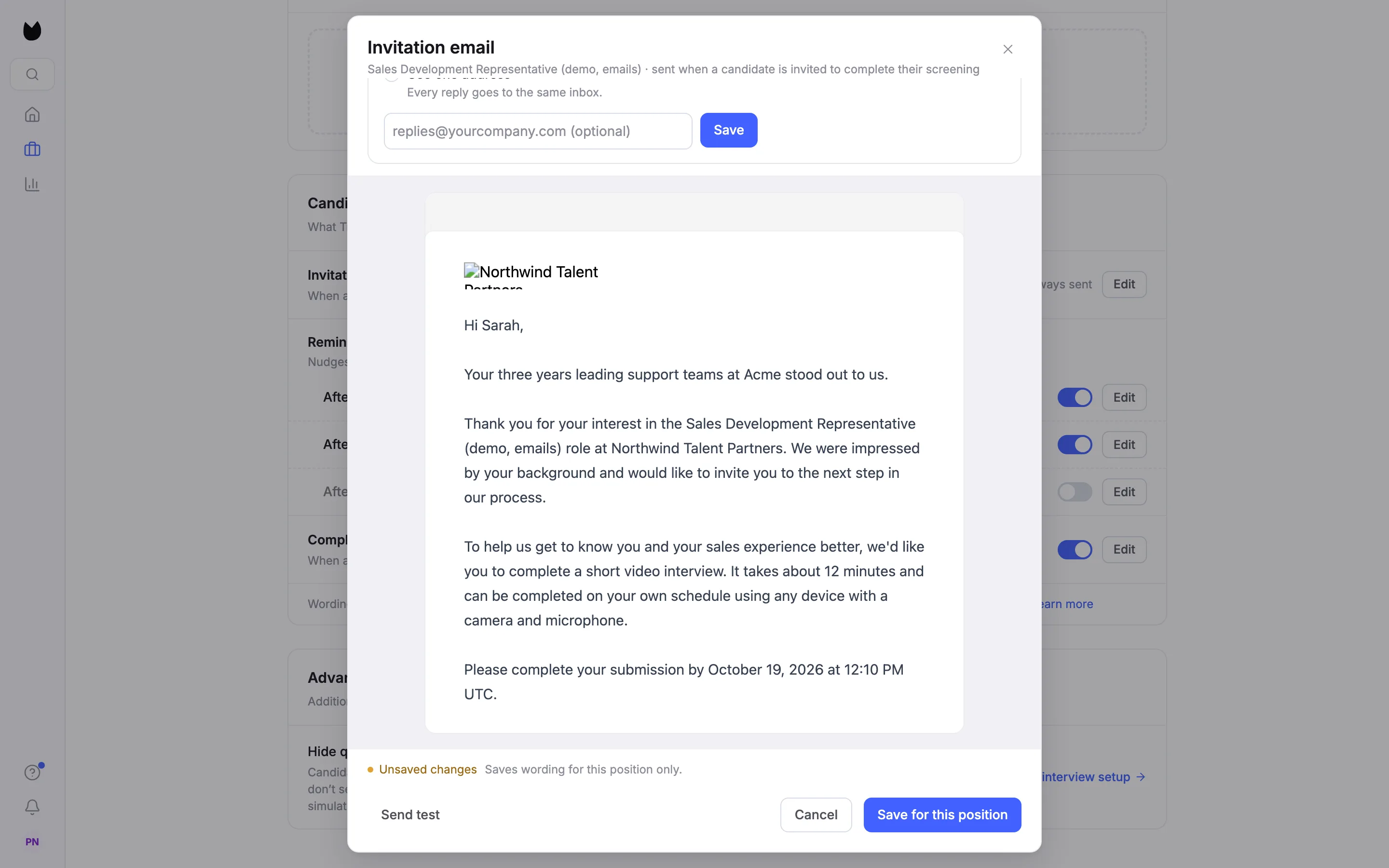
Choose Preview to see the email the way a candidate gets it, with sample details in place of the merge tags. Unsaved changes at the bottom reminds you the draft is not saved yet. Choose Edit to go back to the text.
Note. Send test emails the draft to you, the person signed in, not to a candidate.
7Save it for this position
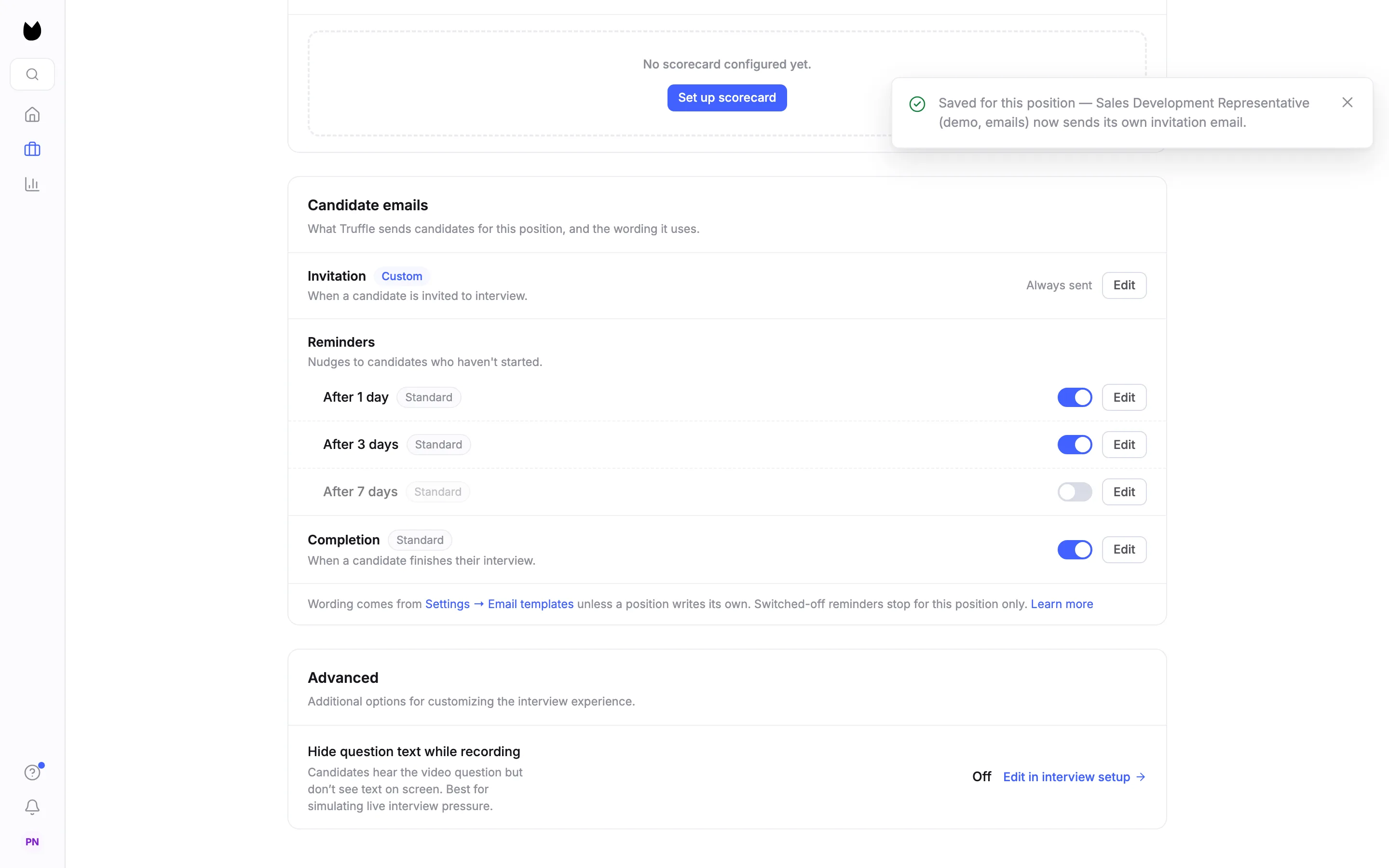
Choose Save for this position. The window says Saves wording for this position only., and Truffle confirms with Saved for this position. The Invitation row now shows Custom. Other positions keep their wording.
8Go back to the shared wording
Open the email again. Wording now reads This position's own version. To drop it, choose Reset to company, and the position goes back to your company's wording, or Truffle's standard wording if your company has none.
9Open the company template library
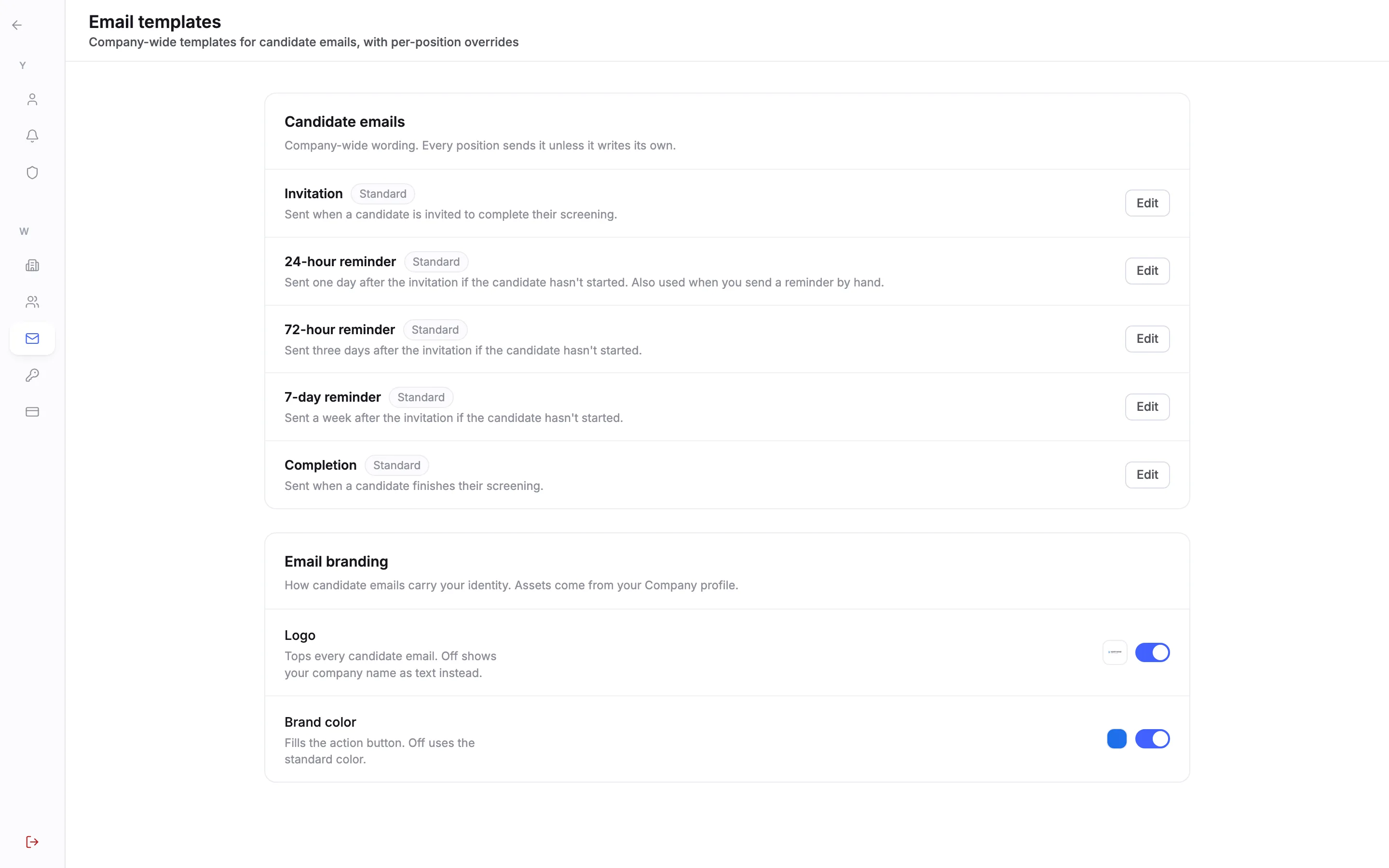
To use the same wording on every position, open Settings, then Email templates. Candidate emails holds the company-wide wording, which every position sends unless it writes its own: Invitation, 24-hour reminder, 72-hour reminder, 7-day reminder and Completion. Email branding below sets whether emails carry your Logo and Brand color, both taken from your company profile.
10Write a company template
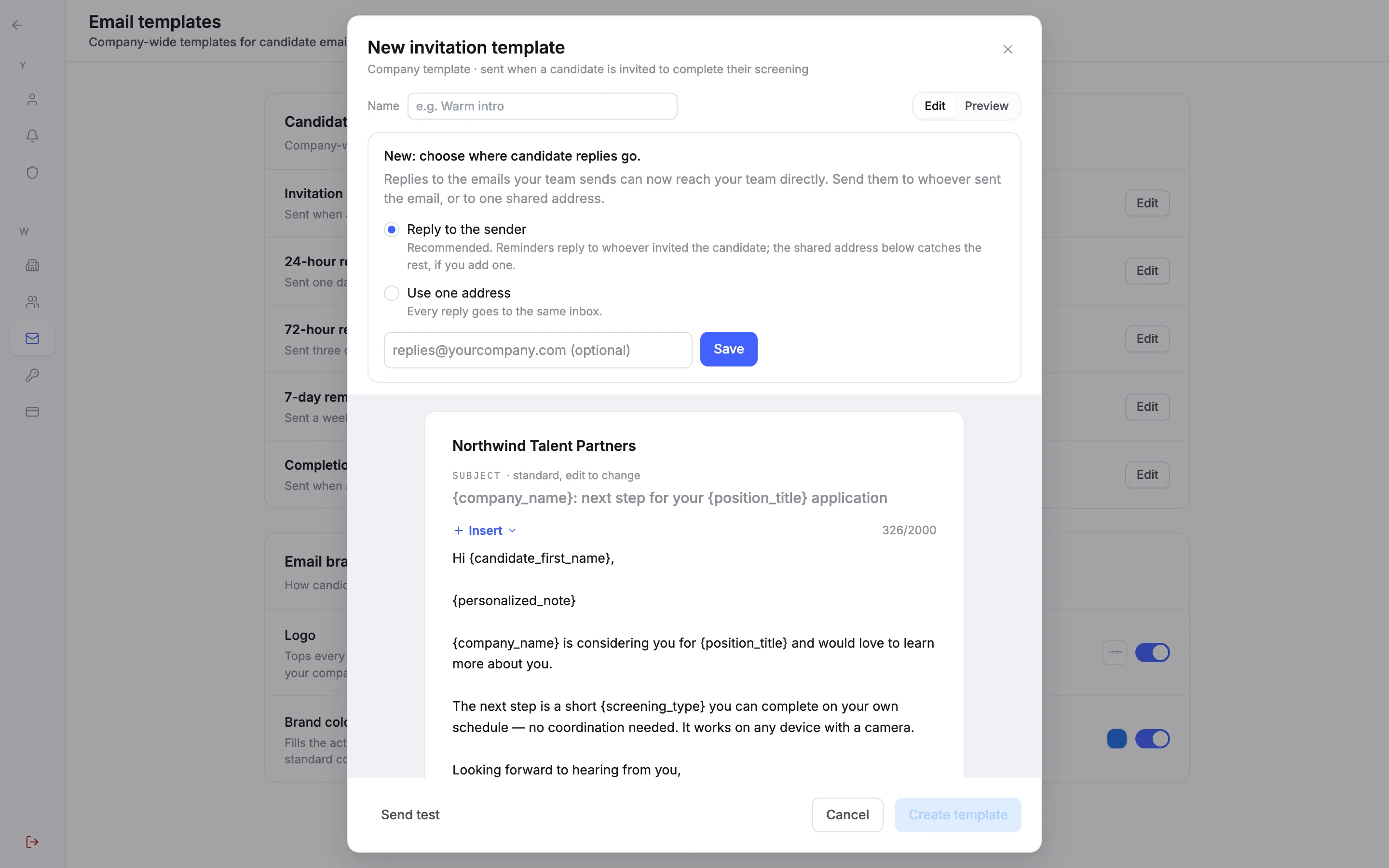
Choose Edit on an email. With no company template yet, this opens a new one, such as New invitation template. Give it a Name, write it with the same Insert menu, and choose Create template. Every position sends the company default unless it picks another version or writes its own.
Note. You can keep up to 20 named templates for each email and mark one as the default. A position can pick a different one from Wording, or fall back to the company default.
11Preview with your branding
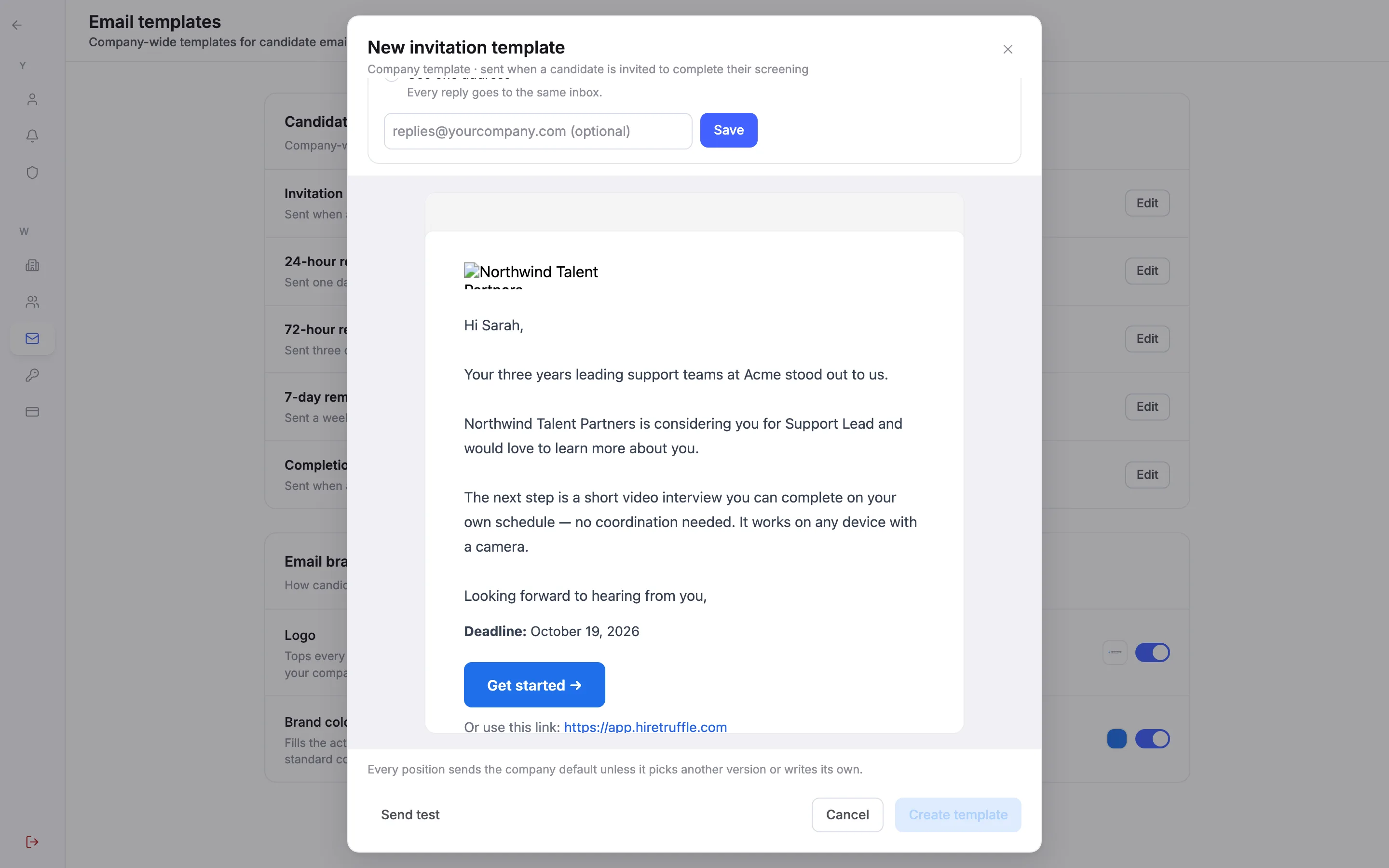
Preview in the company editor shows the full email shell: your logo at the top, the Get started → button in your brand color, the deadline when there is one, and the footer. Every candidate email ends with Trouble with the interview itself? Email support@hiretruffle.com.
12Choose where replies go
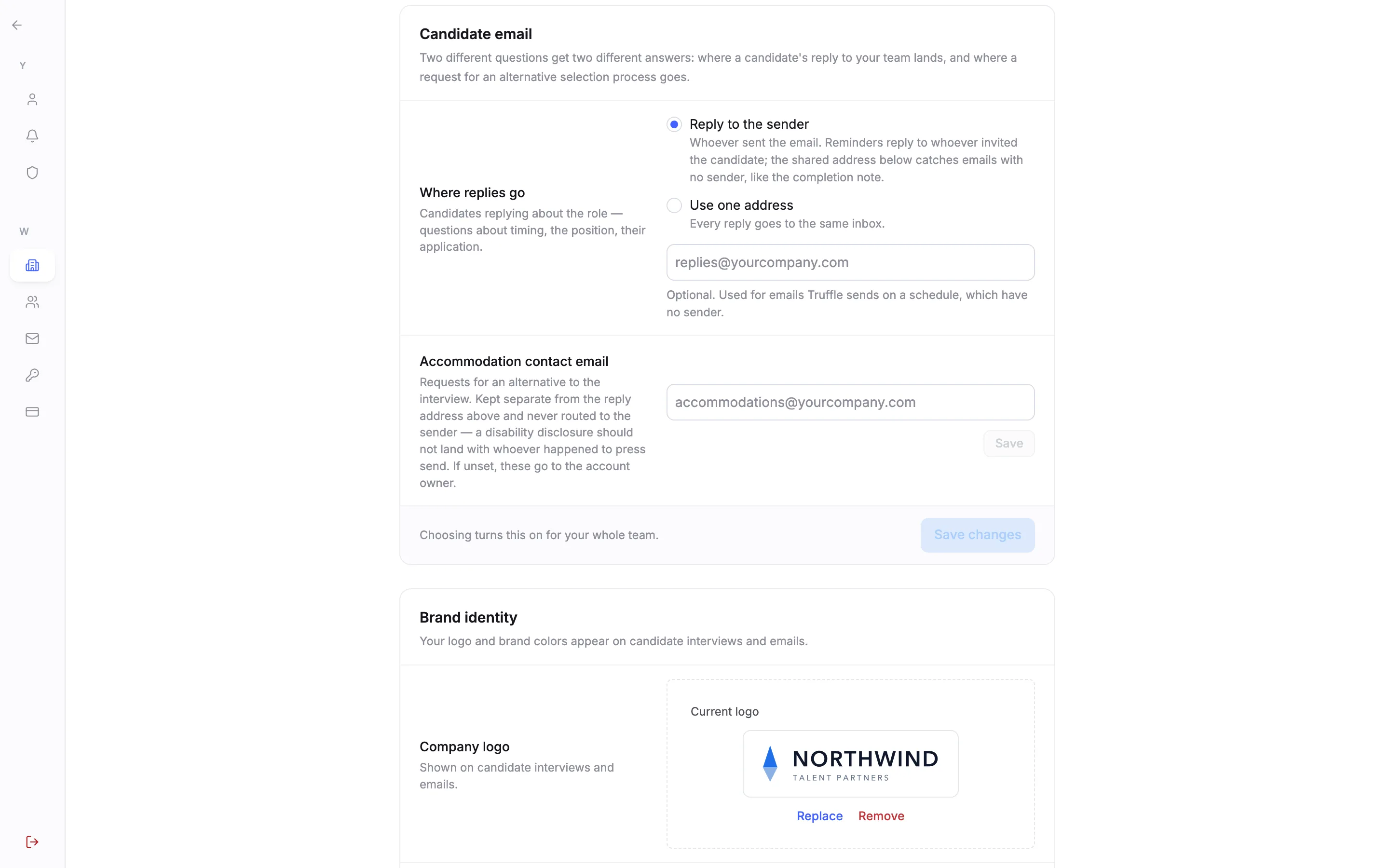
Open Settings, then Company, and find Candidate email. Under Where replies go, choose Reply to the sender to send each reply to whoever sent that email, with reminders replying to whoever invited the candidate. Or choose Use one address, where Every reply goes to the same inbox. The shared address is optional with the first choice and catches emails that have no sender, such as the completion email. Choose Save changes.
Note. This applies to your whole team, and only an owner or admin can change it. Requests for an alternative to the interview go to the Accommodation contact email instead, or to the account owner if it is empty. They never follow your reply choice.
Questions
When do reminders go out?
One day, three days and seven days after the invitation, to candidates who have not started. Each reminder has its own switch in the position's Candidate emails, and switching one off affects that position only.
Do I need a paid plan?
Only to change the wording. Custom wording and the template library are on paid plans. The reminder and completion switches are part of every position.
How many templates can I keep?
Up to 20 named templates for each of the five candidate emails: the invitation, the three reminders and the completion email. One per email is the company default that automated sends use.
Does a position's own wording change my company template?
No. Save for this position writes a version for that position only, and your company template stays as it is. Reset to company drops the position's version.
Who do candidate emails come from?
Invitations and reminders come from the person who sent the invitation, signed with their name, and reminders arrive as replies in the same email thread as the invitation.
Can a candidate stop getting emails?
Yes. Every recurring email has a link to stop email, including one-click unsubscribe in their mail app, and you can record an opt-out for a candidate yourself. Truffle checks this before every send, and a suppressed candidate shows as suppressed in your list.
Related
See something here that doesn't match what you see in Truffle? Tell us and we'll fix the page.