Guide
Turn on Clarity read for a position
By the end you can turn on Clarity read for one position, find the Clarity column and filter in the candidate list, and read the Clarity card on a candidate, with the quotes behind each row.
5 min · 8 steps · Captured from the live product 5 Oct 2026 Changelog Copy as Markdown
Before you start
- A Truffle account. The 7-day free trial works: 30 credits, no credit card.
- A position with a one-way video interview.
- Candidates who finish the interview after you turn Clarity read on. Interviews completed before that get no read.
1Find Clarity read
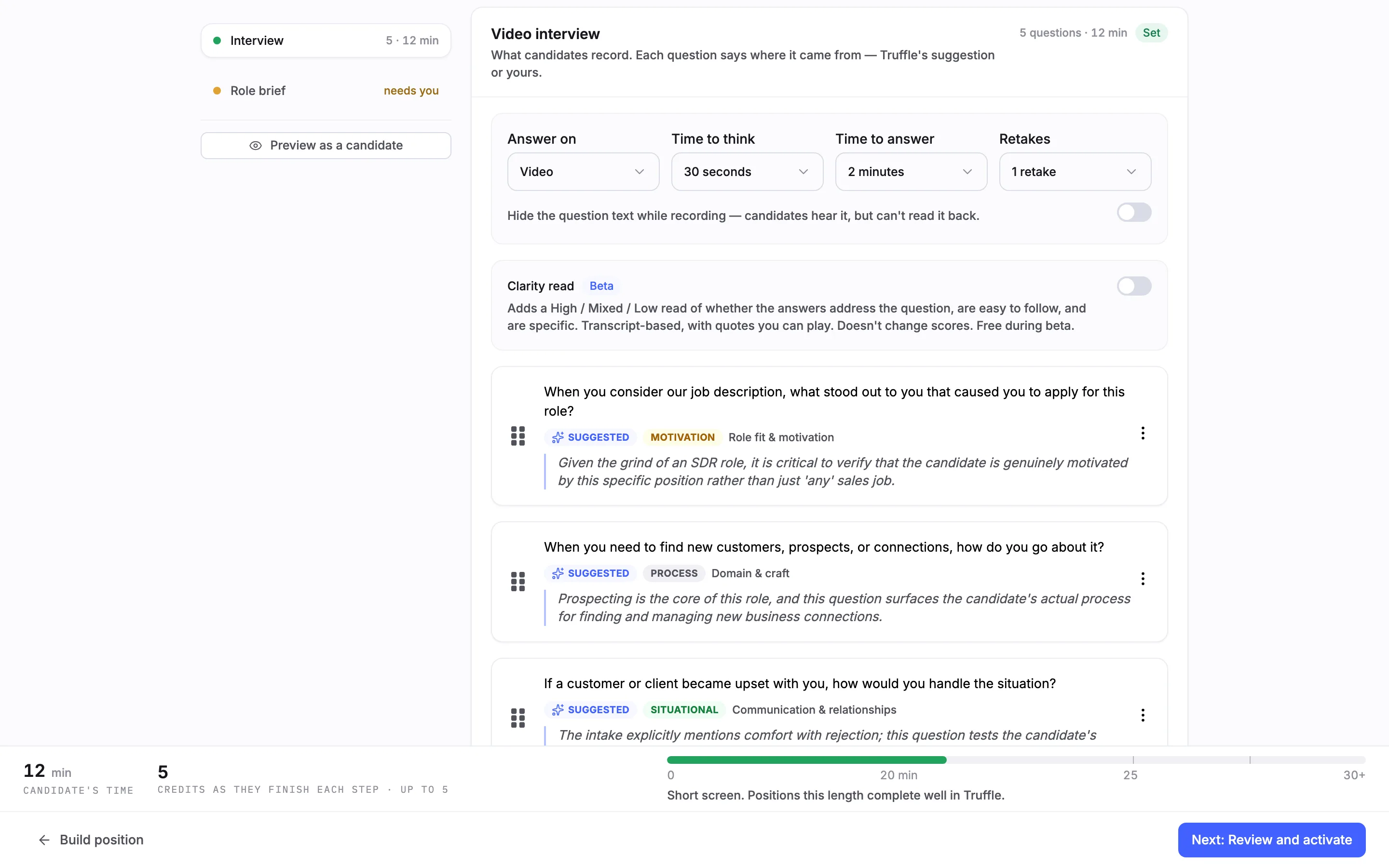
In Configure screening, open the video interview. Clarity read, marked Beta, sits under the timing controls. It is off by default. The line under it says what it adds: a High / Mixed / Low read of whether the answers address the question, are easy to follow and are specific, from the transcript, with quotes you can play. It does not change scores and is free during the beta.
2Turn it on
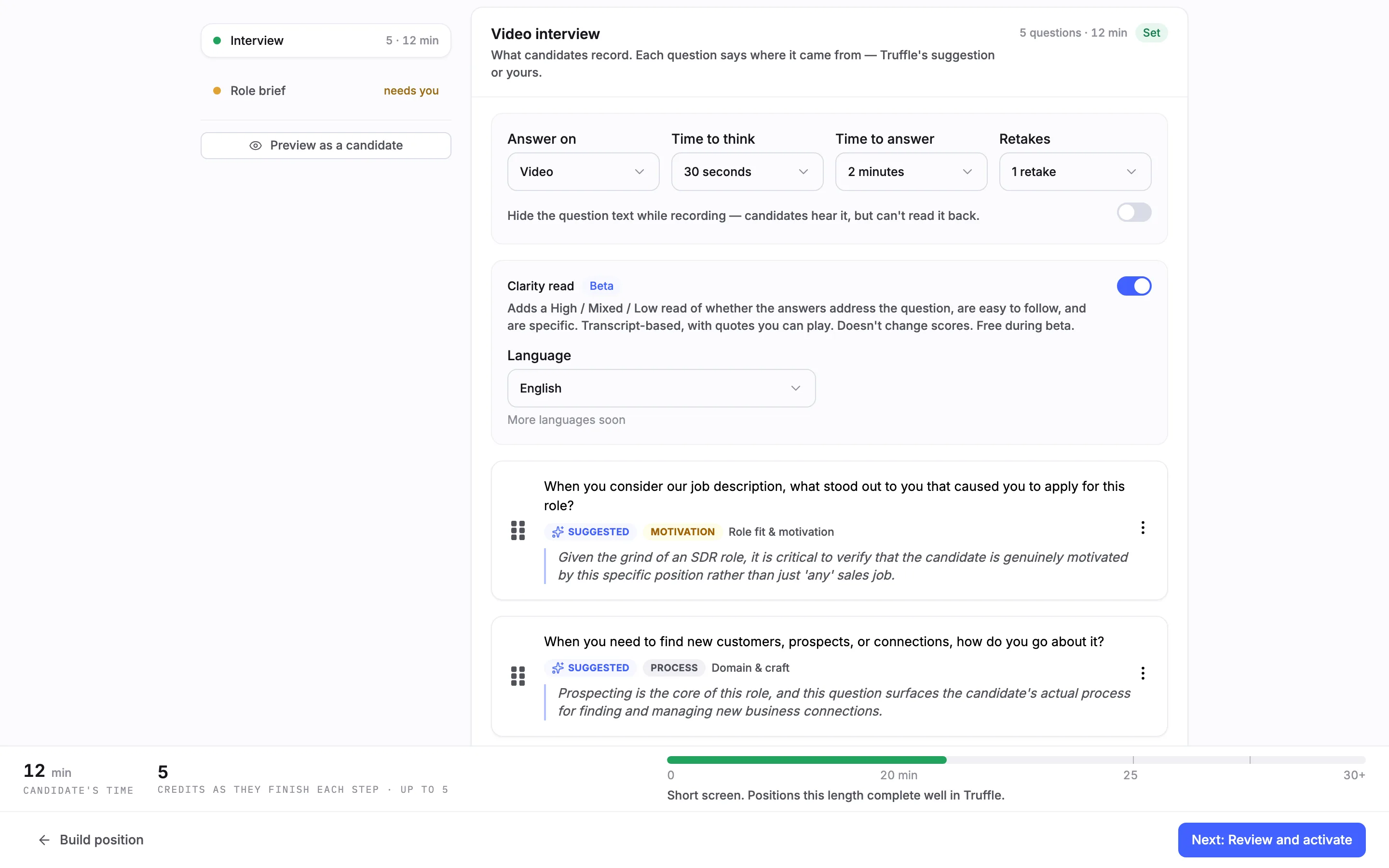
Switch Clarity read on. A Language setting appears, set to English, with More languages soon. English is the only language in the beta.
3Spot it in the candidate list
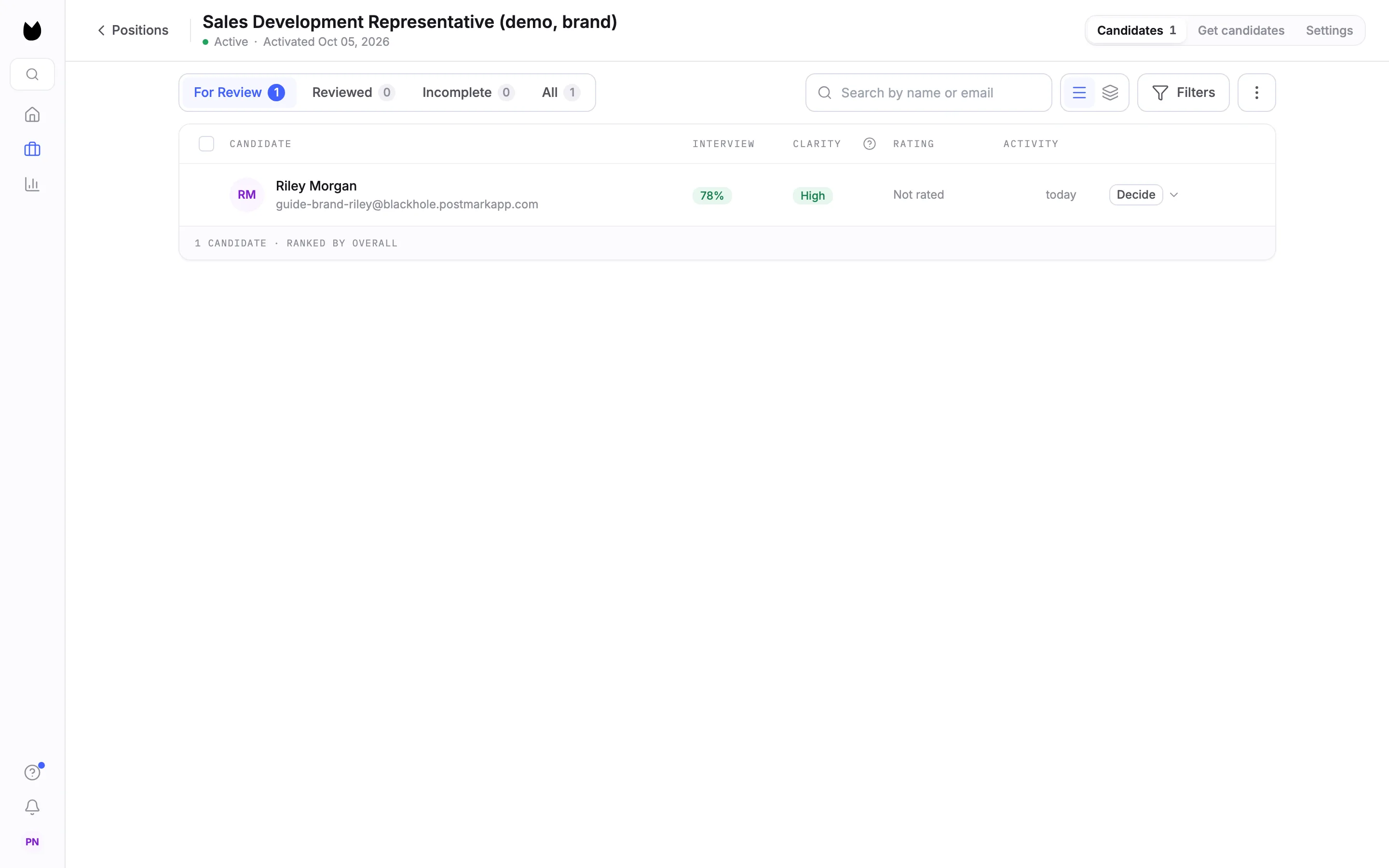
Once a candidate finishes the interview and the read is ready, the position's candidate list has a CLARITY column next to INTERVIEW, here High. You can sort by it.
4Filter by it
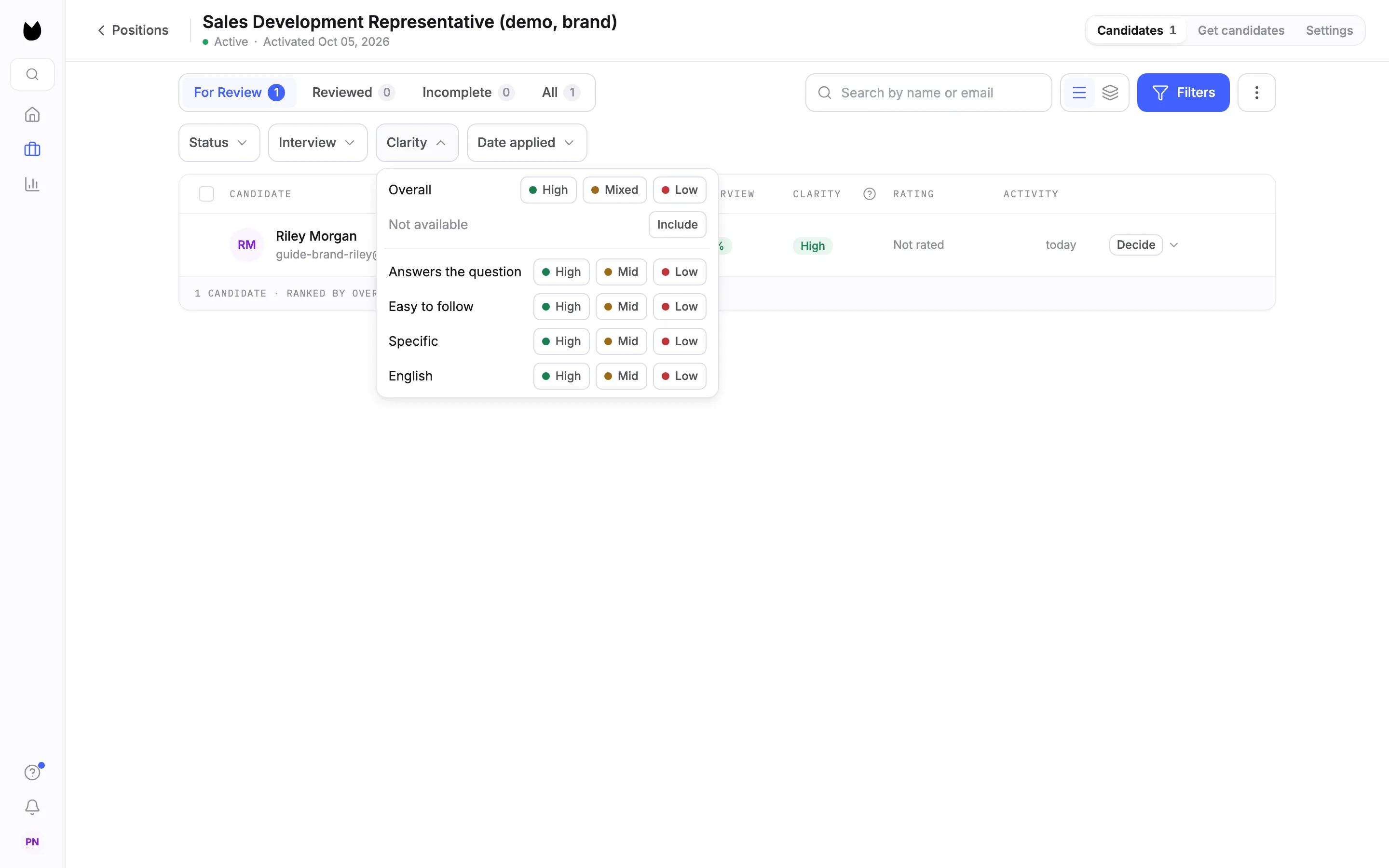
Choose Filters, then Clarity. Filter on the Overall read, High, Mixed or Low, or on one row: Answers the question, Easy to follow, Specific or the language. Each row filters on High, Mid or Low. The filter also has Not available, with Include.
5Open the Clarity card
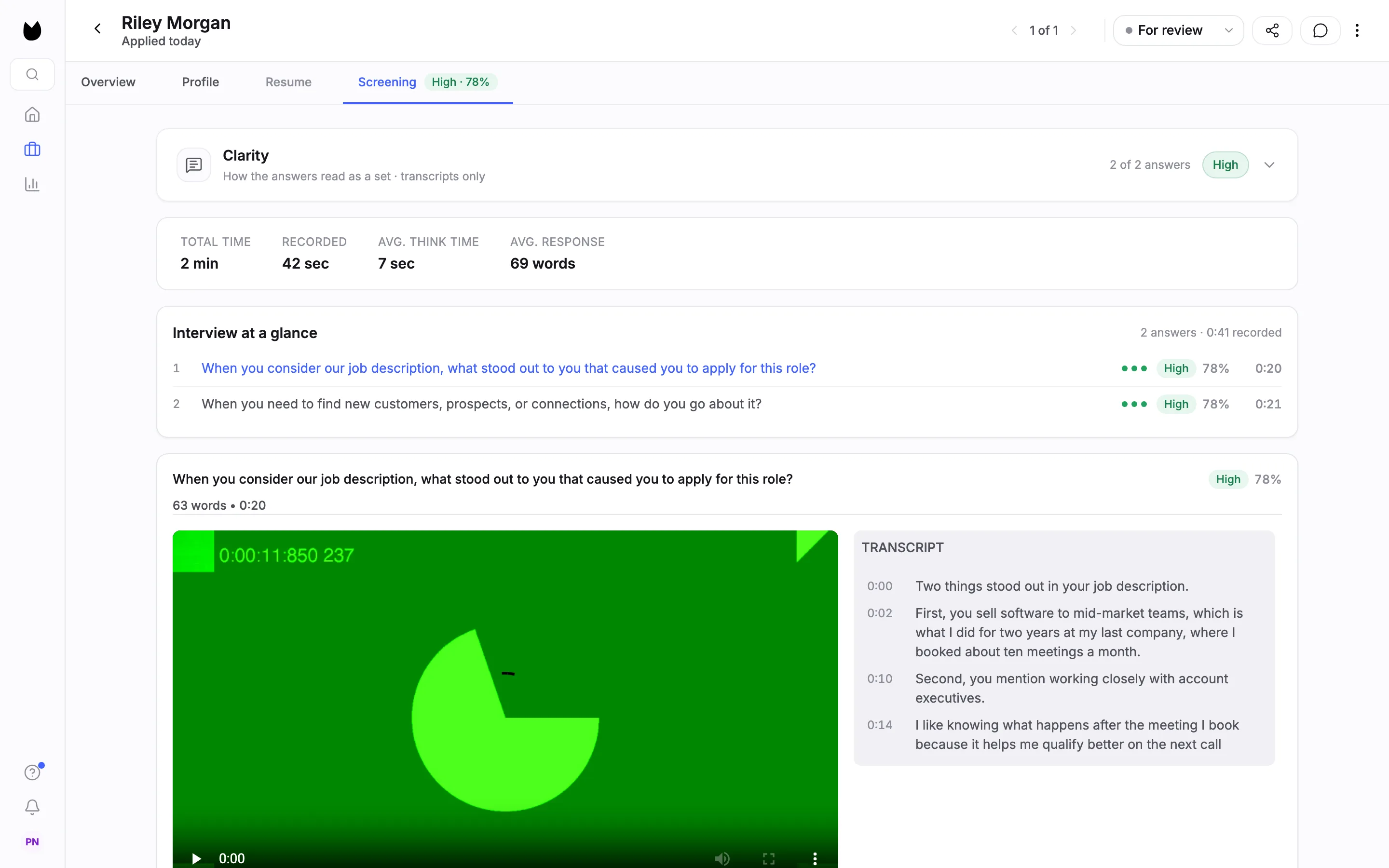
Open the candidate and go to Screening. The Clarity card sits at the top: How the answers read as a set · transcripts only, how many answers it read, here 2 of 2 answers, and the overall read.
6Read each row
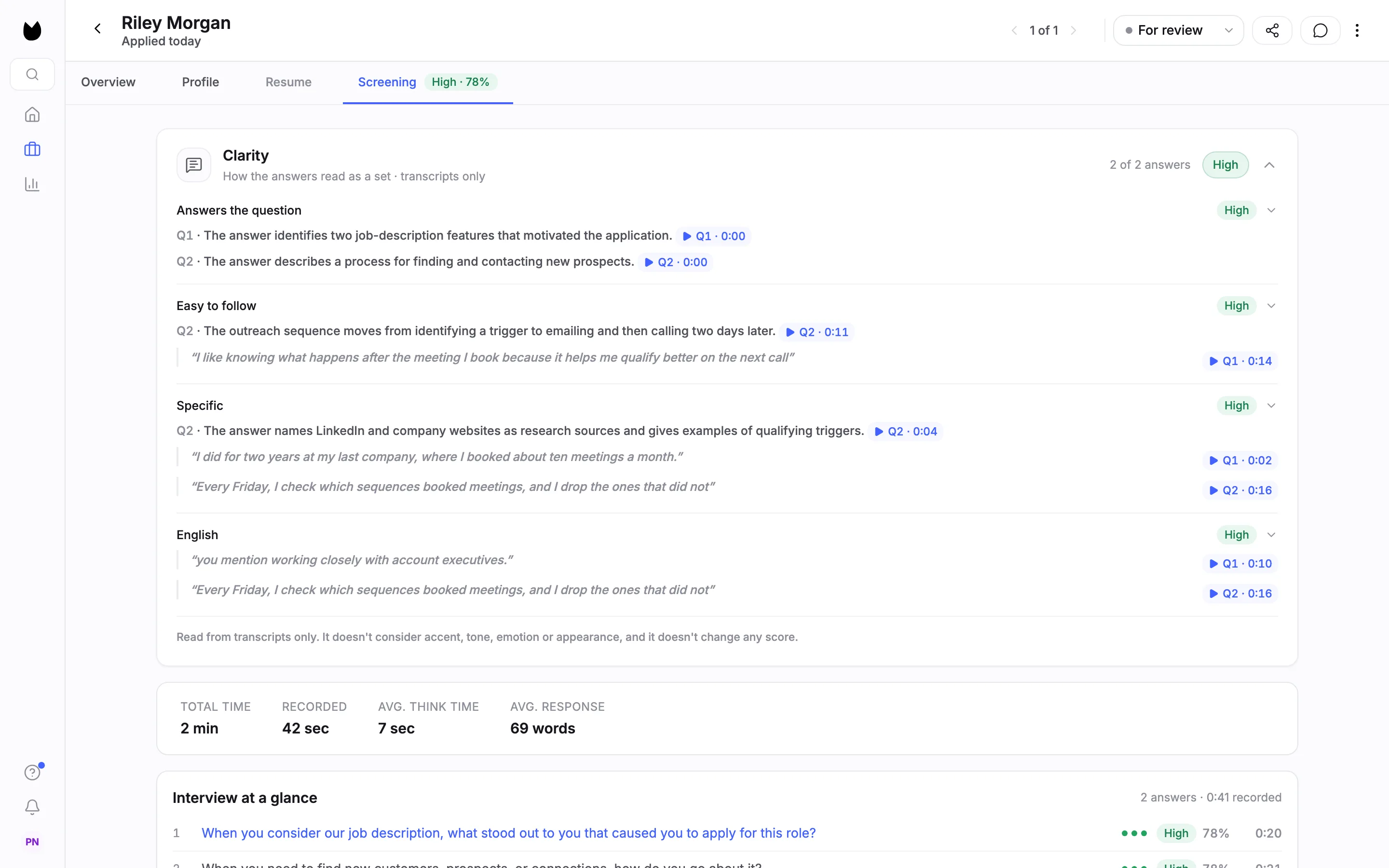
Open the card. It has a row for Answers the question, Easy to follow and Specific, plus one for the language, here English. Each row has its own level, short notes tied to a question, and quotes from the answers. The card ends with how it works: Read from transcripts only. It doesn't consider accent, tone, emotion or appearance, and it doesn't change any score.
7Play a quote
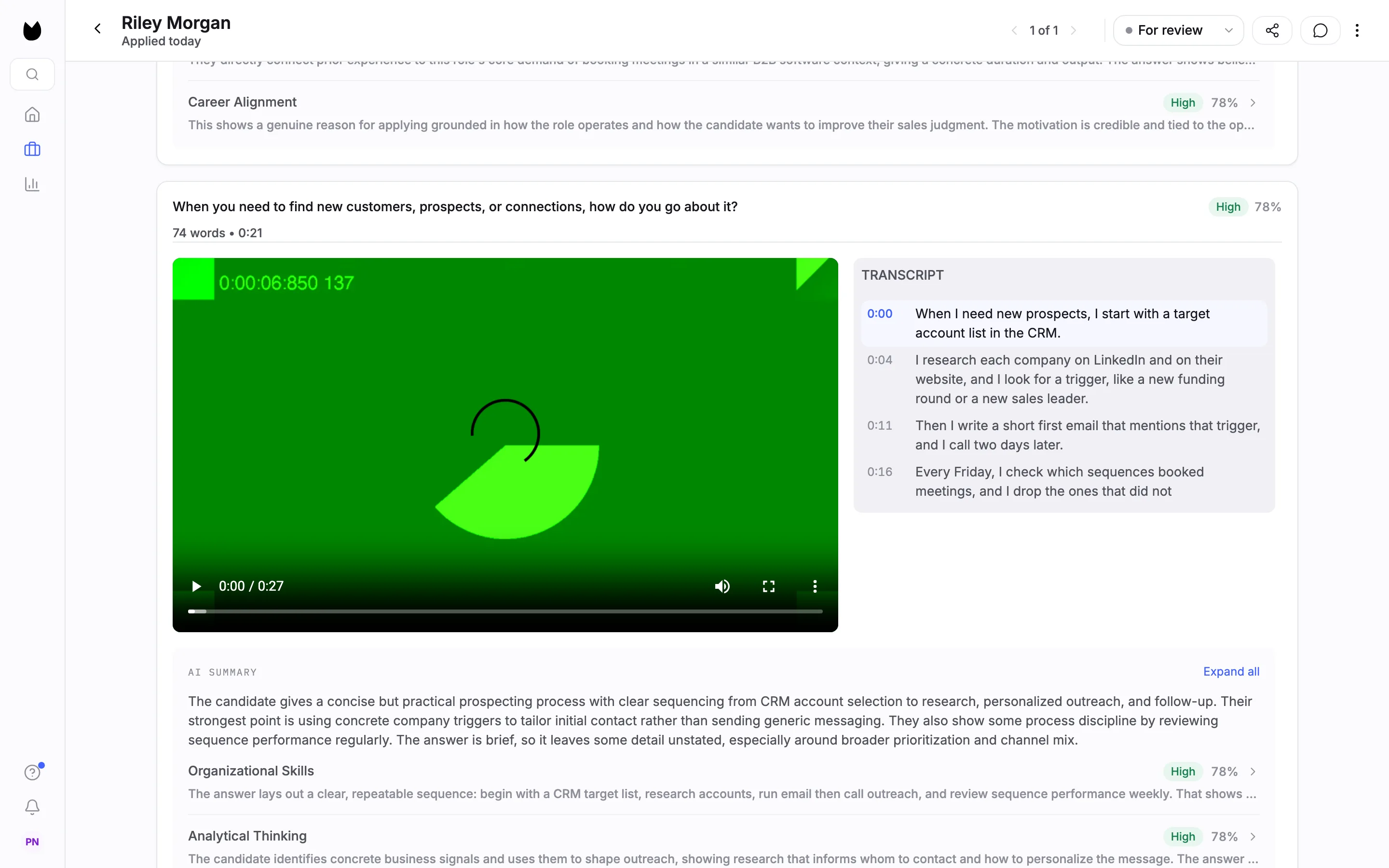
Each note and quote has a chip with the question and the time, such as Q2 · 0:00. Choose it to jump to that answer at that moment, with the transcript line highlighted, and check the quote yourself.
8See it in Magic Review
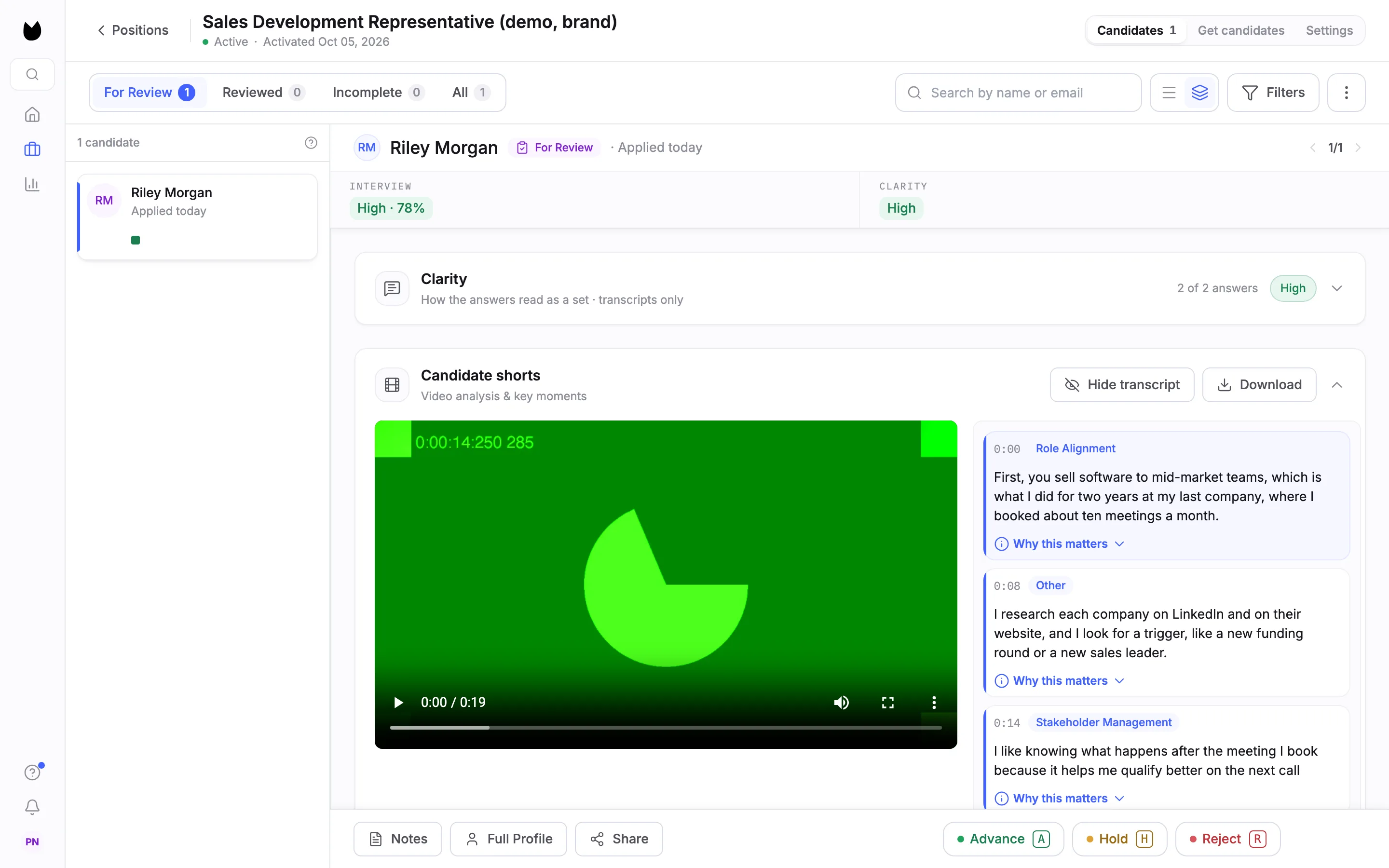
In Focus view, the same read shows as CLARITY next to INTERVIEW, and the Clarity card sits above the candidate's videos.
Questions
Does Clarity read change a candidate's score?
No. It sits next to the interview score and does not change any score. It never advances, holds or rejects anyone either. Every decision is yours.
What does it read?
The transcripts of the candidate's interview answers. It does not consider accent, tone, emotion or appearance.
Does it cost credits?
No. Clarity read is free during the beta.
Which languages does it support?
English only during the beta.
Will candidates who already finished get a read?
No. It applies to interviews completed after you turn it on for the position.
Is it on for every position?
No. It is off by default and you turn it on per position, in the video interview settings.
Related
See something here that doesn't match what you see in Truffle? Tell us and we'll fix the page.