Guide
Invite your team and set roles
By the end you have invited a teammate with the right role, you know what they see when they accept, and you can change their role or remove them later.
5 min · 10 steps · Captured from the live product 5 Oct 2026 Changelog Copy as Markdown
Before you start
- A Truffle account where you are an Owner or an Admin. The 7-day free trial works: 30 credits, no credit card.
- Your teammate's work email address.
1Open the Team page
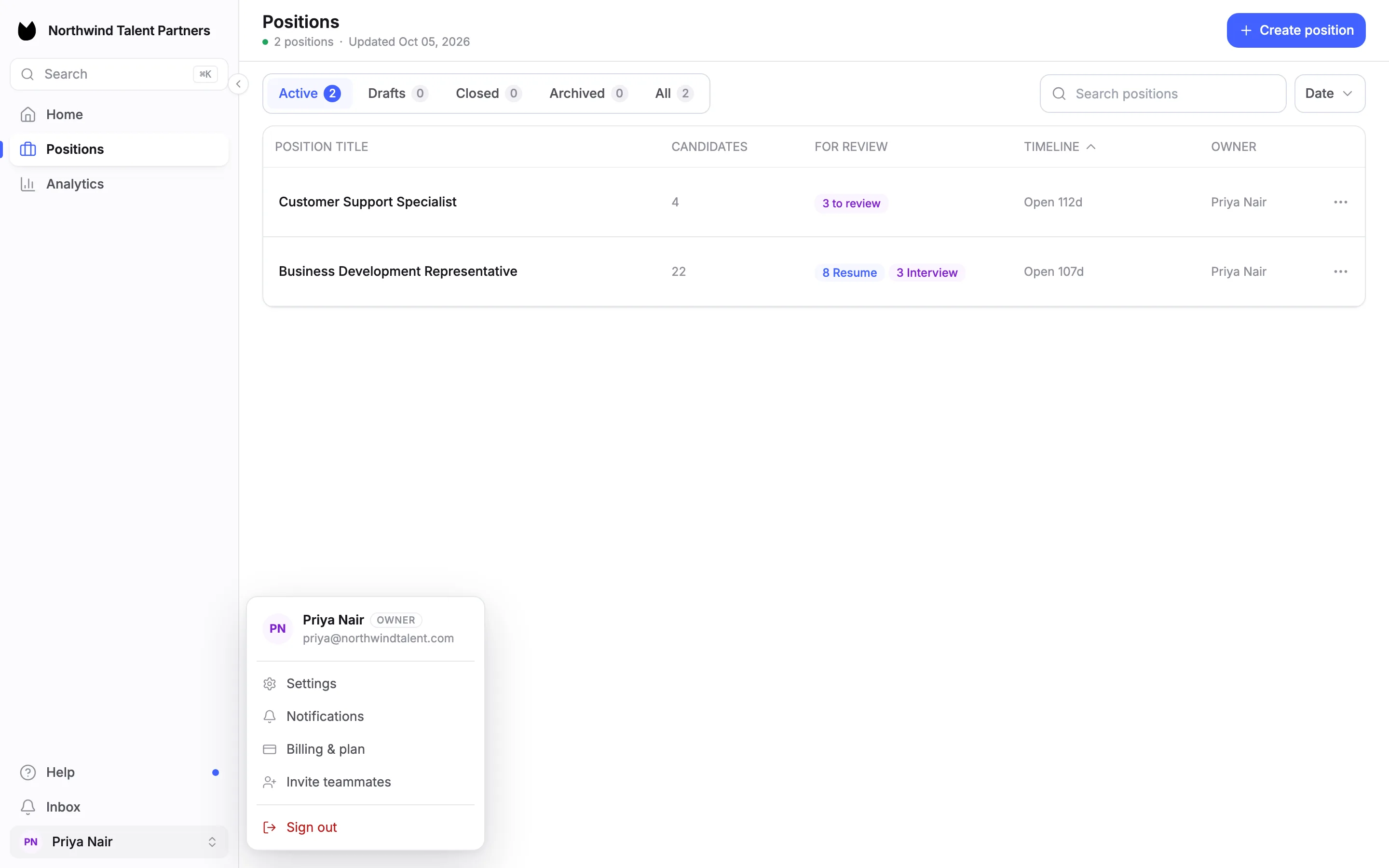
Choose your name at the bottom of the sidebar and pick Invite teammates. The same page is Team under WORKSPACE in Settings. Only Owners and Admins have the workspace settings, so Members and Viewers do not see this page.
2See who is on the team
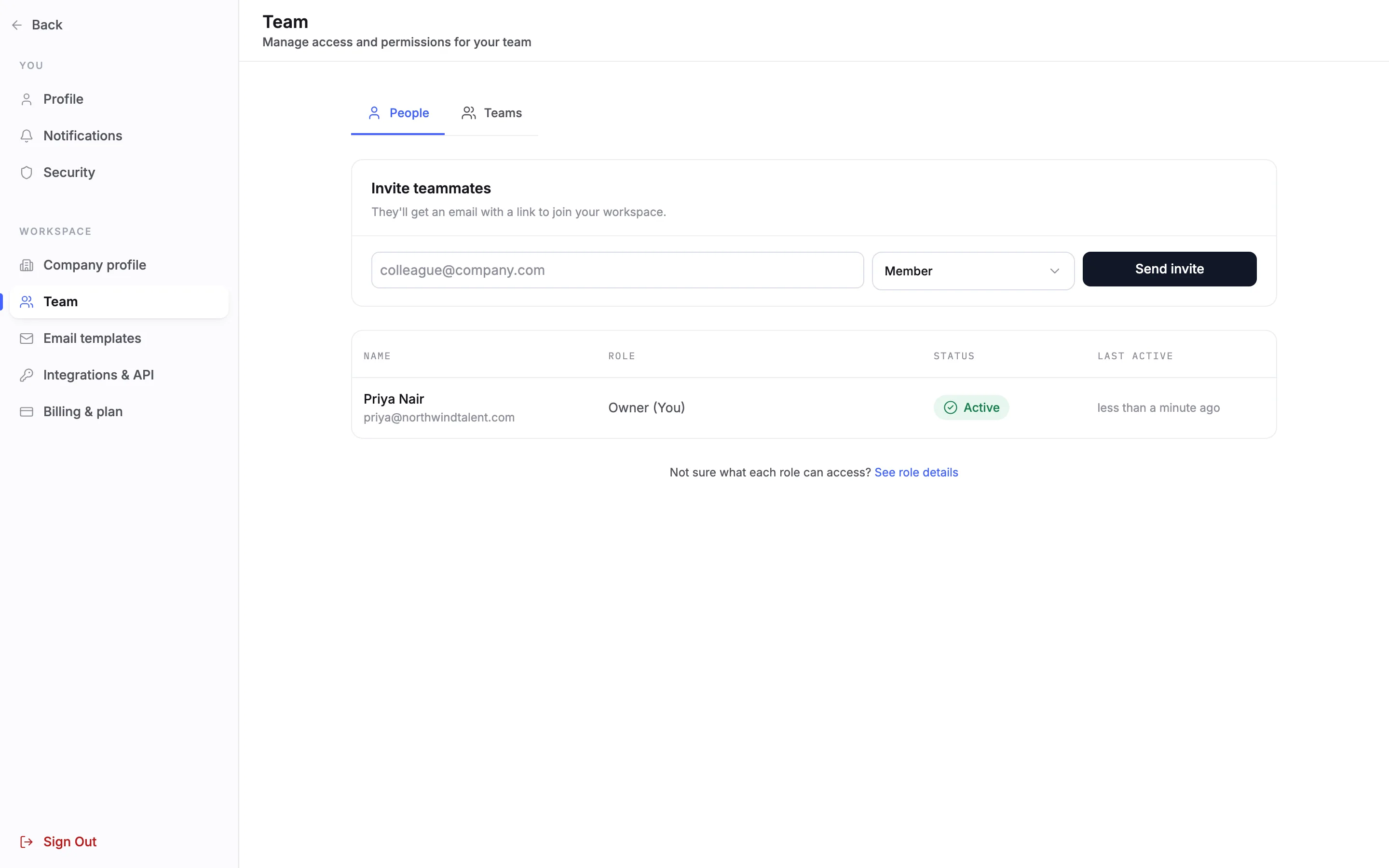
The People tab opens with the Invite teammates card on top and your team below it. The list shows each person's name and email, their role, their status (Active or Invited) and when they were last active. Your own row reads Owner (You) or Admin (You).
3Check what each role can do
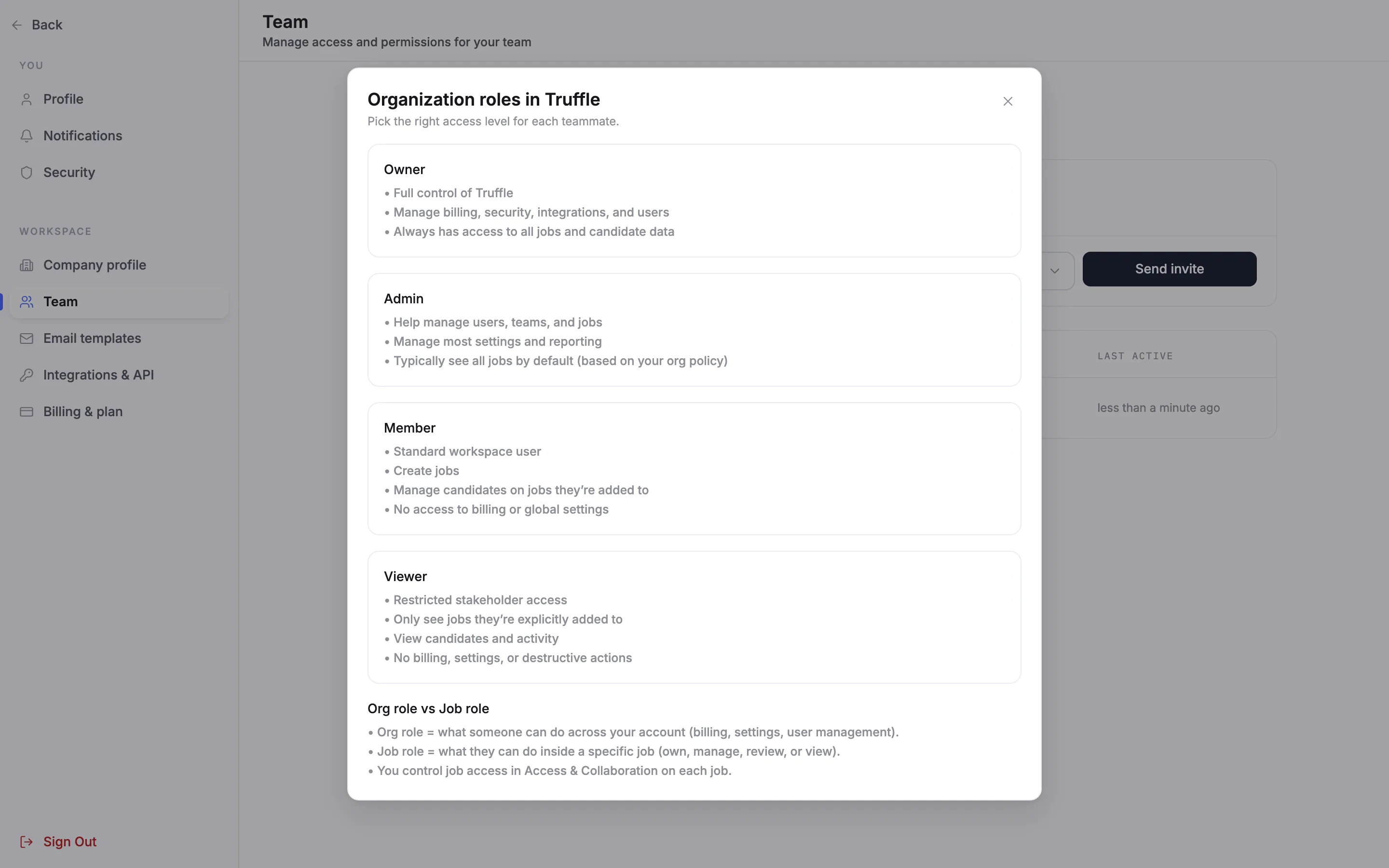
Choose See role details under the list. Organization roles in Truffle describes the four roles. An Owner has full control, including billing, security, integrations and users. An Admin helps manage users and positions and most settings. A Member is a standard user who can create positions, with no access to billing or account settings. A Viewer is a restricted stakeholder with no billing, settings or destructive actions.
Note. Roles and permissions lists what each role can do in more detail.
4Enter their email and pick a role
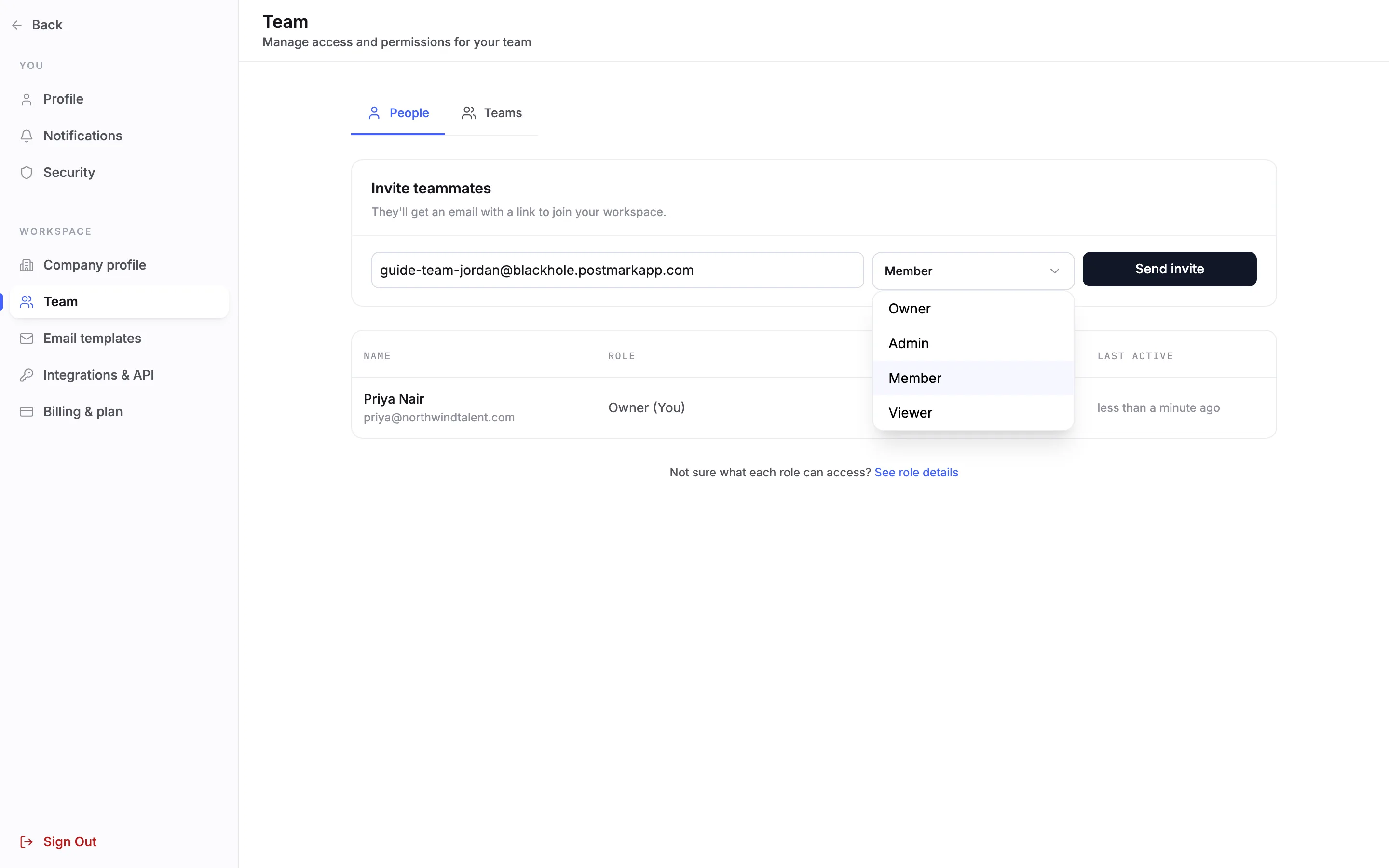
Type your teammate's email where it says colleague@company.com. Open the role menu next to it: Owner, Admin, Member or Viewer. It starts on Member. An Admin can only invite Members and Viewers; only an Owner can invite another Owner or an Admin.
5Send the invitation
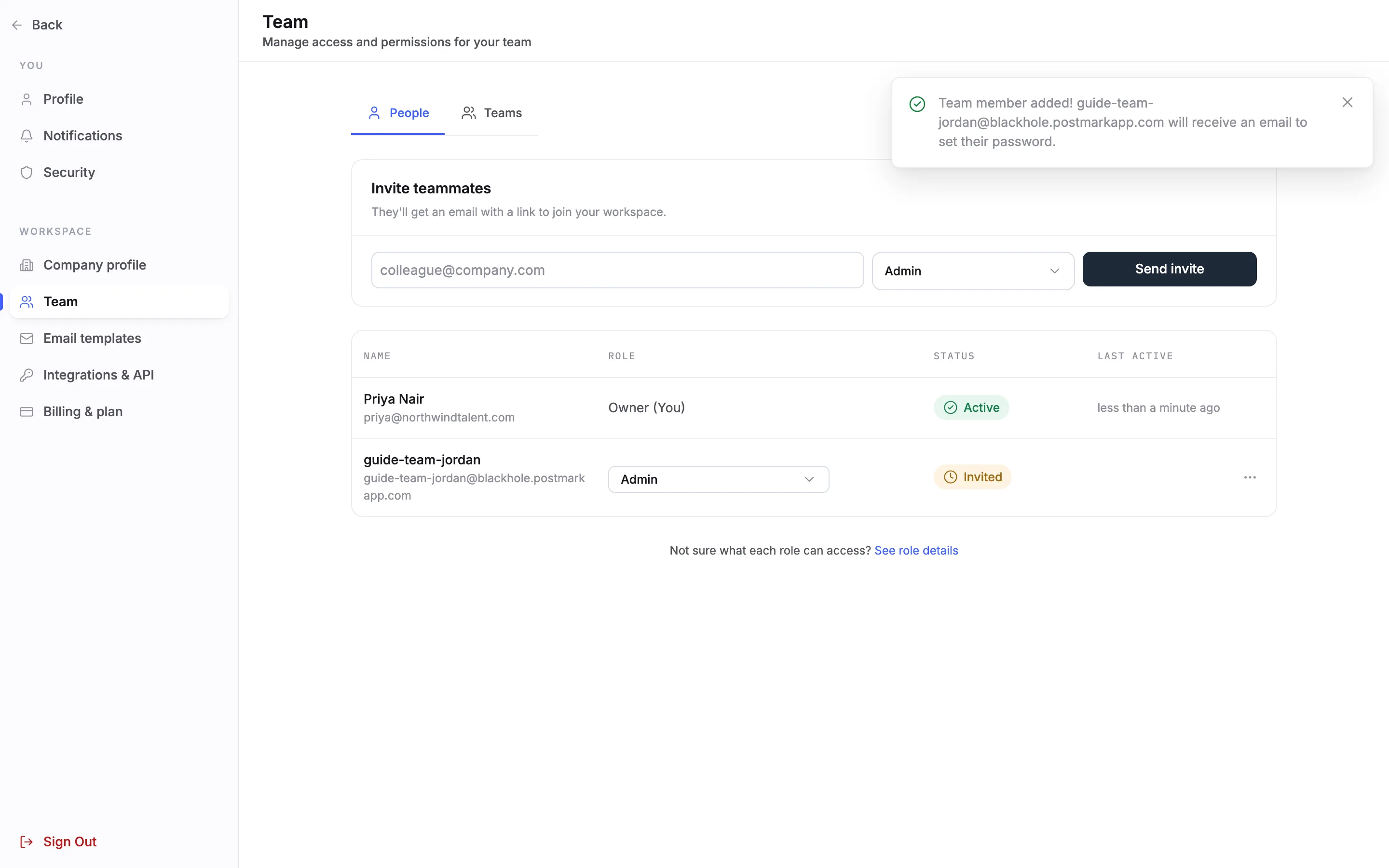
Choose Send invite. Truffle confirms Team member added! and says the person will receive an email to set their password. They join the list as Invited, named after their email address until they accept.
Note. The role menu keeps the role you last chose. Check it before you send the next invitation.
6Resend or cancel an invitation
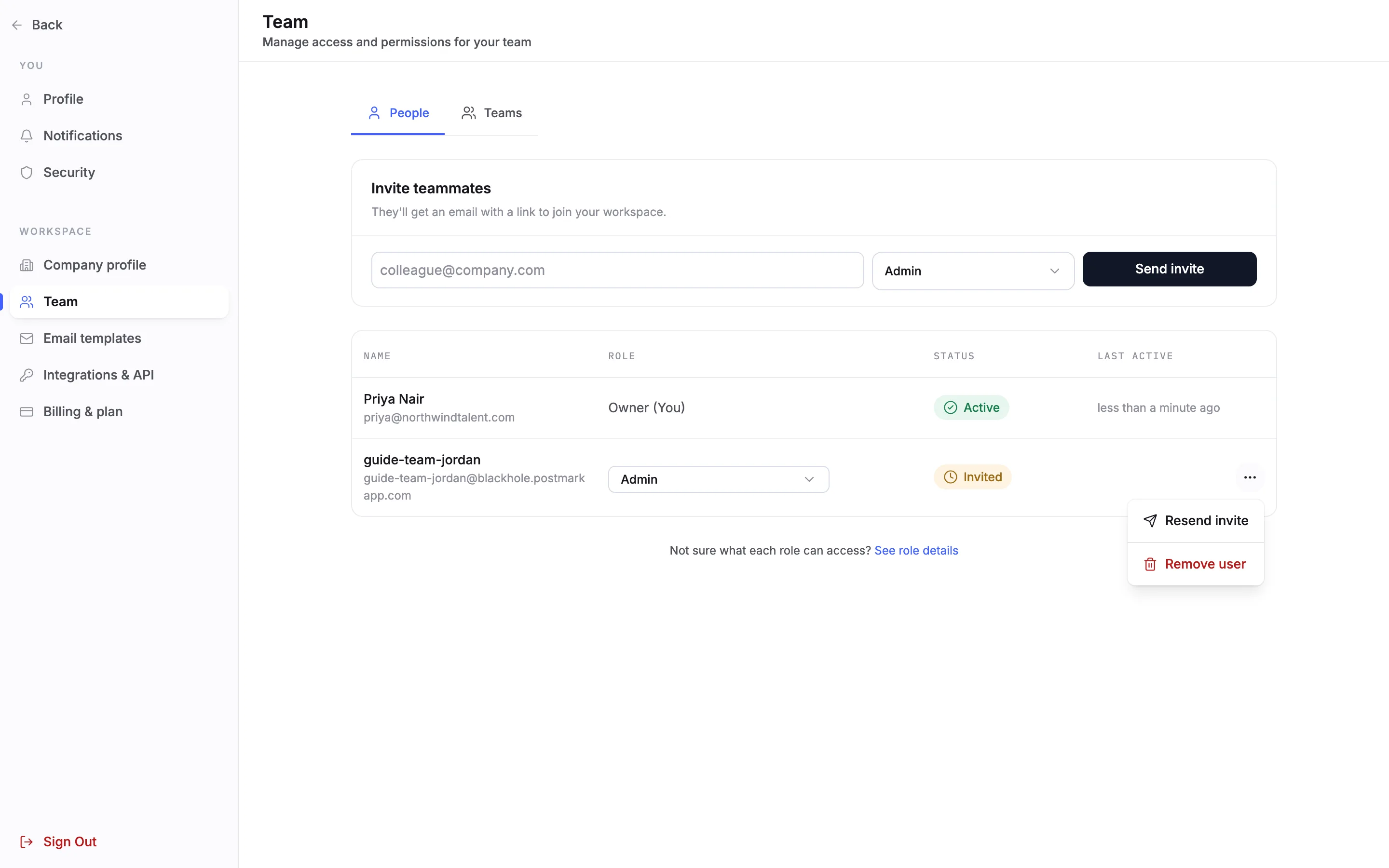
While someone is Invited, the menu at the end of their row has Resend invite and Remove user. Resend if they cannot find the email. Remove the row to cancel the invitation.
Note. An invitation link works for 7 days. After that the person needs a new one.
7What your teammate sees
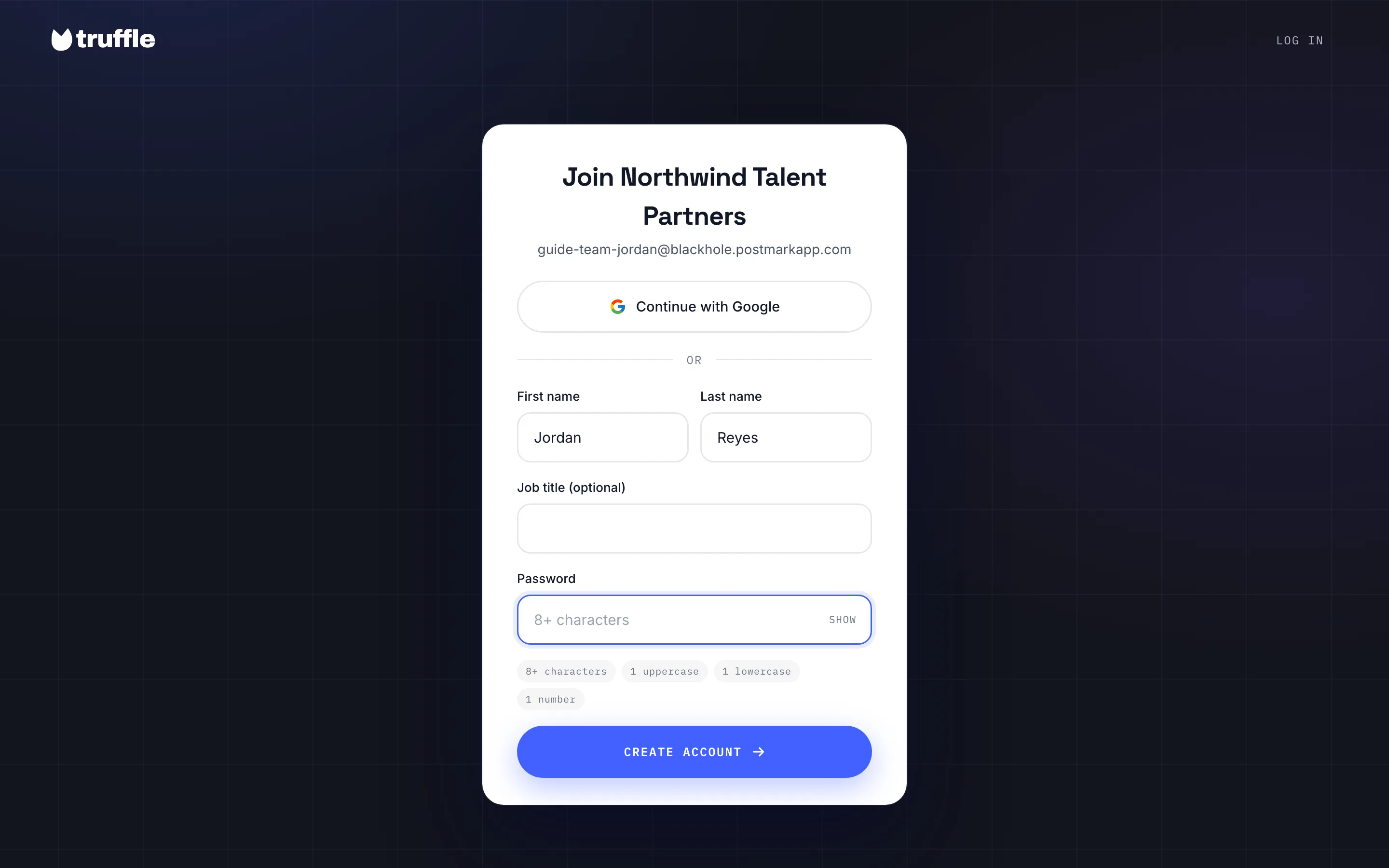
The email opens a page that reads Join and your company name, with their email address under it. They choose Continue with Google, or enter their first name, last name, an optional job title and a password (8+ characters, with an uppercase letter, a lowercase letter and a number), then Create account. They land on Home, signed in.
8Confirm they joined
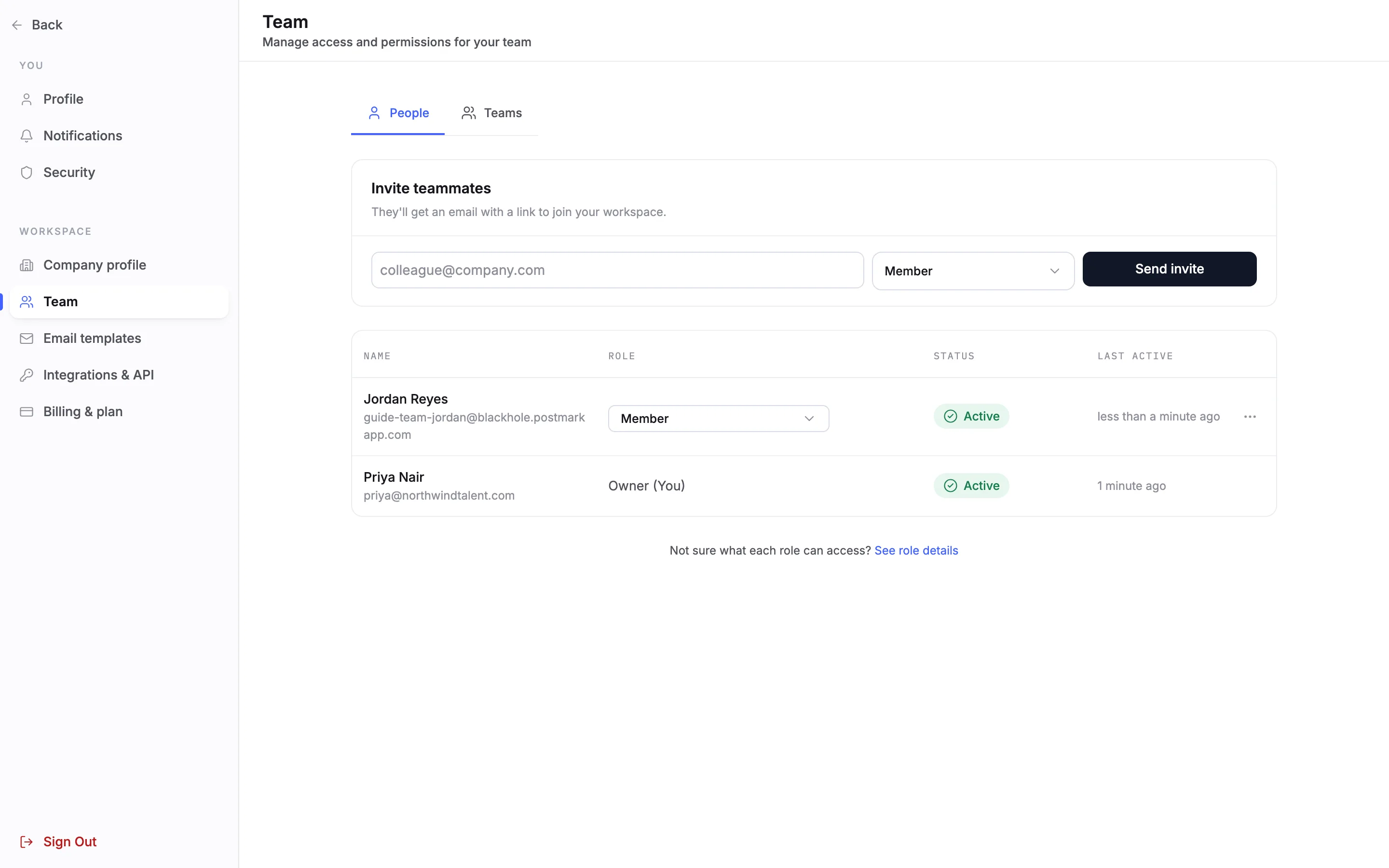
Back on the Team page their row shows their name, Active and when they were last active.
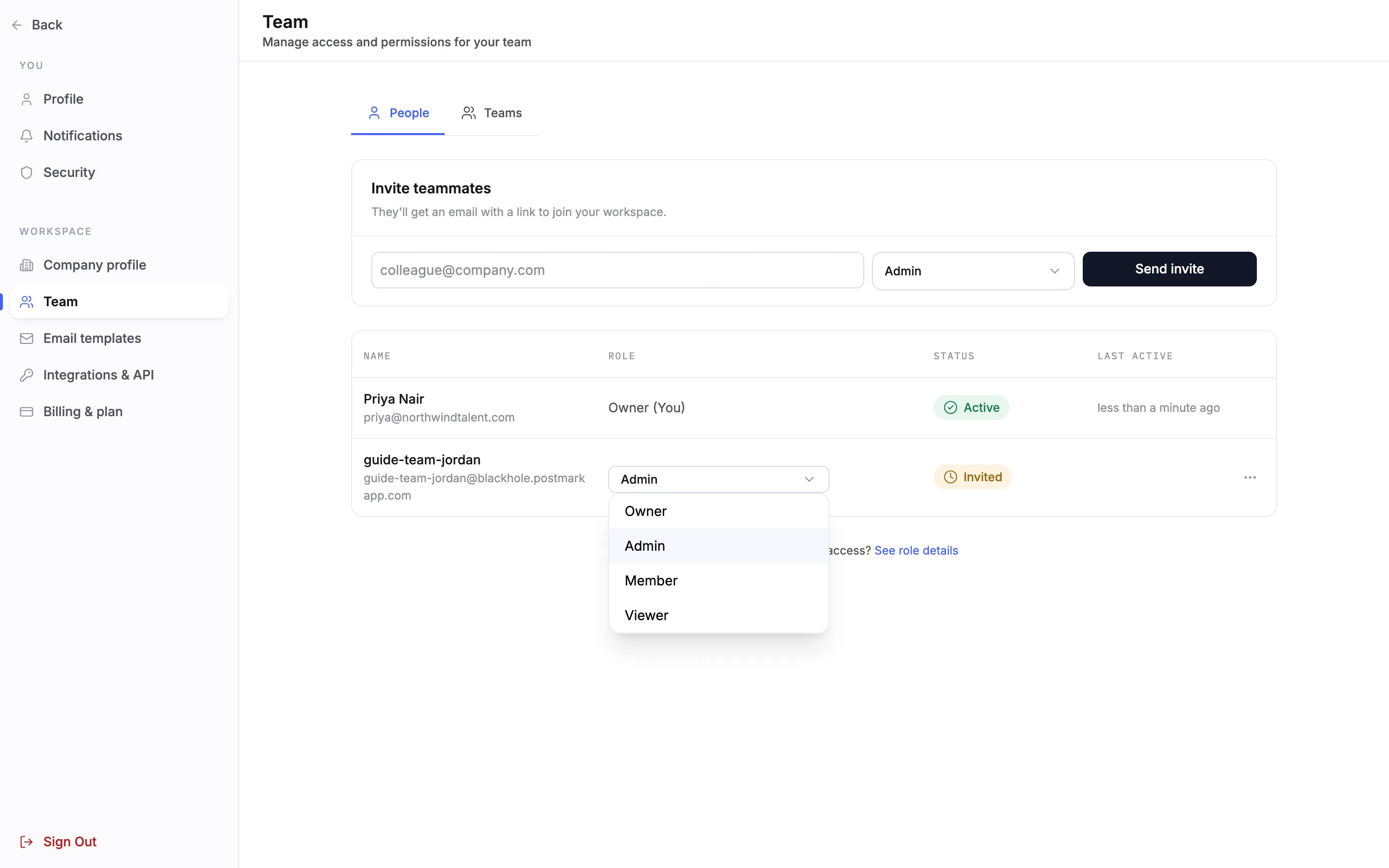
9Change someone's role
Open the role menu in their row and pick the new role. Truffle confirms it, for example is now a Member, and the change applies straight away. No one can change their own role here, and an Admin cannot change an Owner's role.
10Remove someone who leaves
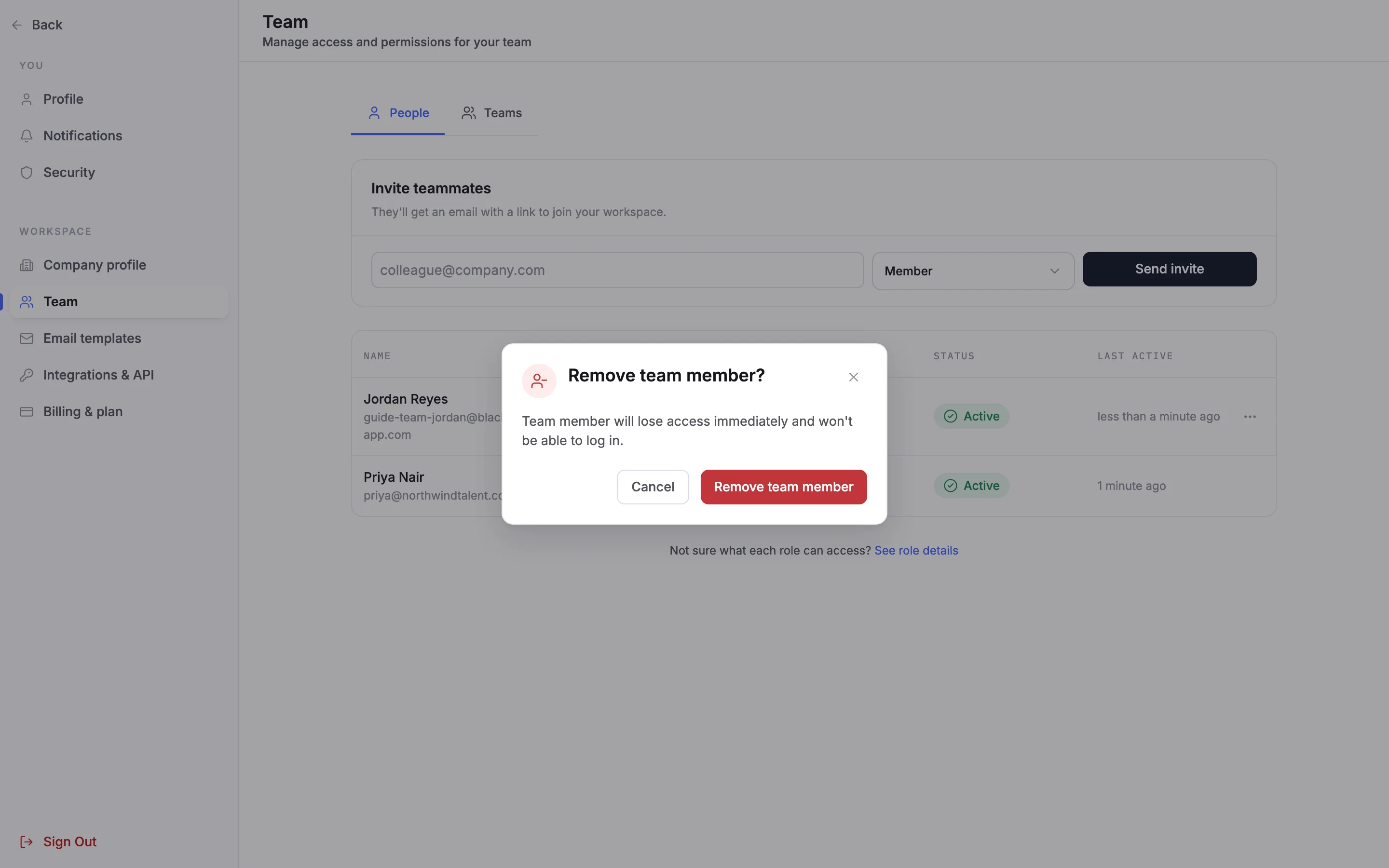
Open the menu at the end of their row. For an active teammate it has Reset password and Remove user. Choose Remove user. Truffle asks Remove team member? and explains that they lose access immediately and cannot log in. Confirm with Remove team member. They disappear from the list.
Note. Owner rows have no menu. To remove an Owner, change their role first.
Questions
Does each teammate cost extra?
No. Every plan includes unlimited team members, with no per-seat fees.
Who can invite people?
Owners and Admins. An Admin can invite Members and Viewers. Only an Owner can invite another Owner or an Admin. Members and Viewers do not have the Team page.
What if the invitation email does not arrive?
Ask them to check spam, then choose Resend invite from the menu on their row. An invitation link works for 7 days.
Can someone join with Google instead of a password?
Yes. The invitation page offers Continue with Google next to the password form.
What happens when I remove someone?
They lose access immediately and cannot log in. They leave the team list. To bring them back, invite them again.
Can I change my own role?
No. Your own row shows your role with (You) next to it and has no role menu. Ask another Owner to change it.
Related
See something here that doesn't match what you see in Truffle? Tell us and we'll fix the page.