Concepts
Getting candidates in
Every route a candidate can take into a position, and the emails Truffle sends them along the way.
Checked against the live product 8 Oct 2026 Changelog Copy as Markdown
Candidates reach a position in a few ways. They come to you through a link or a job page, you bring them in from email or a stack of resumes, you invite them by name, or a connected tool sends them. Every route adds them to the same position, so you review them all in one place. Candidate exports, CSV and JSON, have a Source column that shows how each candidate arrived: Invite by email, Shareable link, Email import, Team forward, Uploaded, or Other.
Your Position Link
Every open position has one shareable link, the Position Link. Copy it from Get candidates on the position, or hover the position’s row on the Positions list and use the copy button. On a phone there is no hover, so Copy shareable link is the first item in the row’s menu. Every one of these gives you the same link. Share your Position Link shows every place to copy it.
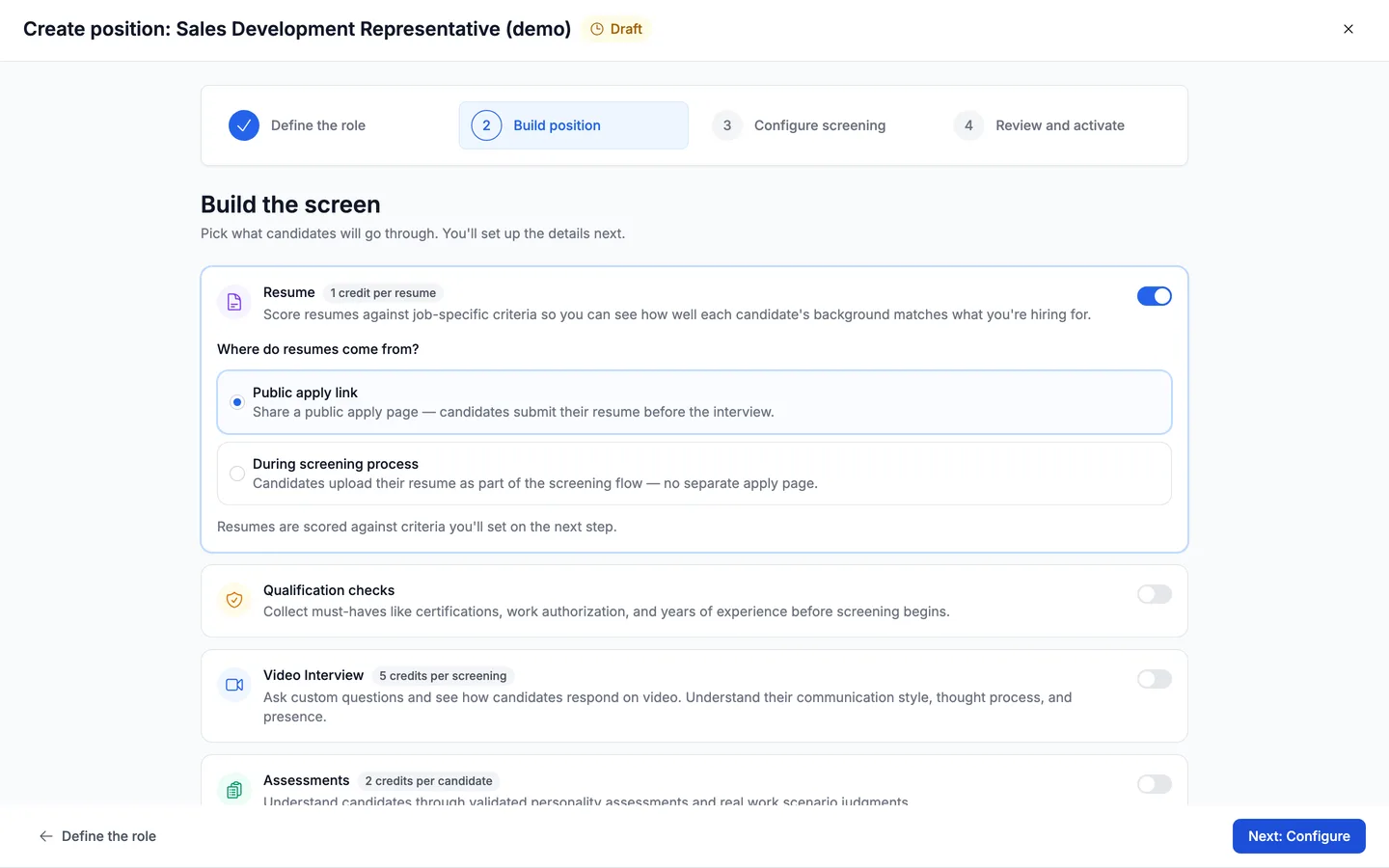
Post the link wherever candidates will see it: a job board listing, an email, a social post. When a position collects resumes alongside an interview or assessments, Build position asks how it runs. With Apply first, candidates send a resume, it is scored and ranked, and they wait in your list until you invite them to the next step. With Apply and finish in one sitting, they complete the rest in the same session: they record first and add their resume on a final step at the end. Whether that final resume is required is set by Require a resume to submit, covered in Setting up a position. If Resume is the only method, every resume lands in one list.
The link stops accepting candidates the day you close the position, or when its deadline passes. An expired position has no copy option on the Positions list, because its link no longer works.
The link carries most of the traffic. Between 30 July and 23 September 2026, 83% of candidates in Truffle arrived through a public Position Link, 13% through resume upload, and 4% through email forwarding or job board import.
Job pages and careers page
Hosted job pages
Every published position gets a public job page with a built-in apply flow. Candidates upload a resume (PDF or DOCX, up to 5 MB) and apply without creating an account. The resume is parsed in their browser and they confirm their details, or type them in by hand if it cannot be read. Scanned or image-only PDFs are read with text recognition.
Job pages are rendered on the server with job-posting structured data and kept current in the sitemap, so search engines can find and index them. A cut-off apply link shows “This application link is incomplete” with steps to find a working one.
Careers page
Every company also gets a hosted careers page at one shareable link. It lists your open, published positions, and each one links to that position’s apply flow. It is in the sitemap too. Copy the link from Settings, under Company, in the Careers page section. The page updates on its own when your positions change.
Careers widget
To list your roles on your own website, use the careers widget. Paste one script tag into your site and your open positions that have List this job publicly switched on render inside the page, each linking to its apply flow. It stays in sync with your positions automatically.
Set it up in Settings, under Company, in the Careers page section, below the careers page link. You get a live preview, a publishable key that is generated for you, and a snippet to copy. There are three themes, Light, Dark and Brand color. To group roles by location or employment type, add a grouping attribute to the snippet; there is no setting for it. Add a careers page to your site shows each step. If the widget cannot load, it shows a link to your hosted careers page instead.
Posting to job boards
Truffle does not post to job boards for you. Put the Position Link in your job ad as the way to apply, and candidates land on the position’s job page. For Indeed you can also skip the link and have applications import on their own, see Importing application emails. Share your Position Link walks through where to copy it.
Importing application emails
Each position has its own private Truffle email address. Point a job board’s new-candidate notifications at it, or forward an application email to it, and Truffle reads the candidate’s name and contact address and adds them to the position. If the email has a resume attached (PDF or DOCX), Truffle reads that too. Indeed usually sends no resume, and for Indeed you add the address on the job in Indeed rather than forwarding, see Indeed applicants. Turn it on from Get candidates, under Auto-import applicants. The first time, you confirm a one-time attestation, recorded with your name and the time, and Truffle offers a notice you can add to your job postings. Import applicants from Indeed walks through the setup on both sides.
Notifications from Indeed, LinkedIn and ZipRecruiter are accepted directly. So are forwards from a teammate’s sign-in address. Where a board relays email through a per-candidate address, as Indeed does, that address is used as the candidate’s. For Indeed applicants, Truffle sends invites to that address from the position’s import address, and they arrive in the applicant’s Indeed inbox.
Email from any other sender waits for review. A manager or owner can choose Import once, Always allow for that exact address, or Ignore. Unreviewed emails expire after 14 days. An email that cannot be imported shows up with the reason and what to do about it.
What happens next follows how the position is set up. On a position where candidates apply first, imported candidates wait in the candidate list and nothing is sent until you invite them. On a one-sitting position, or one with no resume step, they are invited to the interview automatically. A candidate whose resume came with the email already has it on file, so they skip the resume step at the end. Imported candidates carry an envelope marker in the candidate list and Magic Review, and their profile says whether they came from a job board email or were forwarded in by a named teammate.
Indeed applicants
Indeed usually gives each applicant an Indeed conversation address (one like conversation-…@indeedemail.com) and sends no resume with the application. Truffle uses that address as the candidate’s. Invites, reminders and other candidate emails go to it from the position’s import address. They arrive in the applicant’s Indeed inbox, from your company. Older Indeed relay addresses work as before.
This only works when the import address is added on the job in Indeed. In Indeed, open the job, choose Edit job post, then Application method. Under “Application updates and access to candidates on Indeed”, click ”+ Add email” and paste the import address. Tick “Send an individual email each time someone applies”, save the job, then Confirm.
If you forward Indeed’s emails from your own inbox instead, by hand or with a rule, the applicant still imports. Indeed won’t deliver their invite, though, because the import address isn’t on the job. Truffle holds the invite back and tells you why. Add the address on the job in Indeed so new applicants get their invites. Applicants who already imported are not invited later. Message them in Indeed, or add their personal email to their profile. Forwarding works as before for other boards and for email applications.
When a candidate replies in Indeed, a copy reaches the import address. Truffle logs it under Import activity on the position’s Get candidates page as Replied in Indeed — read it there, and does not create a duplicate candidate. You read and answer the reply in Indeed.
Because Indeed usually sends no resume, the resume comes from Truffle. Turn on Resume scoring for the position, and candidates add their resume on the last step of their interview. Require a resume to submit, next to the resume criteria, makes it required. A candidate on a phone who can’t upload right away is reminded later. Once Truffle has the resume, it saves it, scores it against your criteria and picks up any personal email on it. From then on, Truffle emails that address.
Uploading resumes
If you already have resumes from a job board, referrals or an old pipeline, upload them to the position. Each resume becomes a candidate in the resume queue and is parsed and scored against the position’s resume criteria, the same way as a candidate who applied through the job page.
Uploads take PDF or DOCX, up to 50 files at a time and 5 MB per file. Scanned PDFs are read with text recognition. Start from the Bulk resume upload row on the position’s Get candidates tab, which appears when Resume is on. The first time, you confirm a short attestation before uploading. Uploaded candidates land in For Review, read and scored like any other resume. Upload resumes you already have shows each step, including what a refused file says.
Uploaded candidates receive no email. They only hear from Truffle if you invite them to an interview, and then they skip the resume step at the end because their resume is already on file.
Inviting candidates directly
To invite people you already know about, use the Invite by email row on the position’s Get candidates tab. It appears when the position has a video interview or assessments. Each invitation is a branded email with a unique, secure link to the screening. An invited candidate shows as Invited, then Interview started once they begin, and moves to For Review when they finish, at which point the AI analysis runs. Invite candidates by email walks through it.
Pasting a list
Paste from spreadsheet, inside Invite by email, takes a list of names and emails. Commas, tabs (as when you copy from Excel) and spaces all work as separators, and a header row is skipped. You can paste up to 200 rows, and one send takes up to 50 invitations.
Completion deadlines
You can add a completion deadline to a direct invitation, for one candidate or a whole batch. Pick a date and a timezone. After the deadline, the candidate’s link stops accepting submissions. The deadline appears in the invitation email, on the candidate’s landing page and on the Finish later screen. A candidate who tries to leave with less than a day remaining sees a warning. You can extend a deadline after sending, for one candidate or in bulk.
Emails and reminders
Truffle sends candidates an invitation, then up to three reminders to candidates who haven’t started, after 1 day, 3 days and 7 days, each one switchable in the position’s Settings under Candidate emails, and a confirmation as soon as they finish. Each one is on by default and can be switched off per position under Candidate emails and reminders. The wording adapts to what the position includes, so an assessment-only position never mentions a video interview, and on a position with no interview the invitation, reminders and completion email say “application” instead of “screening”. If a candidate withdraws before finishing, all reminders stop.
A candidate who skips an optional resume step gets an email about an hour after finishing, then one reminder 48 hours later, with a link to add the resume that works for 14 days.
Invitations and reminders come from the person who sent the invitation, with their signature, or from the company when no person sent it. Reminders arrive as replies in the invitation’s email thread. The subject line reads {Company}: next step for your {Role} application. Every candidate email ends with a line pointing interview trouble to Truffle support. Emails from a company that has not set a brand colour use Truffle’s default button colour. Your brand colour always takes priority.
You can also send a reminder by hand from a candidate’s profile, with a 24-hour wait between sends. The wait applies across browsers and teammates, so a teammate cannot send another one inside the same 24 hours. A manual reminder matches the stage the candidate is at, and never resends the original invitation. If the candidate’s deadline has passed, Truffle offers to extend it.
Your own templates
On paid plans you can write your own versions of the five candidate emails: the invitation, the three reminders and the completion confirmation. Templates live in a company-wide library in Settings, with up to 20 named templates per email and one default that automated sends use. A position can pick a different template or fall back to the company default. Customize candidate emails shows the editor, merge tags and preview.
The editor has a live preview and can send a test to you. Merge tags fill in details such as {candidate_first_name}, {position_title} and {deadline_date}, and you can add your logo and brand colour. In a position’s email editor you can draft a template with AI from that position’s details. The stock invitation includes {personalized_note}, a one-line note written from the candidate’s application when the email sends. It is left out when there is nothing specific to say, and you can delete the tag to send without it.
Where replies go
You choose where candidates’ replies land. With Reply to the sender, the recommended default, a reply goes to whoever sent that email, and replies to automated reminders go to whoever invited the candidate. Emails with no person behind them, such as invitations from the API, Ashby or email import and the completion confirmation, go to an optional shared address, then the position’s creator, then the longest-standing owner or admin. With Use one address, every reply goes to the same inbox. Replies from Indeed applicants stay in Indeed, see Indeed applicants.
Companies created from 17 September 2026 start on Reply to the sender. Older companies keep their previous routing, where replies reach Truffle, until an owner or admin picks an option. The choice is in Settings, under Company, in Candidate email, and also on a card on Home and in the invite email window.
Unsubscribe and suppression
Every recurring candidate email has a link to stop email, and supports one-click unsubscribe from the candidate’s mail client. You can also record an opt-out for a candidate from the menu on their row. Each request goes into one record for your company, every send path checks it before sending, and a suppressed candidate shows as suppressed in your view.
Through integrations
Candidates can also come in from tools you already use. Ashby, Breezy HR, Workable, Bullhorn, JazzHR, Recruitee, Teamtailor and Pinpoint connect natively: a step in your ATS sends the candidate into a Truffle screening, and the results come back on the candidate in your ATS. In Pinpoint, Send Truffle interview sends a candidate the interview invitation, and Screen resume with Truffle scores their resume without contacting them. The Zapier Invite Candidate action pushes candidates in from other tools, and on paid plans, once API access is approved, the API can add candidates and send invites. See Integrations and API for setup, or the step-by-step guides to connect Ashby, connect Pinpoint and connect Zapier.
What it does not do
- Truffle does not post to job boards for you. It formats the description and link, and you paste them into the board.
- Email import only accepts job board notifications from Indeed, LinkedIn and ZipRecruiter, and forwards from teammates’ sign-in addresses, without review. Everything else waits for a manager or owner, and expires after 14 days if no one acts.
- Accounts more than 14 days past cancellation, or blocked, stop importing application emails.
- Indeed applicants imported by forwarding from your own inbox are not invited, and are not invited later once the address is added in Indeed. Message them in Indeed, or add their personal email.
- Resumes must be PDF or DOCX, 5 MB or less.
- A candidate who skips an optional resume gets two emails about it at most, and the link to add it stops working after 14 days.
- Uploading resumes sends nothing to candidates, and nothing uploaded is rejected or advanced automatically.
- A closed position’s link and careers page stop accepting candidates the same day. An expired position shows candidates an expired page.
- A suppressed candidate gets no further email from your company through Truffle, from any send path.
- Custom email templates are on paid plans only.
- Requests for an alternative selection process keep their own address and never follow your reply-to choice.
Related
See something here that doesn't match what you see in Truffle? Tell us and we'll fix the page.