Guide
Create a job application
By the end you have a position whose hosted job page collects a resume and your must-haves, scores and ranks every resume against criteria you reviewed, and you know which link to share.
8 min · 14 steps · Captured from the live product 5 Oct 2026 Changelog Copy as Markdown

Key moments and transcript
- 0:00 Define the role
- 0:11 Build the position
- 0:21 Configure screening, then what candidates see
- 0:45 Copy the shareable link
Here's a job application in Truffle, set up in a few minutes. Let's build one. Start a new position, and describe the role. Truffle suggests your screen from it. Resume and qualification checks arrive switched on, each with the reason it fits this role. Then choose apply first, so you pick who continues. On Configure screening, Truffle drafts your qualification checks. Review them, and add any must-have it missed. Once it's live, candidates open your job page, and choose apply for this role. They upload a resume, with no account to create. Truffle reads it, and they confirm their details. Then they answer your checks. To share it, open Get candidates, and copy the shareable link. Every resume comes back scored against your criteria, with the reasoning shown. You pick who continues. Start free at hiretruffle.com.
Before you start
- A Truffle account. The 7-day free trial works: 30 credits, no credit card.
- A position description of at least 200 characters. Truffle suggests the screen and drafts the criteria and checks from it, and a position cannot go live on less.
1Define the role
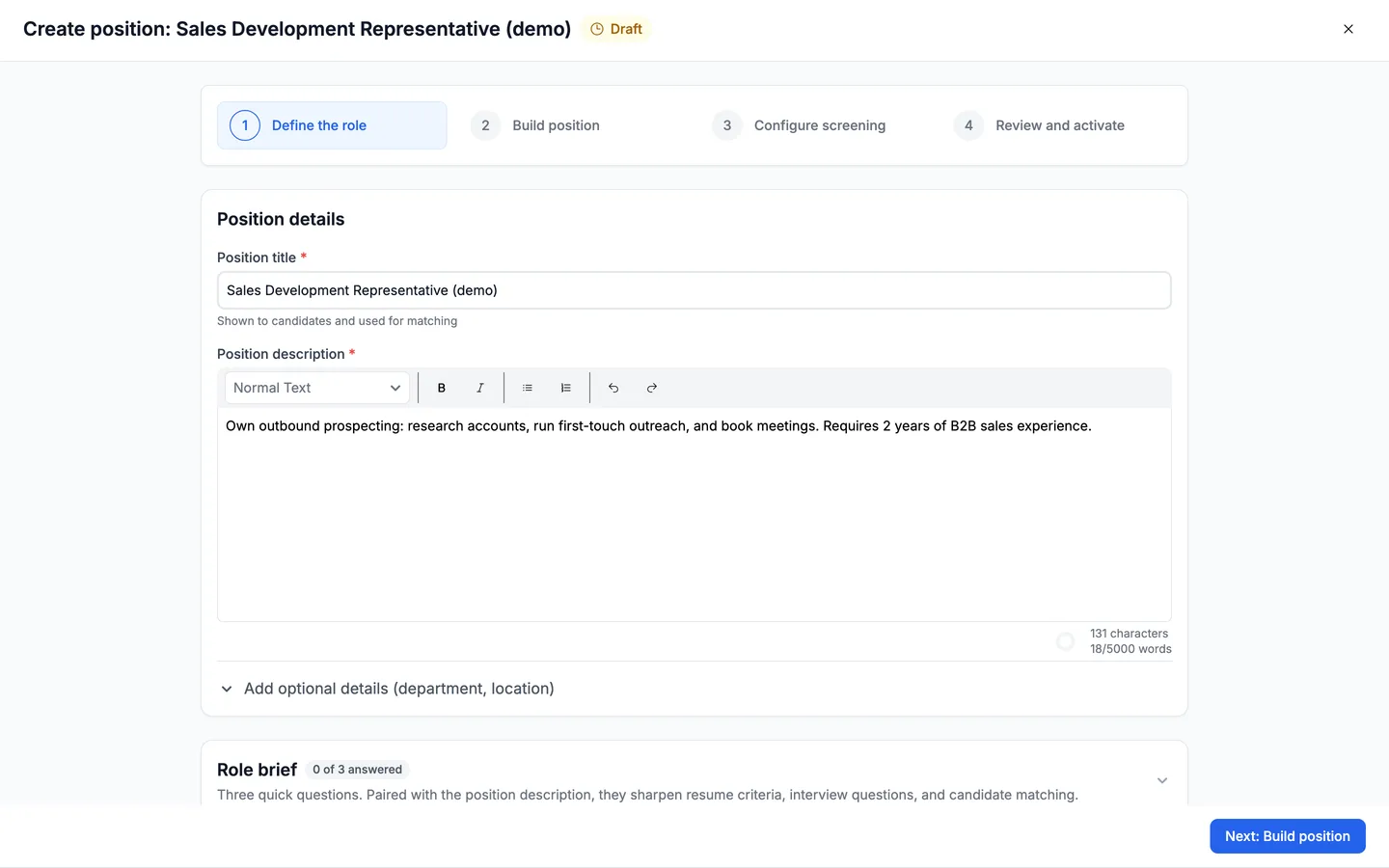
Start a new position. On Define the role, enter a Position title and a Position description. Candidates read the description on the job page. Write each hard requirement as a plain sentence, such as Must be authorized to work in the US without sponsorship, so Truffle can suggest qualification checks. Truffle reads the description back as Thin, Workable or Strong. Then choose Next: Build position.
Note. Department and location are optional, under Add optional details (department, location).
2Keep Resume and Qualification checks on
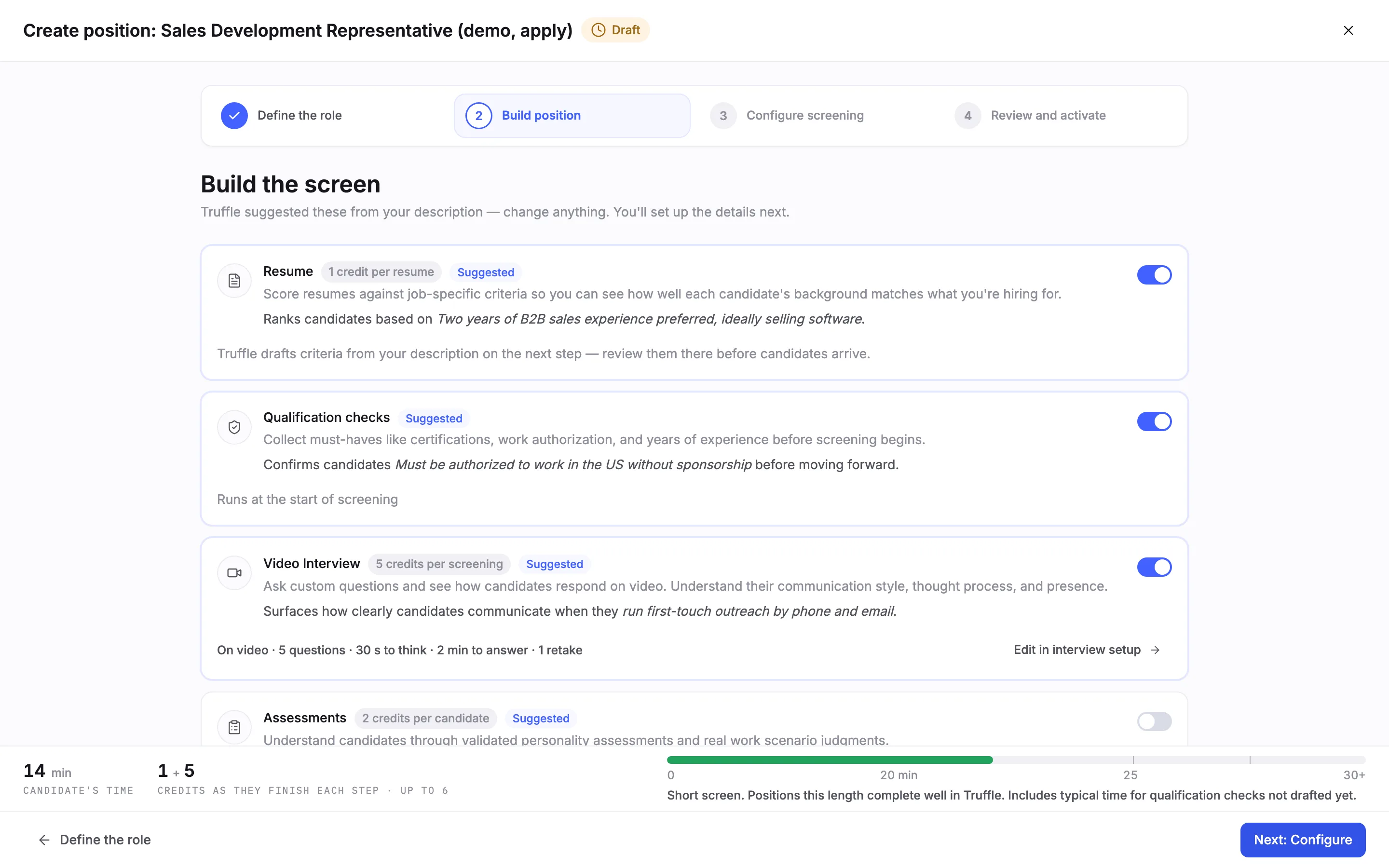
Build the screen arrives with Truffle's suggestions already switched on, each with a Suggested badge and a line on why it fits this role. Resume costs 1 credit per resume. Qualification checks shows no credit cost, quotes the requirement it found in your description, and reads Runs at the start of screening. Leave both switches on. This guide keeps Video Interview on as the step after the resume and switches Assessments off.
Note. Check every switch before you go on. In our capture Truffle also suggested Assessments, and we switched it off. If your description names no hard requirement, Qualification checks may arrive as Skipped for now. Switch it on yourself.
3Choose Apply first
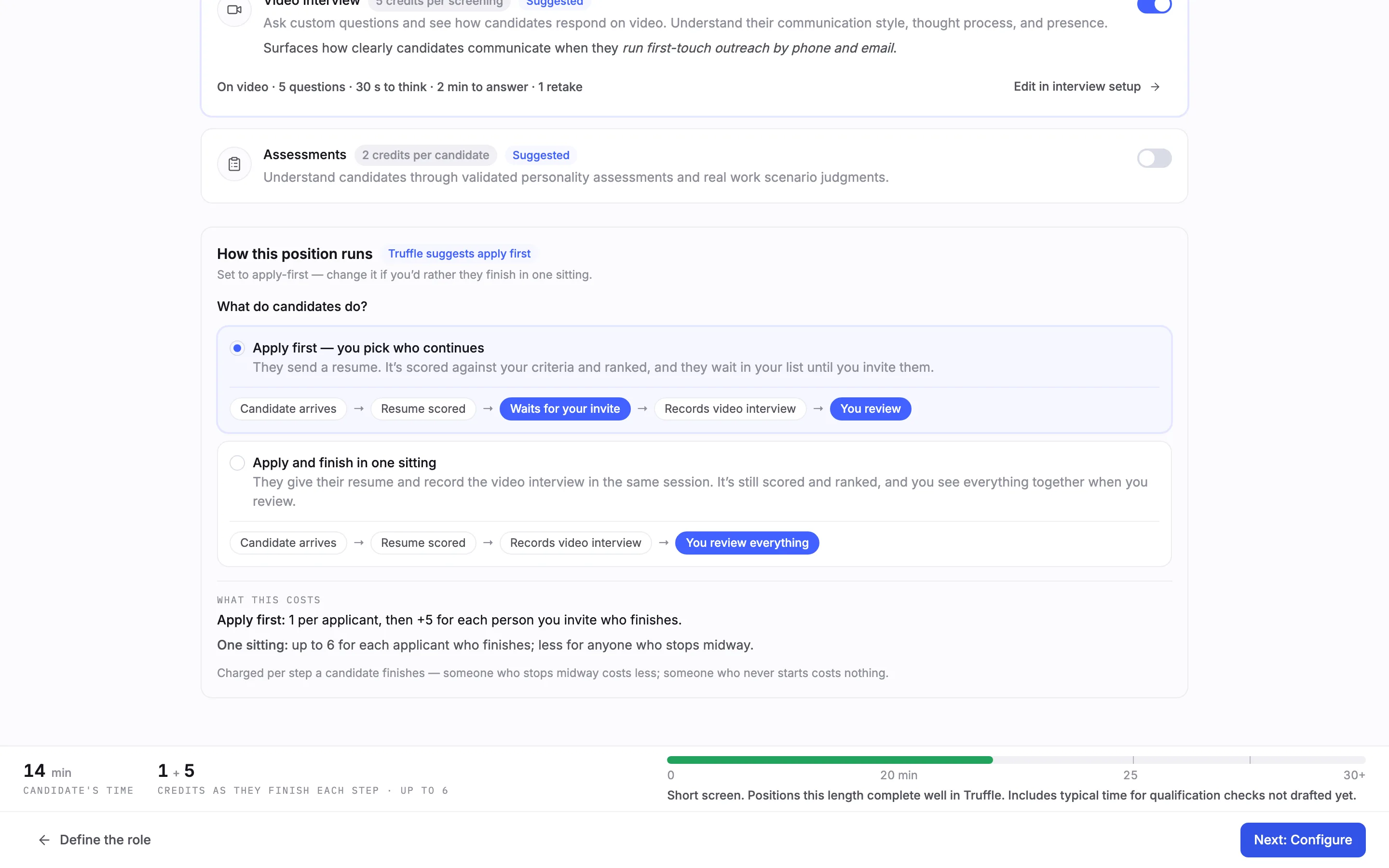
Under the components, How this position runs asks What do candidates do? Choose Apply first, you pick who continues. Candidates send a resume, it is scored against your criteria and ranked, and they wait in your list until you invite them. The flow reads Candidate arrives, Resume scored, Waits for your invite, then the interview. What this costs prices it: 1 credit per candidate who applies, then 5 more for each person you invite who finishes. Then choose Next: Configure.
Note. Apply and finish in one sitting is the other option: candidates give their resume and record the video interview in the same session, and you review everything together.
4Review the resume criteria
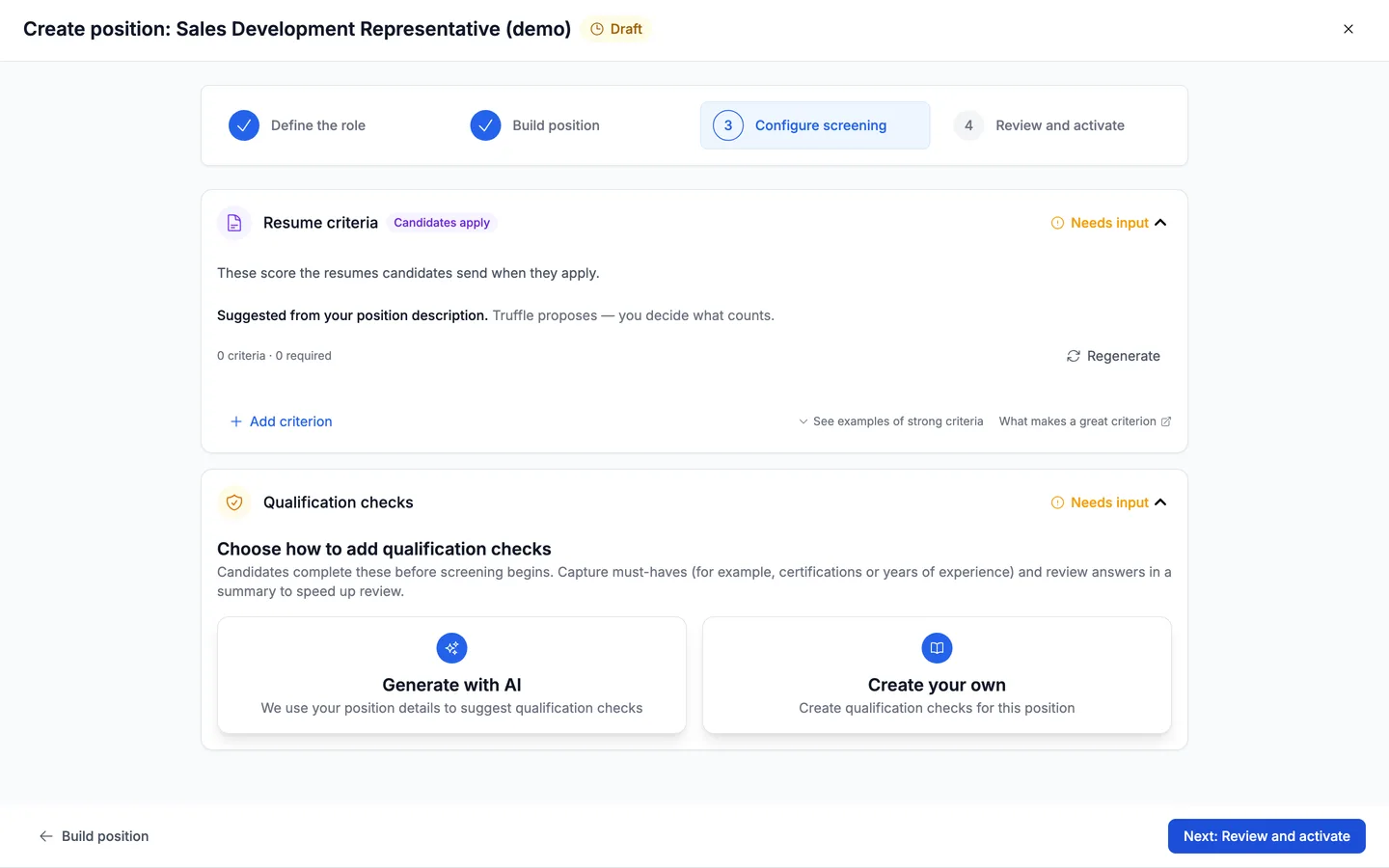
Configure screening lists your sections on the left, each with its state, and opens on Resume criteria, tagged Apply first. These score the resumes candidates send when they apply. Truffle drafts them from your description in the background. They land as Suggested, not reviewed, here 4 criteria · 0 required. Edit, remove or add criteria, then choose Looks right.
Note. A position with resume scoring on cannot go live until its drafted criteria are marked Looks right or edited. The resume screening guide covers the criteria in detail.
5Review the qualification checks
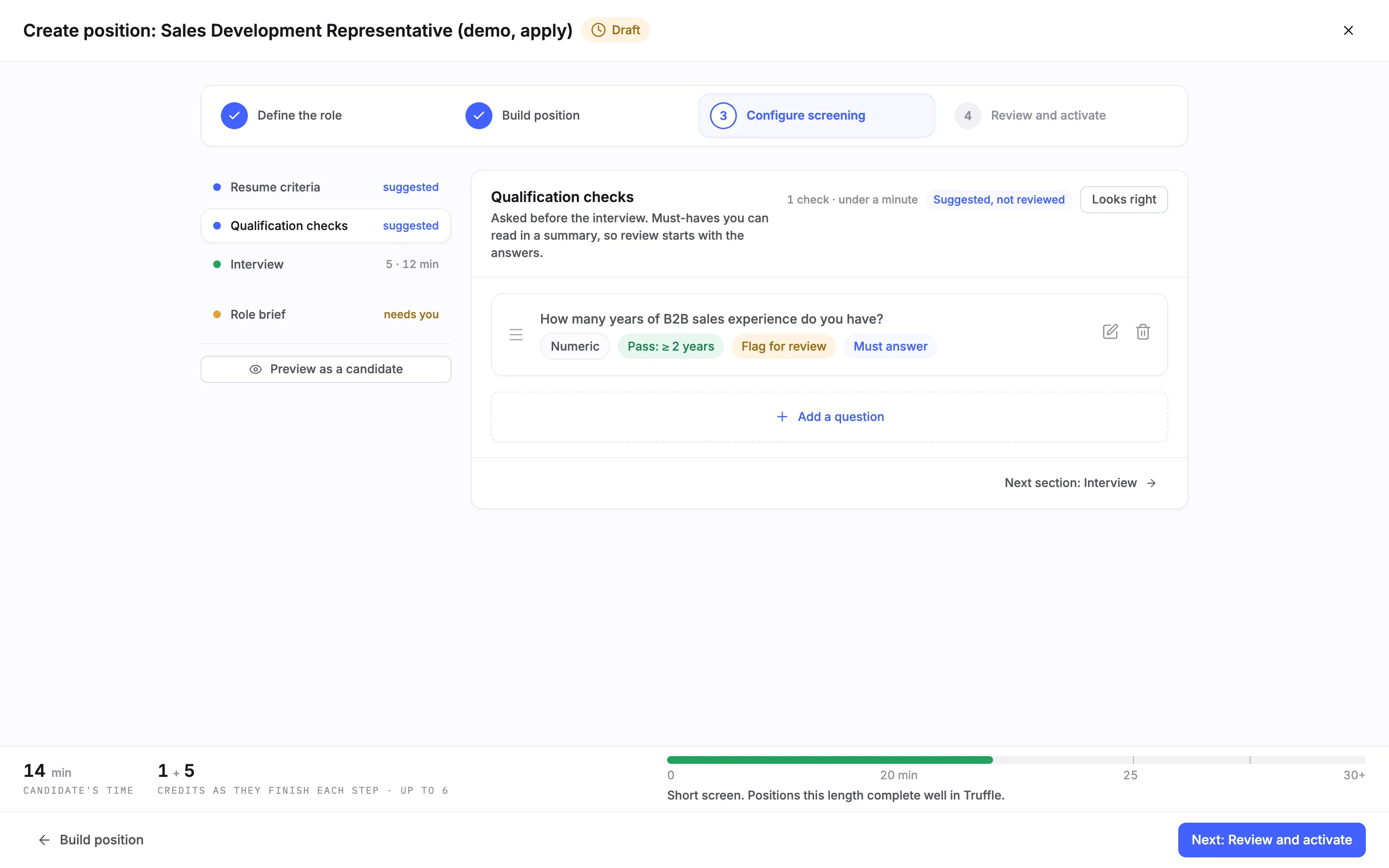
Choose Qualification checks in the list. These are asked before the interview, and with Apply first they are part of the application itself. Truffle drafts them from your description. Each check shows its type, the answer that passes (here Pass: ≥ 2 years), what a missed answer does (here Flag for review), and Must answer. Use Add a question for any must-have that is missing, then choose Looks right.
Note. Read what was drafted. In our capture the reason on Build the screen quoted the work authorization requirement, but the one check Truffle drafted asked about years of B2B sales experience. Add the work authorization question yourself with Add a question. Scores never reject anyone. The only automatic rejection in Truffle is a check you set to Reject automatically. The qualification checks guide covers the outcomes.
6Preview as a candidate
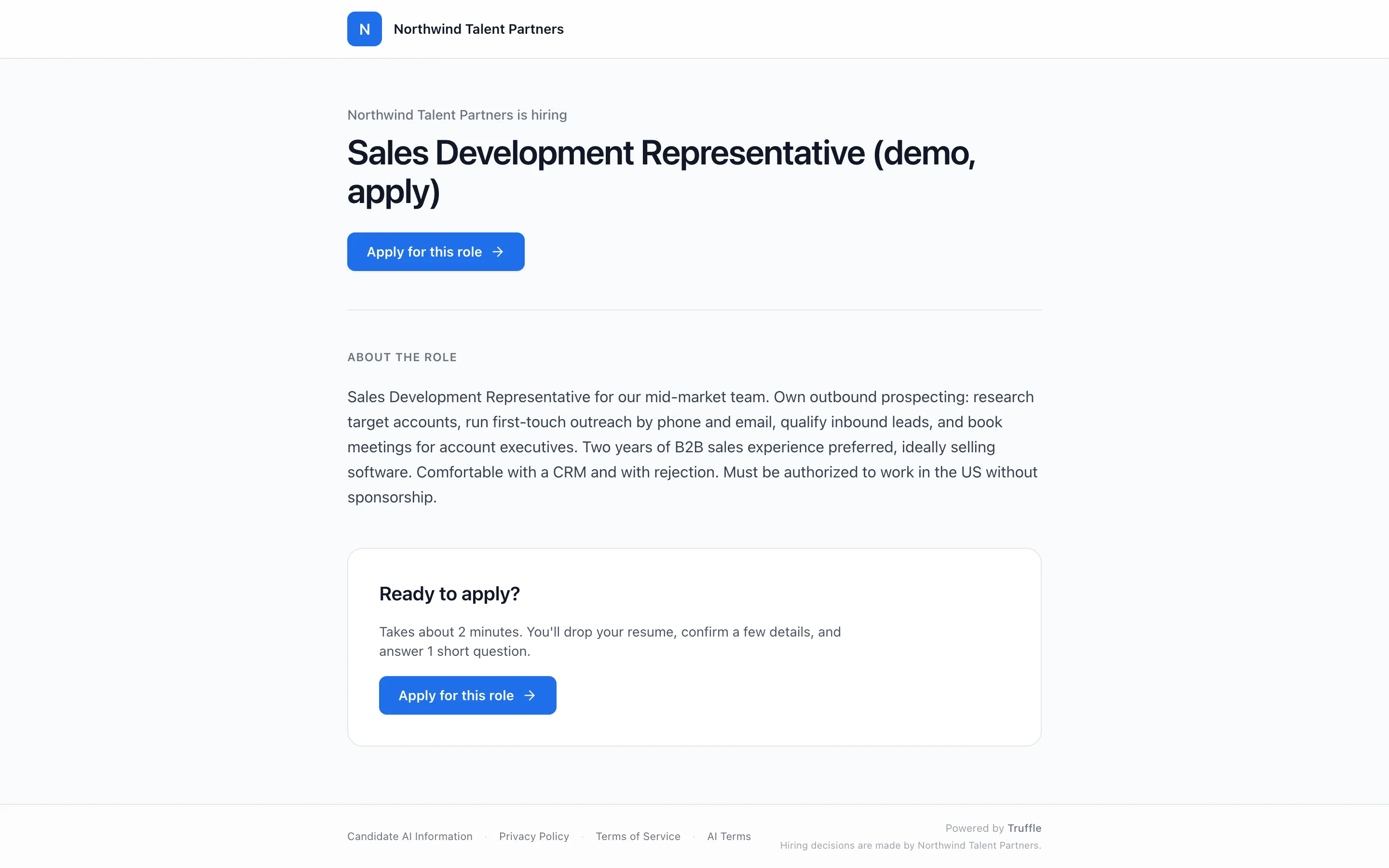
Choose Preview as a candidate under the section list. Your job page opens in a new tab: your company name, is hiring, the title, the description under About the role, and Apply for this role. Further down, Ready to apply? tells candidates what applying takes, worked out from your setup. Ours read: Takes about 2 minutes. You'll drop your resume, confirm a few details, and answer 1 short question.
7Review and activate
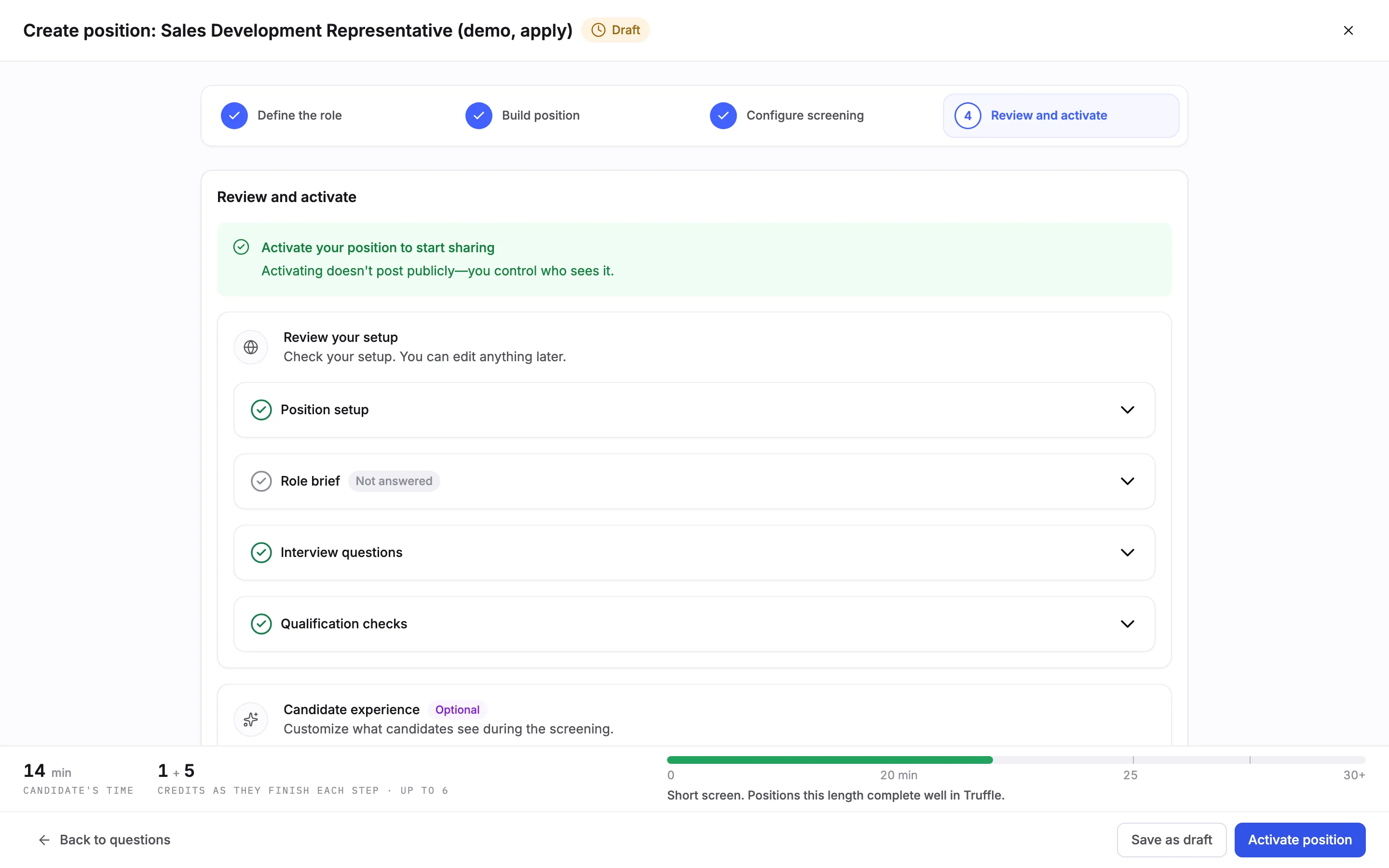
Choose Next: Review and activate. Review your setup lists Position setup, Role brief, Interview questions and Qualification checks. When nothing blocks go-live, the page reads Activate your position to start sharing. Activating does not post the role publicly. You control who sees it. Choose Activate position, or Save as draft to finish later.
Note. If the criteria or checks are still unreviewed, Review says so in a row that links back to the section, and Activate position stays off.
8Check your logo and color
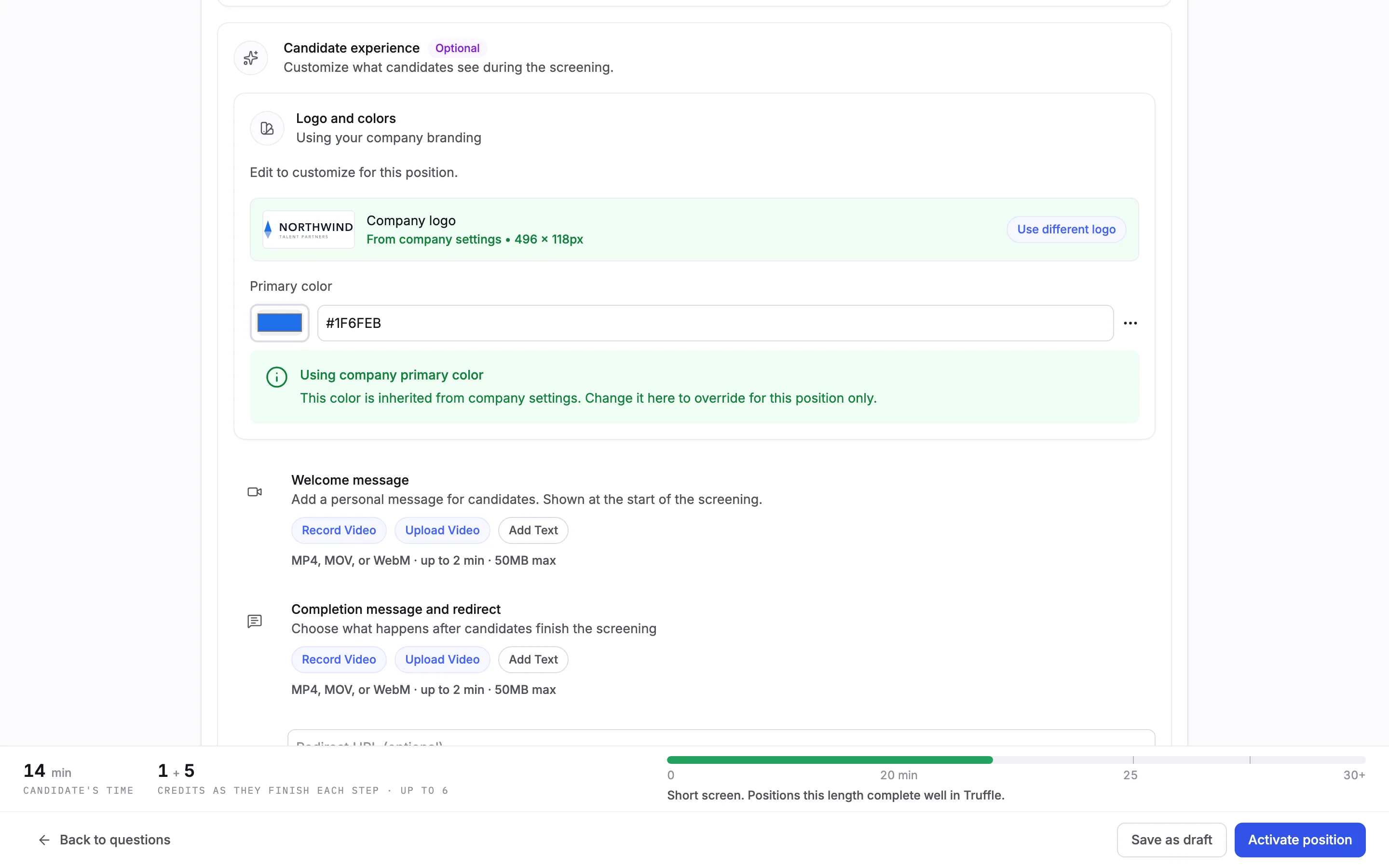
Further down Review, Candidate experience sets what candidates see. Under Logo and colors, the position starts on Using your company branding: the company logo and the primary color from your company settings. Choose Use different logo or change the color to override them for this position only. You can also add a welcome message and a completion message.
9What candidates see first
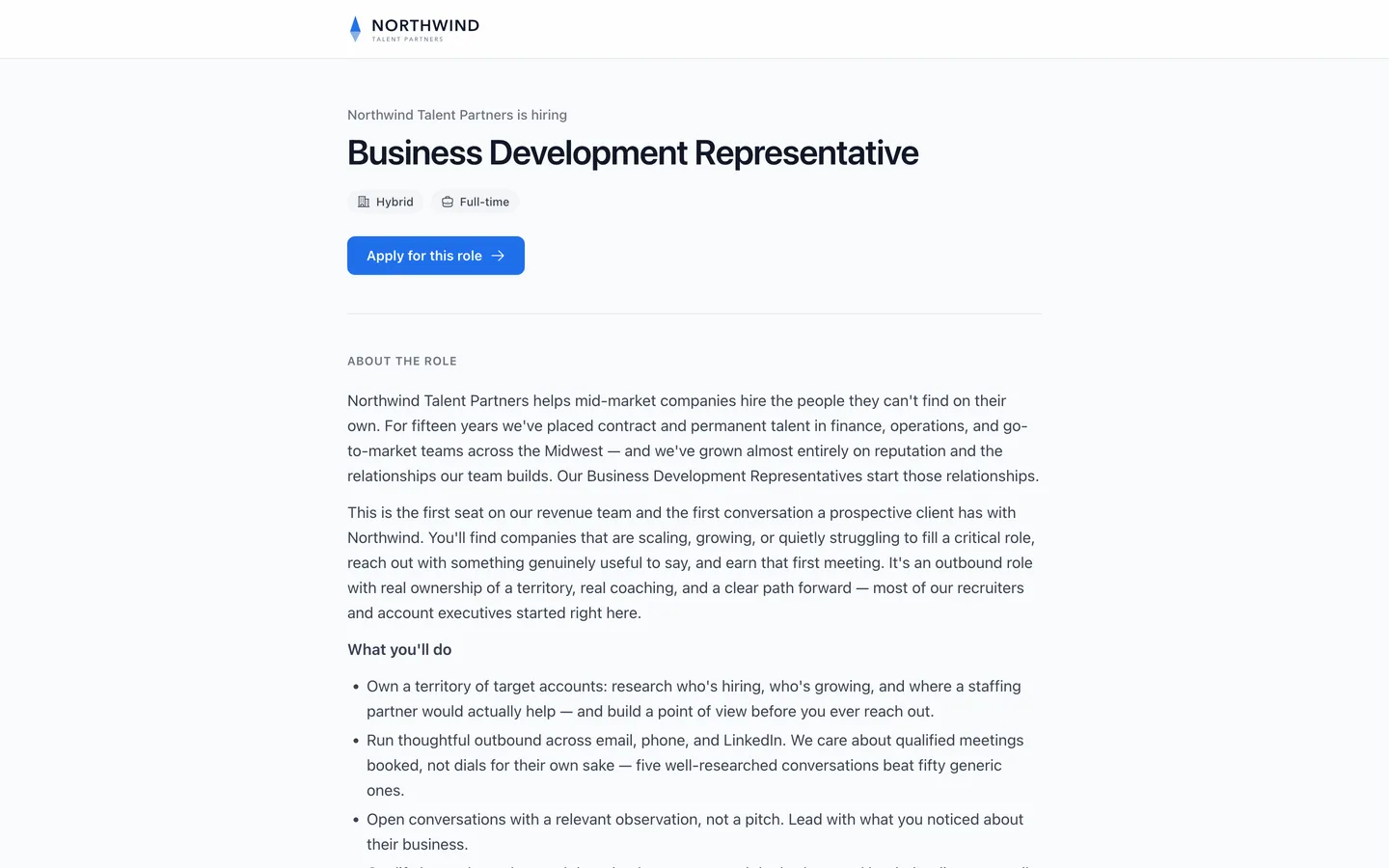
Once the position is active, it has a hosted job page. Candidates see your logo, is hiring, the role title, its location type and employment type, Apply for this role, and your description. The page footer reads Powered by Truffle and says that hiring decisions are made by your company.
10Candidates upload a resume
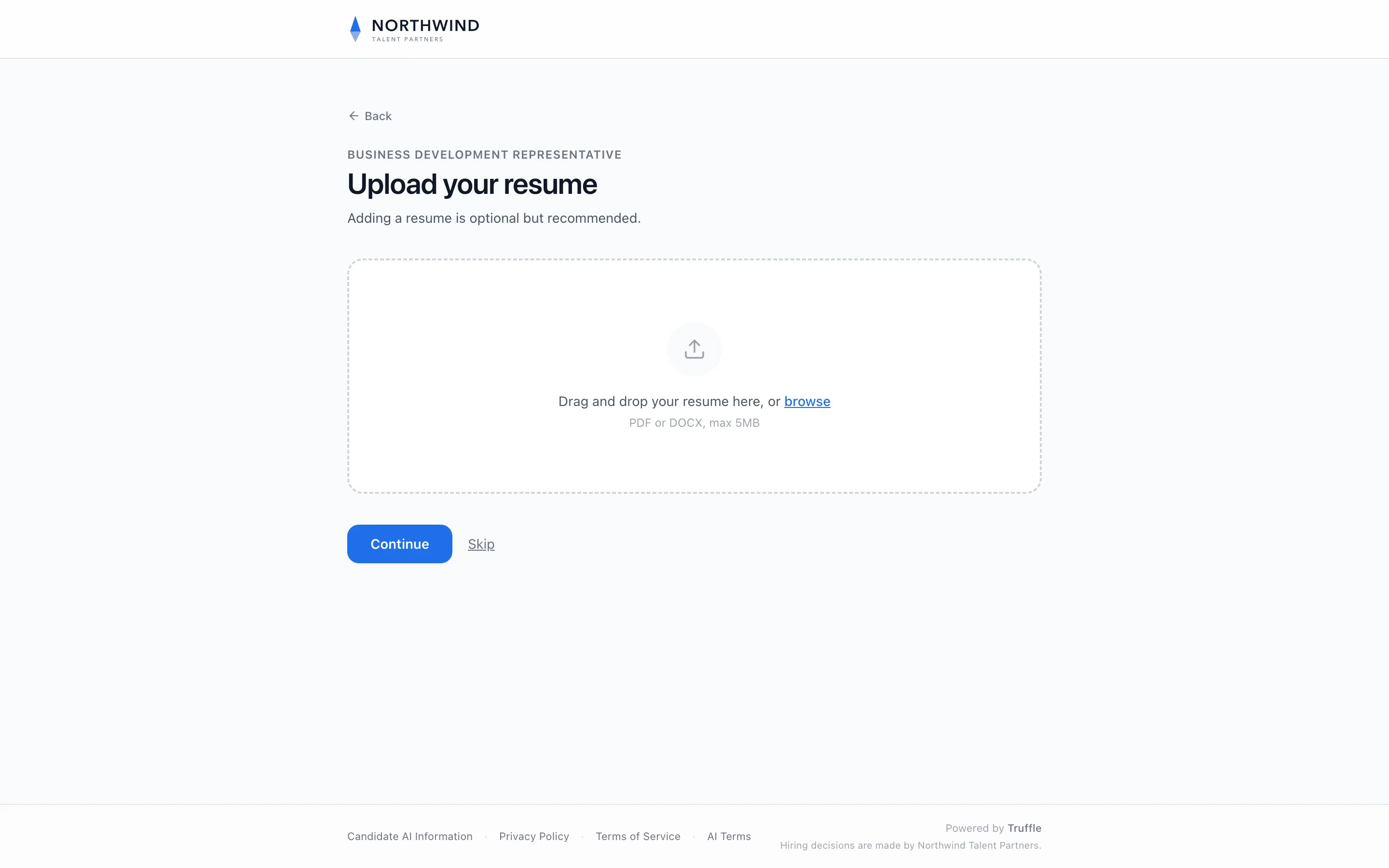
Apply for this role opens Upload your resume. Candidates drag in a file or browse for one: PDF or DOCX, max 5MB. There is no account to create. The step says whether a resume is required. Our new position, with Resume on, read A resume is required for this position. The live position in these stills reads Adding a resume is optional but recommended.
11Candidates confirm their details
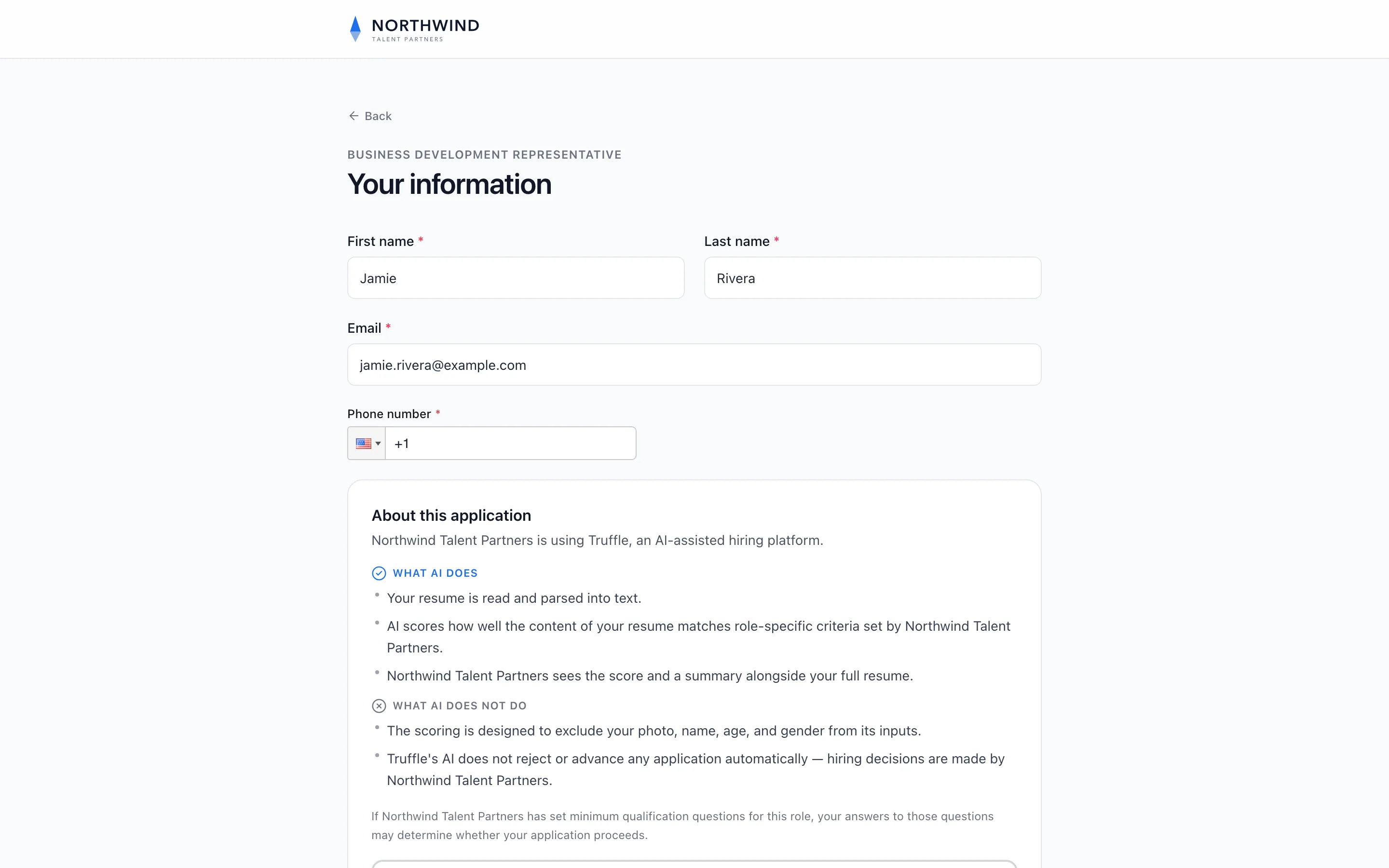
The resume is read in the candidate's browser, and Your information opens with the name, email and phone number it found, for the candidate to confirm or correct. Below the form, About this application says what AI does and does not do with their resume, including that Truffle's AI does not reject or advance any application automatically. A checkbox asks the candidate to consent to AI scoring of their resume. Then they choose Continue.
Note. If nothing can be read from the resume, the candidate types their details in.
12Candidates answer your checks
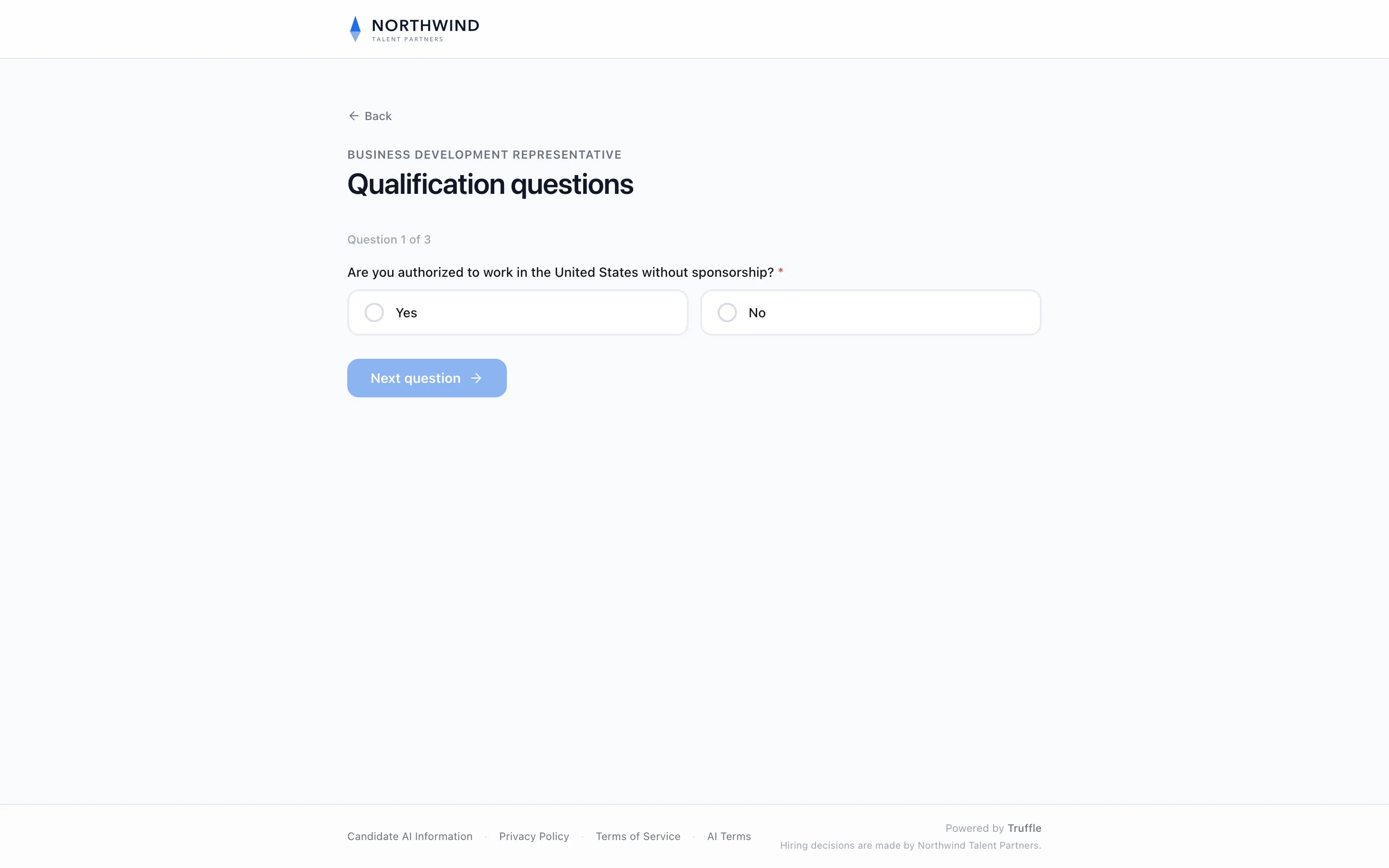
Next come Qualification questions, one at a time, such as Question 1 of 3, with Next question to move on. After the last question the candidate submits. With Apply first, their resume is scored against your criteria and ranked, and they wait in your list until you invite them to the interview.
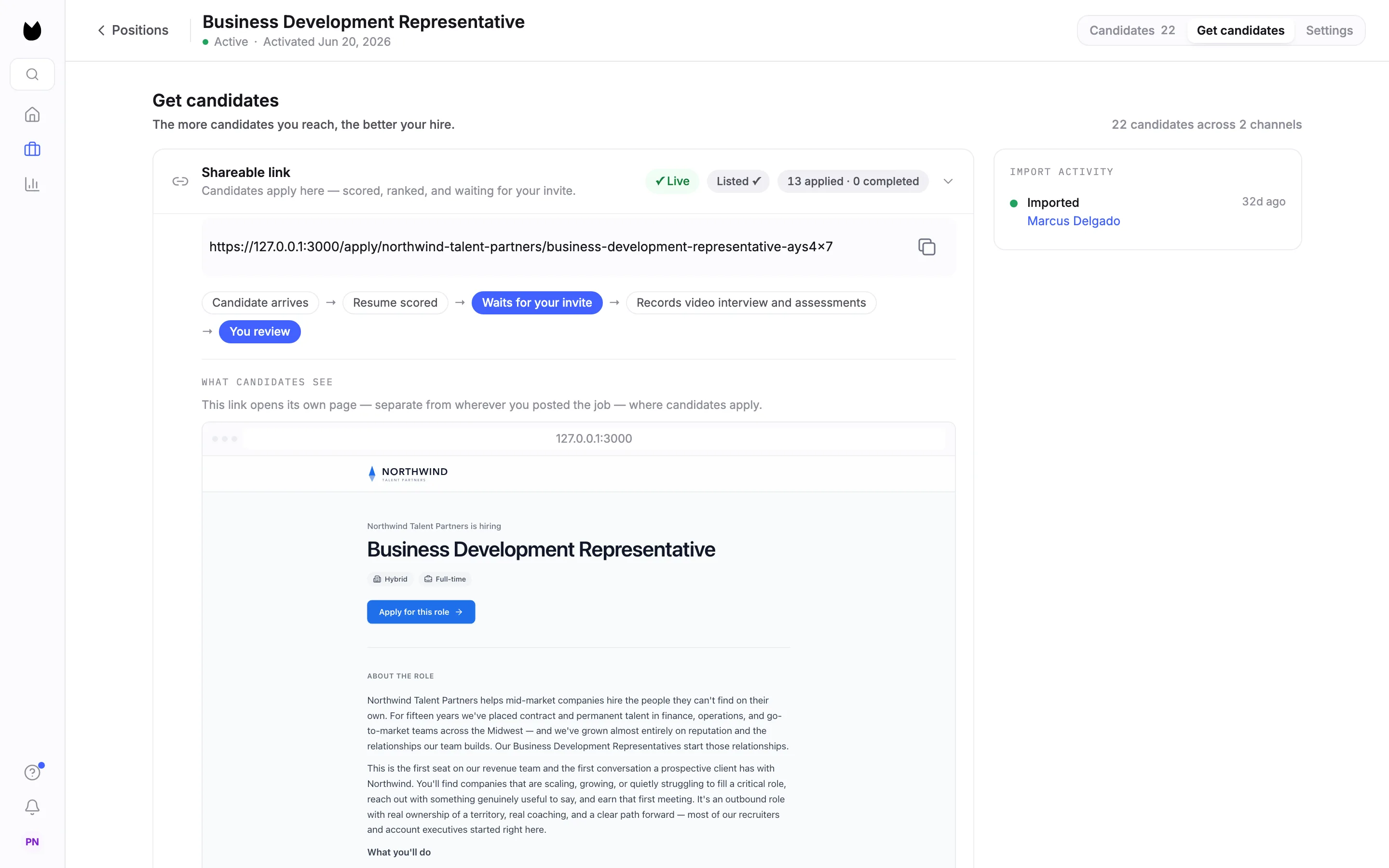
13Share the Shareable link
Open the position and choose Get candidates. The first row is Shareable link: Candidates apply here, scored, ranked, and waiting for your invite. Open it to see the link to your job page with a copy button, the flow candidates follow, and a preview under What candidates see. Post the link on job boards, in social posts, or in an email.
Note. List this job publicly, in the same row, shows the role on your careers page. The row also offers a link that skips the apply step: anyone with it goes straight to the screening, and their resume is still collected and scored.
14Share your careers page
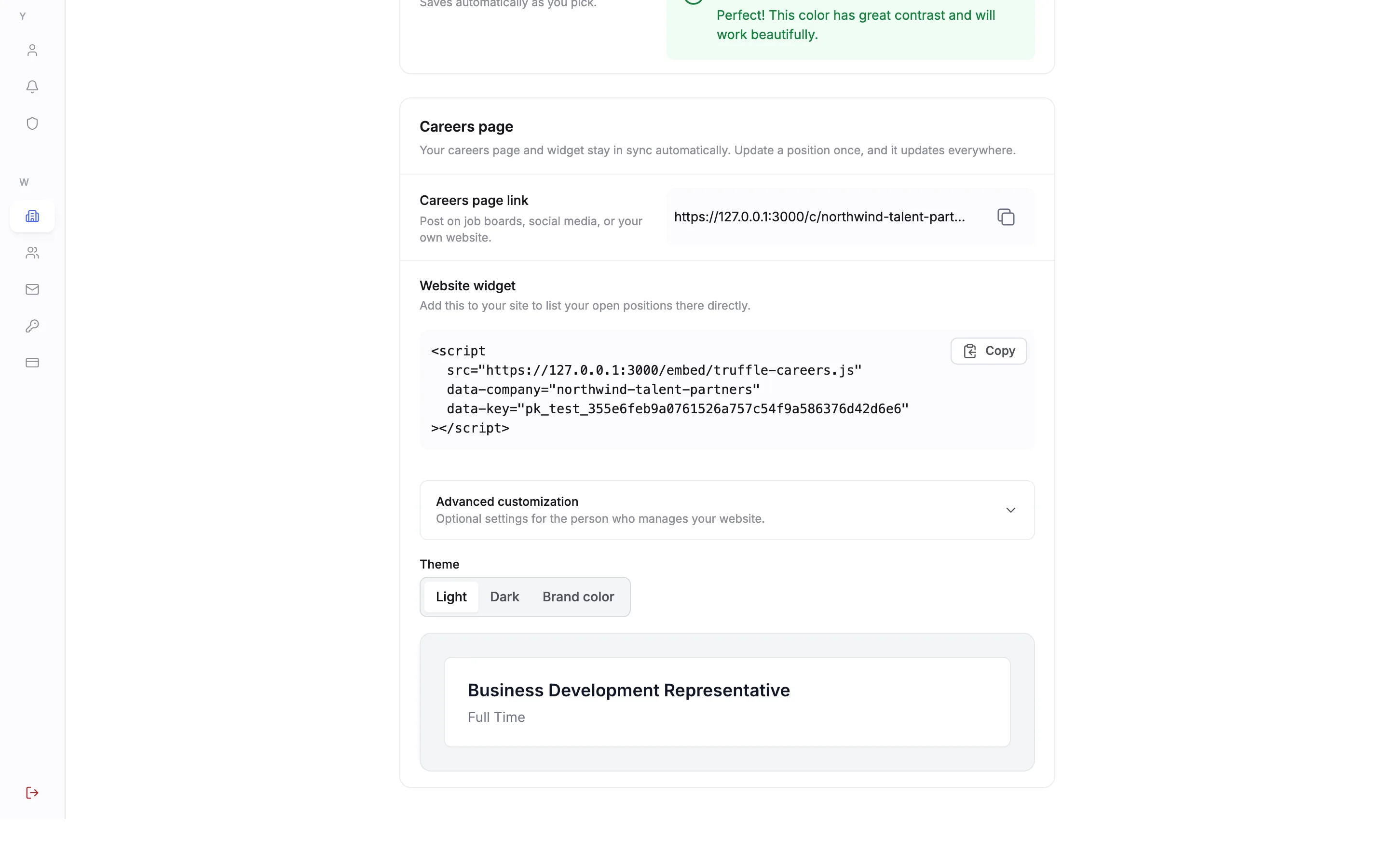
To share every open role at once, go to Settings, Company profile, Careers page. Copy the Careers page link to post on job boards, social media, or your own website. Each role on the careers page links to its job page. Website widget gives you a snippet that lists your open positions on your own site. The careers page and widget stay in sync with your positions automatically.
Questions
Do candidates need an account to apply?
No. Candidates open your job page, choose Apply for this role, upload a resume, confirm their details and answer your qualification questions. There is no account to create.
What does Apply first mean?
Candidates send a resume, it is scored against your criteria and ranked, and they wait in your list until you invite them to the next step. You choose who continues. The other option, Apply and finish in one sitting, has candidates complete the next step in the same session.
Does Truffle reject candidates based on their application?
Scores never reject anyone. Each resume is scored against the criteria you reviewed, with the reasoning shown, and you decide who continues. The only automatic rejection in Truffle is a qualification check you set to Reject automatically.
What resume files can candidates upload?
PDF or DOCX, up to 5MB. The resume is read in the candidate's browser, and they confirm the details it found. If nothing can be read, they type their details in.
How many credits does an application use?
With Apply first, 1 credit for each candidate who applies, for the resume screening, then 5 more for each person you invite who finishes the video interview. Credits are charged per step a candidate finishes. The 7-day free trial includes 30 credits, with no credit card.
Which link do I share?
Share the position's Shareable link, from Get candidates, for one role. Share your Careers page link, from Settings, Company profile, to list every open role. The Website widget lists your open positions on your own website.
Can I check the job page before candidates see it?
Yes. On Configure screening, choose Preview as a candidate to open the job page in a new tab. On a live position, Get candidates shows a preview under What candidates see.
Related
See something here that doesn't match what you see in Truffle? Tell us and we'll fix the page.