Concepts
Reviewing candidates
How you go from a list of finished candidates to a decision on each one.
Checked against the live product 5 Oct 2026 Changelog Copy as Markdown
Once a candidate finishes your screening, Truffle puts them in front of you with the AI’s analysis attached. You read it, decide, and move on to the next one. The AI surfaces and scores against your criteria. You make every call.
Where candidates land
The Home queue
Home is the first screen after you log in. Its Ready for review queue is one table of every candidate waiting for a decision across your positions, sorted Sort: Oldest waiting. Each row shows the candidate’s stage and how many days they have waited, the position, their signals and a Decide control. The table shows 8 rows, then a line such as 6 more waiting links to the rest. View all opens the full list.
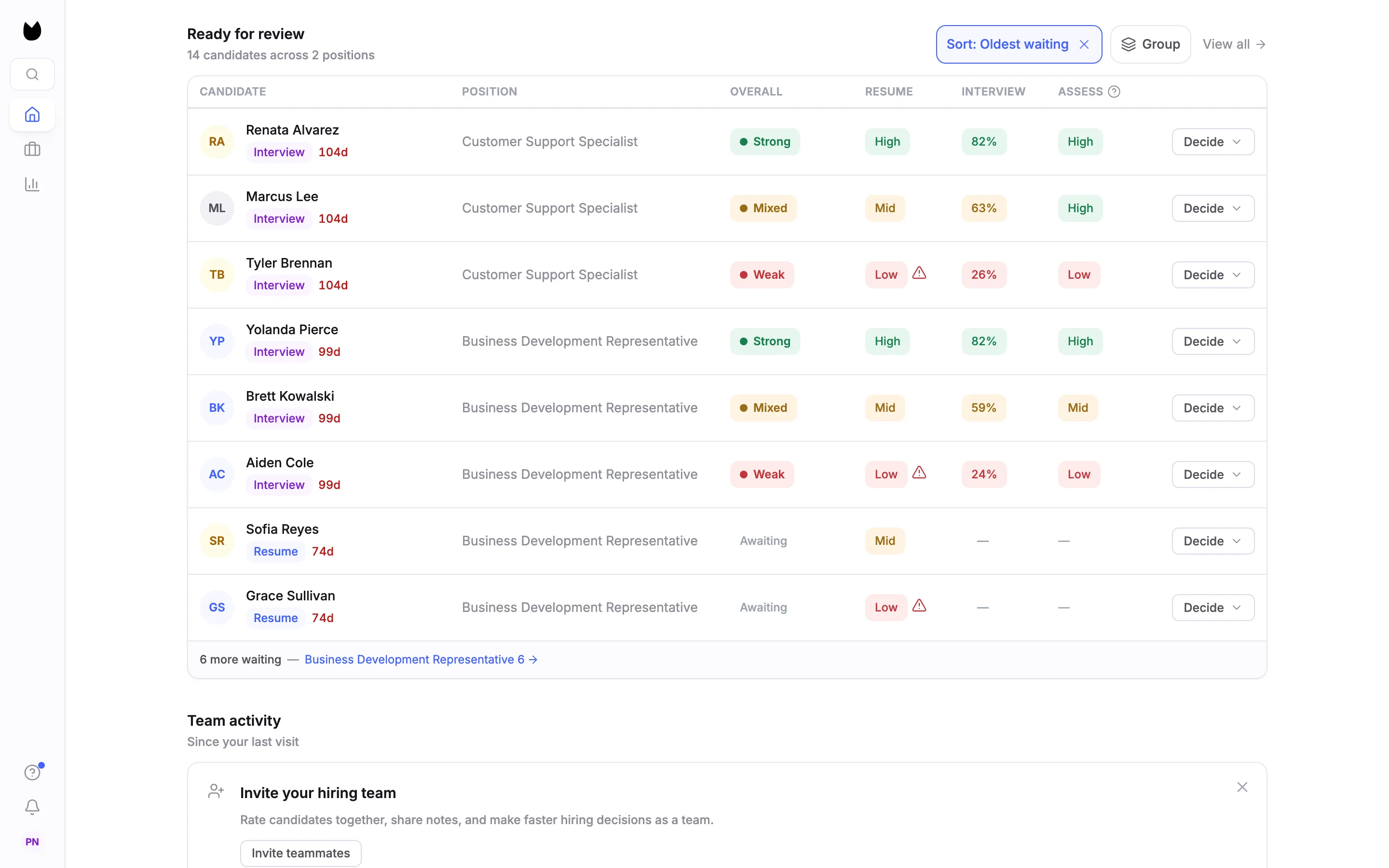
Choose Group to split the queue into one table per position. Each group opens expanded, with a header that shows how many candidates wait and the range of their match scores.
Click a row and Truffle opens that position’s candidate list on the For Review tab, filtered to the candidate’s stage.
Home also shows a Team activity feed of what your teammates have done, such as dispositions and ratings. Clicking an event opens that candidate’s profile.
If a candidate has asked for an alternative to the video screening, the request appears on Home under Action needed, with Reach out and Mark handled, and as a banner in the candidate list. Alternative requests walks through handling one.
The candidate list
Each position has its own candidate list, reached from Positions in the sidebar or from a row on Home. A stage switch at the top, such as All, Resume and Interview, picks the stage you are looking at. Under it, four tabs split the candidates: For Review, Reviewed, Incomplete and All.
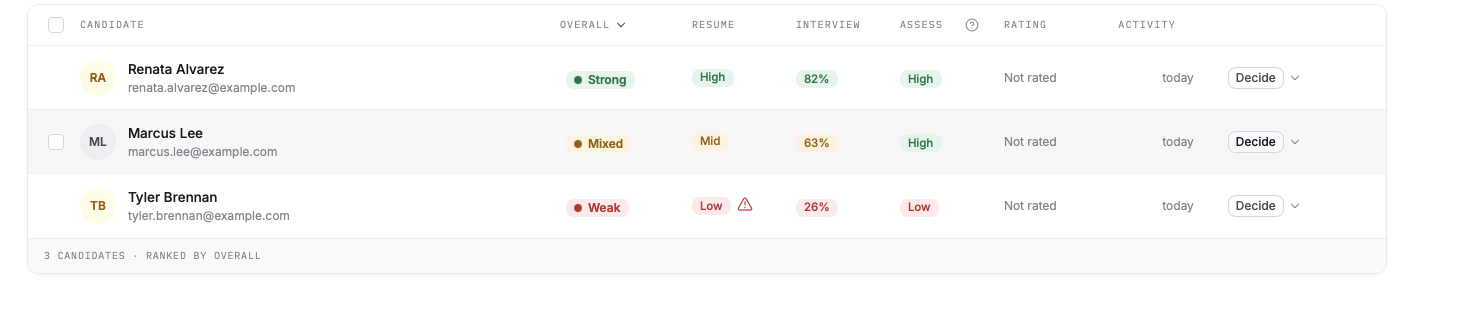
The columns are Candidate (name and email), Stage, Overall, Resume, Interview, Assess, Rating and Activity, plus a Decide menu on each row. The signal columns show only what the position measures: Overall (Strong, Mixed or Weak), Resume and Assess (High, Mid or Low) and Interview (the match score as a percentage). A candidate who was not scored, or who opted out, is labelled that way. How scoring works explains the signals.
Click a candidate’s name to open their full profile.
Candidates who have not finished
A candidate who starts the interview but does not complete it gets an automatic reminder email after 24 hours and a second after 72 hours. You can also send a reminder by hand from the candidate’s profile, once every 24 hours. All of these emails are on by default. You can turn them off in the position’s settings.
Working through the list
Magic Review
Magic Review is the focus view of a position’s candidate list, and where most reviewing happens. On the list, choose the Focus view toggle next to the search box. The list stays on the left and one candidate opens on the right, so you never lose your place. Under the candidate’s name, a signal rail shows each signal the position measures, and the action bar sits at the bottom. Magic Review works on the For Review and Reviewed tabs. Review candidates in Magic Review walks through it step by step.
The decision keys are printed on the Advance, Hold and Reject buttons in the action bar:
| Key | What it does |
|---|---|
| A | Advance the candidate |
| H | Put them on hold |
| R | Reject them |
| ↑ ↓ | Move to the previous or next candidate |
| Backspace | Clear the decision |
Keys do nothing while you are typing in a field. Shortcuts that use Cmd or Ctrl, like refresh or find, go to your browser and do not change a candidate’s status.
Magic Review has no Hire button. To mark a hire, use the Decide menu on the candidate’s row in the list view. Full Profile in the action bar opens the candidate as a full page, and that page’s back arrow returns you to Magic Review on the same candidate. Positions, at the top left, always takes you to your Positions list. List view returns you to the table.
For positions with assessments and no video, the video sections are hidden and the assessment cards become the main review surface.
The candidate profile
Every candidate has a full profile. Open it by clicking a name in the list view, or with Full Profile in Magic Review. The header carries the Overall signal, a counter with arrows to the previous and next candidate, and the status control. Read a candidate profile covers every tab. There are five:
- Overview: the interview-based
Candidate summary, Candidate Shorts, and a card for each assessment the position uses. - Profile: contact information, the country the candidate submitted from, and qualification check results.
- Resume:
Scores at a glance, a resume-based summary,Resume signals,Criteria match, and the resume itself inStructuredandPDFviews withDownload PDF. - Assessments: one section per assessment the position uses.
- Screening: each interview answer with its video, transcript, and how it scored.
The Candidate summary on the Overview tab opens collapsed on a one-sentence read. Expanded, it lists key insights: one line per competency with what the answers showed. The resume-based summary on the Resume tab lists strengths, questions worth exploring in the interview, and any gaps against the resume criteria. Resume signals give tenure and skills alignment, labelled for context, not scored. Candidate Shorts are short clips from the interview, each tagged by competency, timestamped and transcribed, with a note on why it matters.
Narrowing the list
On the candidate list you can filter by status, by signal and by date applied. Filters combine.
- Status: Advance, Hold, Rejected, For Review.
- Signal: Overall, Resume, Interview, Assessment.
- Date applied: Today, This Week, This Month, All Time.
You can sort by any column header.
Recording a decision
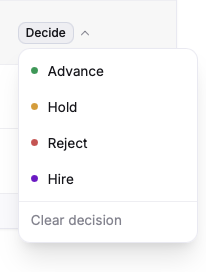
Each candidate carries a decision. Open the Decide menu on the candidate’s row and choose Advance, Hold, Reject or Hire. Clear decision takes it back off. In Magic Review the keys do the same for Advance, Hold and Reject, and Backspace clears the decision. On the full profile, the status control at the top right does the same.
To move many candidates at once, tick their checkboxes in the list. A bar appears at the bottom of the screen with advance, hold, reject, hired and delete.
Alongside the disposition, you can leave an internal note and your own star rating on the profile. Each reviewer’s rating is theirs alone. Working as a team covers ratings, notes and structured reviews.
Deleting a candidate
Delete removes a candidate and all their data from the position, including video recordings, assessment results and notes. They disappear from every list, filter and search straight away. Delete is in the row menu, the profile menu, and the multi-select bar.
You can delete a candidate who has not finished their interview. Their interview link stops working, and the confirmation warns you of this. Deleting five or more at once asks you to type DELETE to confirm.
Deciding moves a candidate from For Review to Reviewed, where a status column shows Advanced, On hold, Rejected or Hired. Hire asks you to confirm and then offers to close the position. Decisions send no email to the candidate. Make a decision walks through the menu, the keys and the selection bar.
Sharing and exporting
Share links
Share a candidate with someone who has no Truffle account through a secure, read-only link. Open Share & export from the share icon on the candidate profile, the Magic Review action bar, or, for several candidates, More then Share & export… on the selection bar.
The panel starts from an audience: Hiring team, External share or Interview record. The audience sets what the link carries, and a plain summary tells you what is in and what is left out before you create it. You can then:
- Turn individual content groups on or off.
- Set the link to expire after 7, 30, 75 or 180 days. Hiring team and Interview record links default to 75 days, External share to 30.
- Add a password.
Contact details and the resume file are off for every audience until you turn them on. Interview prep notes are marked Internal only and cannot go on an external or record link. A candidate can have several live links at once. Each is listed with its audience, creation date, expiry and password state, and each can be copied or revoked on its own. Truffle does not email the link for you: copy it and send it yourself. On annual plans a candidate can hold more than one live link, and the 180-day expiry is available. Share a candidate walks through it.
Export
To export the tab you have open, use Export all in the candidate list’s ⋮ menu. To export some candidates, select them and choose More then Export selected. Exports are CSV, with status labels that match what you see in the app, for reporting, analysis or syncing with other tools.
For a printable record, the Share & export panel’s Document section makes a PDF with the full transcripts, QR links back to the live responses, and footers saying what the document is, plus a print view. On annual plans, several candidates come as one zip file. The PDF, the print view and the zip each create or reuse a share link, which then appears in the candidate’s list of links. Export candidates shows each option.
Finding someone later
Search the whole account from the sidebar search bar, or press ⌘K on any page. Results include candidates, with status chips and signal dots, and positions, with their status. Use the arrow keys and Enter to open one.
Inside a single position, the search box above the candidate list filters by name or email as you type. It works on every tab.
Tracking review pace
Analytics, in the sidebar, opens on an overview of the last 30 days. Four cards sum up the account: Active positions, Candidates screened, Avg. completion rate and Awaiting review. The time filter (7 days, 30 days, 90 days or All time) applies only to this overview.
Below the cards, every active position has a card with a small funnel. Positions with candidates to review come first, and each card shows how long the oldest unreviewed candidate has waited as a pill, such as oldest: 98d. Closed positions are on the Closed tab.
Open a position to see:
- Candidates, with where they came from.
- Completion rate, average match score and average time to review.
- The screening pipeline: every stage in order with its count and, once rates show, the percentage that came through from the stage before.
- Disposition: how completed candidates split across Advanced, Hired, On hold, Rejected and For review.
- Completion by channel, shown only once 10 candidates have started and the position has two or more channels.
The position page has no time filter. Rates read Too early until a position has 10 started candidates. Use Analytics walks through both pages.
What it does not do
- The AI does not advance, hold, reject or hire anyone. Every disposition is set by a person.
- Deleted candidates cannot be restored in the app. The confirmation says “This action cannot be undone.”
- Share links are read-only.
- Interview prep notes cannot be added to an external or interview record link.
- The PDF export is not available for a selection without interview responses. Bulk PDF zips are annual plans only.
- Manual reminders cannot be sent more than once in 24 hours for the same candidate.
- Magic Review has no Hire button. Hire is in the
Decidemenu on the list. - Rates in Analytics read
Too earlyuntil a position has at least 10 started candidates. - The Analytics time filter does not apply to a position’s own page.
- Global search does not return deleted positions or demo jobs.
Related
See something here that doesn't match what you see in Truffle? Tell us and we'll fix the page.